MSA TMS
User Guide
Every screen in the app, what it is for, and how to do the jobs that run the week — for dispatchers, fleet, accounting and safety.
?Something's wrong — check this first
Stuck? Check these before asking IT — most of the time it turns out to be a filter, a permission, or a date. Open the question that matches what you're seeing.
If you're not sure how something is meant to work, find its section in this guide and read it — that answers most questions on its own. If you've done both and you are still stuck, then ask the IT team.
I can't find a load
- Clear the filters — a status pill, dispatcher team, driver or PU date range may still be set from earlier.
- Search the load number in the top bar, which looks across the whole system rather than the filtered list.
- Was it redelivered? A split load is renamed — look for …p1 and …p2.
- Was it deleted? Deleted loads go to Settings → Archive, where they can be restored.
A load is missing from the Gross Board or a statement
- Check the load's Week Split first. If its weeks don't match the pickup and delivery dates, the load is filed under a week nobody is looking at. This is the usual cause.
- Check the week you're viewing — the board and the statement roster each have their own week chips.
- Team load? It sits on the Driver Team's row, not under an individual driver.
The Gross Board or the Load Board is empty
- Check the week's Dispatch Teams first. Both boards build their rows from the dispatch teams belonging to the week you're looking at, and every week starts empty — a team set up last week does not carry itself over. If nobody has built or imported that week's teams yet, there are no rows to show.
- Build them — open Dispatch → Dispatch Teams, pick the week, and use Import to carry the previous week's teams over, or create them from scratch. See How to set up a week's dispatch teams. The boards fill in as soon as the teams exist.
- Check the week you're viewing — it's easy to be a week ahead of the one that has been set up.
- Only one team missing? That team wasn't created for this week, or its drivers weren't added to it. Open the week's roster and check its members.
I can't change the rate — the edit pencils are gone
- Is there a lock banner? A statement already covers the load, so the rate, miles, week split, driver and truck are fixed. An Accountant or Manager can still change it — see Locked after statement.
- Is someone else in it? You'd see Load is currently being edited with their name. Use Try Again once they're out. A forgotten tab lets go after 30 minutes, and an admin can Take Over sooner.
- Did you open it from Archive? Archived records are read-only for everyone, admins included.
- Does your role allow it? Buttons you don't have permission for are hidden rather than greyed out.
I can't set a load to En route or Delivered
- En route needs a Rate Confirmation on the load.
- Delivered needs a POD.
- Cancelled needs the Tonu filled in before Save will work.
- A delivery time can't be earlier than the pickup time.
I can't change a driver's truck, status or dispatch team
The driver is in a Driver Team. The truck, the status and the dispatch team belong to the team and are set on the team's page — the driver's own page shows Managed via Driver Team.
Steps: pair two drivers for a weekThe statement numbers look wrong
- Check the week on the roster, and the load's Week Split.
- Check the driver's rates — solo and team rates are separate, and
a rate typed as
75instead of0.75pays a hundred times over. See Pay types & rates. - Cancelled or rejected loads pay empty miles only; the TONU is company revenue.
- Was a deduction added automatically? Check Deduction Types.
A menu item I used to have has disappeared
- Did it move? Brokers, Truck Owners and the leasing companies are under Providers; Archive is under Settings; Partner Companies is now Trailer Leasing Companies; Fuel Card was removed from the app.
- Was your role changed? Ask an admin to check it under Settings → Users. A permission change reaches you within about five minutes, or when you return to the browser tab.
Times and dates look off by a few hours
TMS shows and accepts everything in Eastern time, whatever your computer is set to. See Carrier week & time zone.
Steps: change the pickup or delivery stopsA page won't load, or spins forever
- Hard refresh: Ctrl+Shift+R. This reloads the page without using anything the browser has saved.
- Log out and log back in. That gets you a fresh session, and fixes most cases where the app loads but behaves oddly.
- Clear the site's saved data. In Chrome or Edge, click the icon to the left of the address, choose Site settings, then Delete data — or press Ctrl+Shift+Delete and clear Cached images and files. Then load the app again and sign in.
- Check your internet connection. If the app can't reach the server, you're sent to a maintenance page.
- Try another browser to rule out an extension.
How do I switch carrier?
Log out and log back in. If your account belongs to several carriers, the Choose workspace screen appears after you sign in.
Steps: sign inHow do I reset my password?
Click Forgot password? on the sign-in screen and follow the emailed link. If you're already signed in, use Change password in your Profile. An admin can also set a new one for you from Settings → Users.
Steps: change it from your profileWhich browser should I use?
A recent Chrome, Edge or Firefox. The app needs a current browser — very old versions may not render every screen correctly.
How do I…?
Every step-by-step in the guide, in one place. Each one is written as numbered steps — follow them in order.
What's new
What changed between June and September 2026. Each card links to the section that explains it in full.
Driver Teams
Pair two drivers for a carrier week. The team has its own status and truck, shows as one row on the boards, and its loads pay both members.
Fleet Board
Trucks low on fuel, close to a PM, or out of service — fleet health on one screen.
Dispatch Board
Drivers sitting ready, loads on hold, and loads running late.
Driver statements
Company, Lease and Owner statements, plus the Truck Owner Statement — with deductions, debt and automatic drafts.
P&L per Truck
Weekly profit and loss for every truck, with any figure open to override.
Automation
Rules that act on their own — on an event, a schedule, or an incoming webhook.
Dispatch Teams run by week
Every week has its own roster. Copy the last one with Import and adjust.
PM requests
Fleet asks, dispatch answers, fleet can overrule. A red PM badge flashes on the Load Board while a request waits.
Loads lock after a statement
Once a statement covers a load, only Accountant, Manager and above can change its money and assignment.
Solo and team pay rates
Separate loaded and empty rates for solo and team work, in dollars per mile.
Invoicing in batches
Generate many invoices at once, email them together, and import factoring PDFs.
Eastern time everywhere
Every date and time is shown and entered in New York time, whatever your computer is set to.
New address
The app now lives at app.msatms.com.
Providers is a new menu group
Brokers, Truck Owners, and both leasing company pages moved here. Partner Companies is now Trailer Leasing Companies.
Archive moved to Settings
Deleted records still live there, and can still be restored.
Fuel Card is gone
The page was removed from the app. Fuel purchases live in Accounting → Fuel.
Five ELD and TMSBot
A second ELD provider, and a Telegram bot for sending photo control from a phone.
Overview
MSA TMS is the daily operating system for the carrier. The sidebar is organised into groups:
- Boards — live, action-oriented views: where trucks are, which drivers need a load, what is invoiceable, which trucks need PM.
- Main — the source of truth: loads, drivers, trucks, trailers, and reports (including weekly statements).
- Dispatch — who dispatches whom (Dispatch Teams), which drivers run together (Driver Teams), and recurring Lanes.
- Providers — the companies you work with: brokers, truck owners, and truck / trailer leasing companies.
- Fleet / Accounting / Safety / Settings — specialised areas for the teams who own those workflows.
Most days, a dispatcher lives on the Load Board and the Loads page. A fleet manager lives on the Fleet Board, PM Planning, and Repair. Accounting lives on Invoicing, Reports (statements), and Expenses. Safety lives on Claims.
Loads
Create from a Rate Confirmation, assign, track, and invoice every load.
Drivers & Teams
Drivers, weekly Driver Teams, and weekly Dispatch Teams.
Statements
Weekly driver and truck-owner pay, deductions, and debt.
Fleet
PM requests, repairs, photo control, devices, and shops.
Accounting
Toll, fuel, and unit expenses, with file imports.
Settings
Users, roles, integrations, deduction types, and automation.
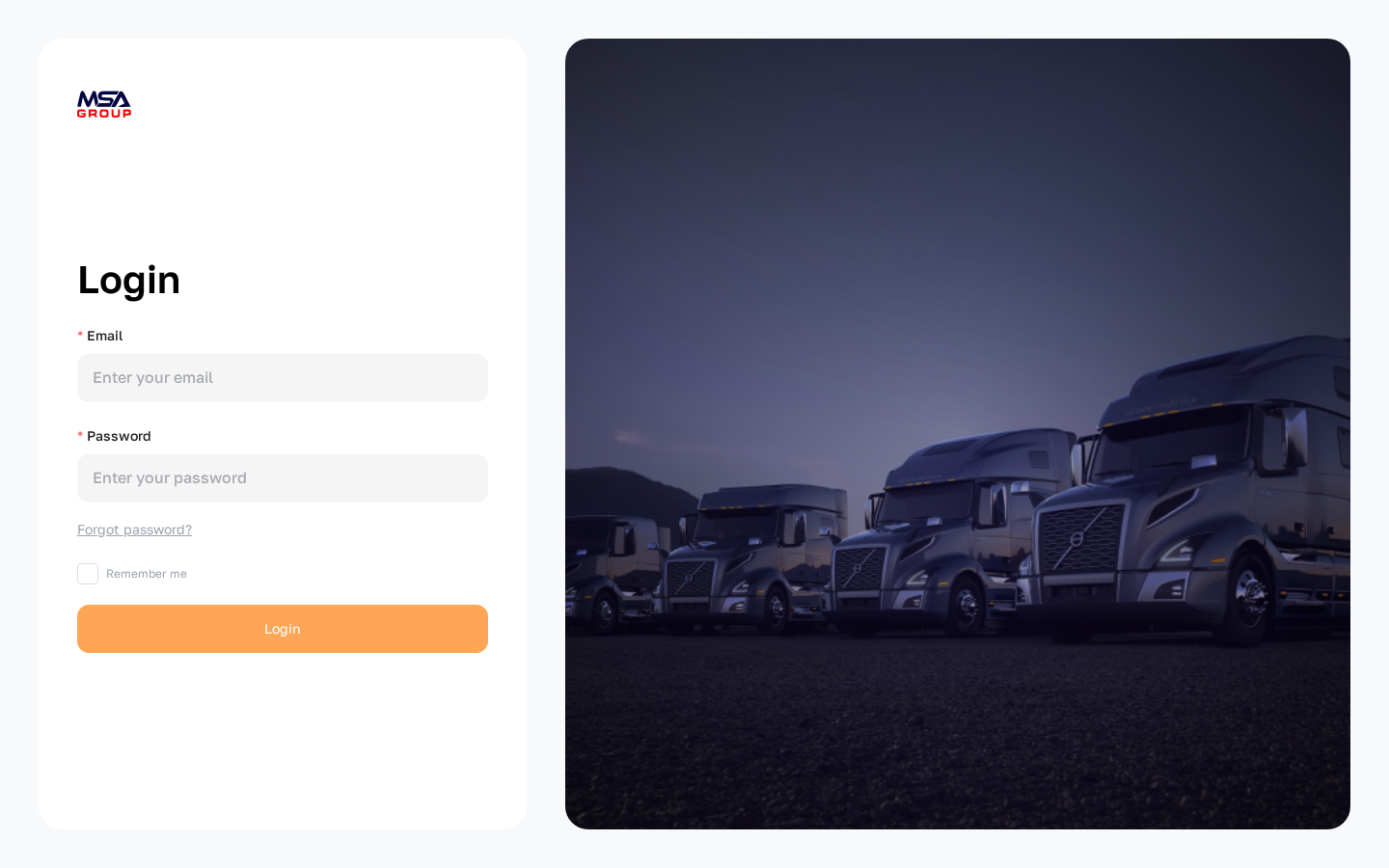
Logging in
MSA TMS lives at app.msatms.com. Use your work email and password to sign in.
- Open the address above in a modern browser (Chrome, Edge, or Firefox).
- Enter your Email and Password.
- Tick Remember me if you'd like to stay signed in on this computer.
- Click Sign in.
If your account belongs to more than one carrier, the Choose workspace screen asks which carrier to work in. To switch carrier later, log out and log in again. A sign-in lasts up to 7 days.
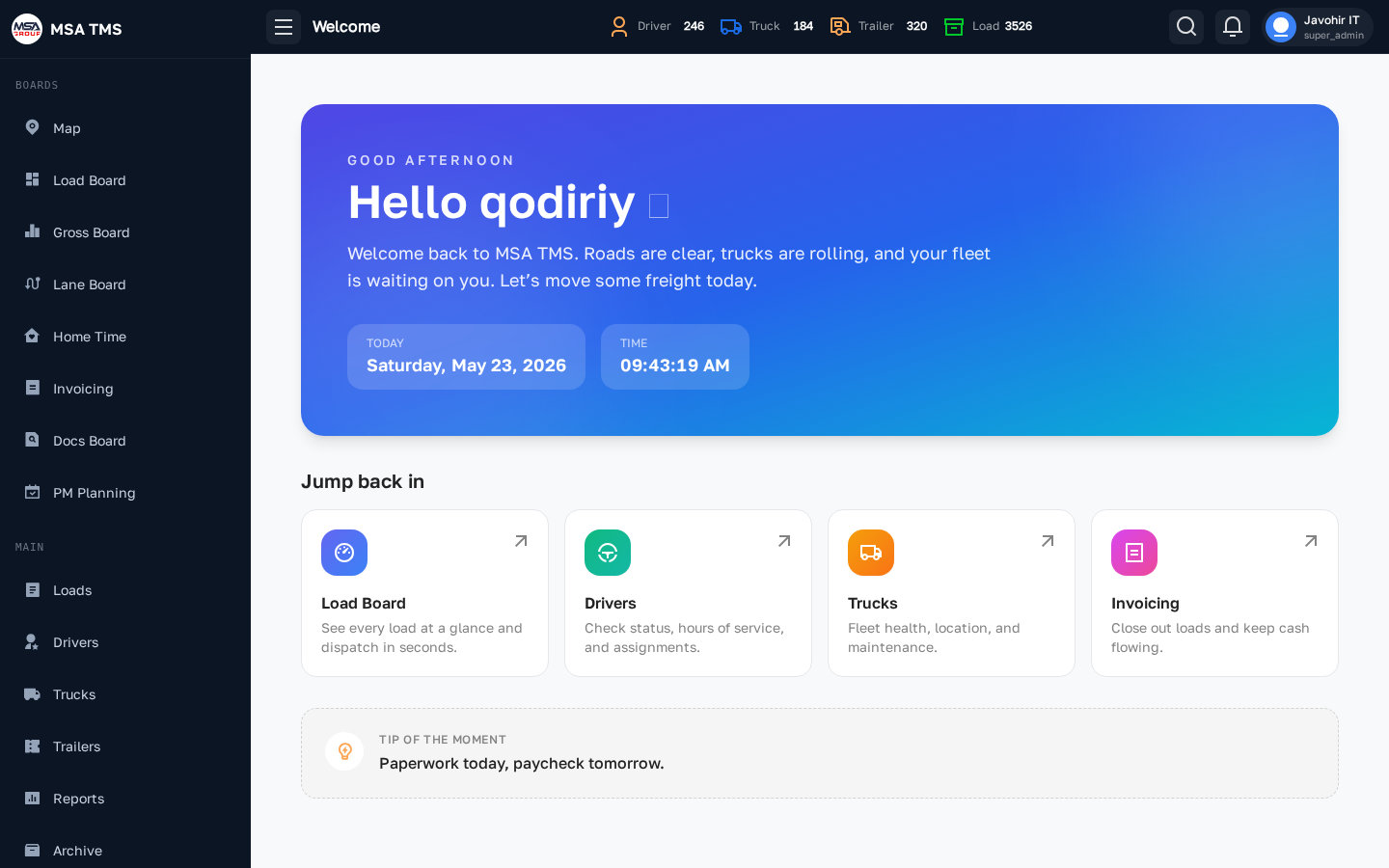
Welcome page
The first screen after login. It greets you by name, shows today's date and a live clock in Eastern Time, and offers Jump back in shortcuts to the most-used screens: Load Board, Drivers, Trucks, and Invoicing.
You also land here if you open a page your role isn't allowed to see.
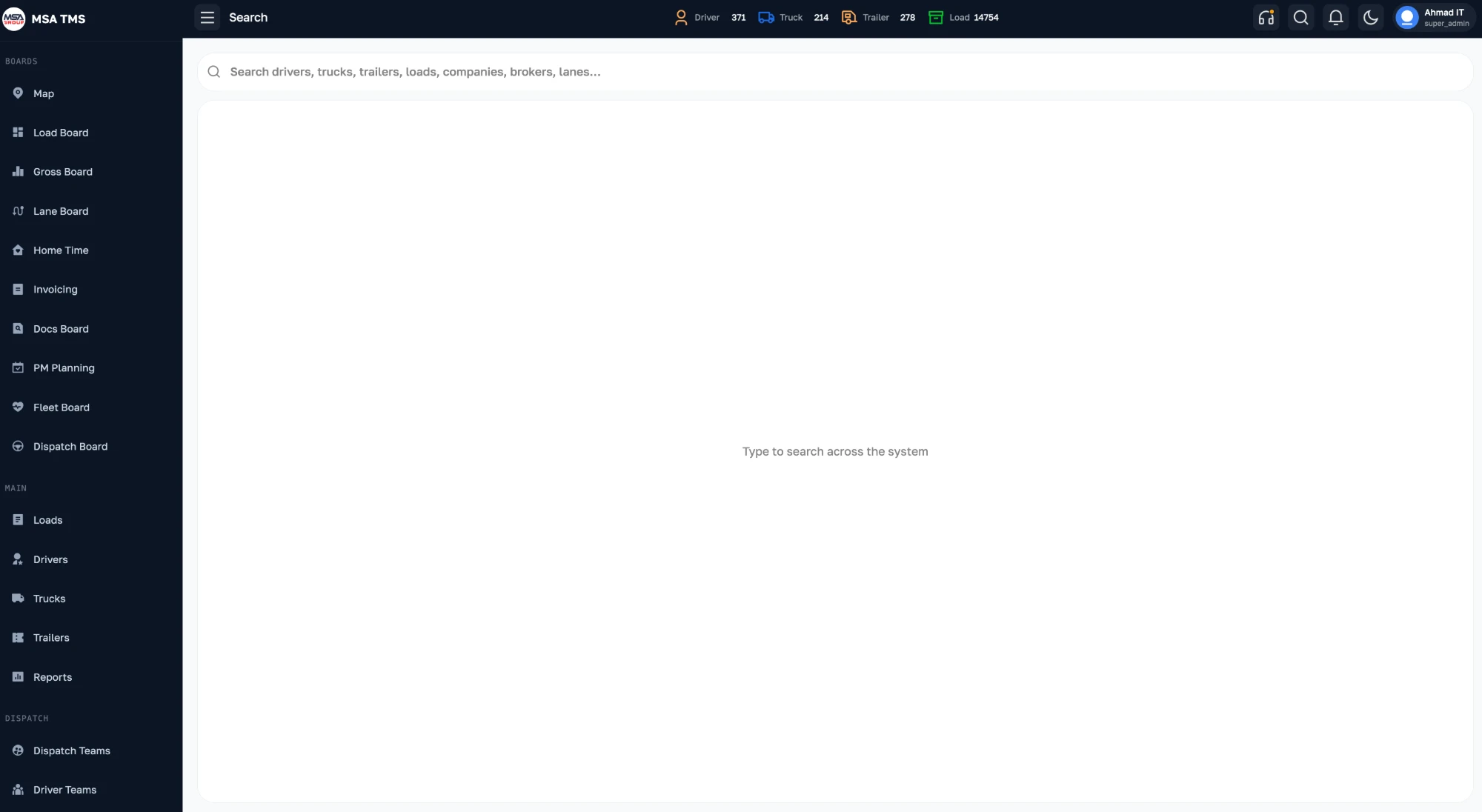
App layout
Every screen uses the same shell:
- Left sidebar — grouped by area (Boards, Main, Dispatch, Providers, Fleet, Accounting, Safety, Settings). The active item is highlighted. The menu button at the top-left collapses the sidebar to icons; on a detail page it turns into a back arrow.
- Top bar — the page title, live counters for Driver, Truck, Trailer, and active Load, the search icon, the light / dark mode switch, and your name and role (click it to open your Profile).
- Global search — the magnifier opens one search box for
loads, drivers, trucks, trailers, companies, brokers, and lanes. Results appear
as you type, grouped by type, up to eight per group; click one to open it. What to
type:
- Loads — the load number.
- Drivers — name, phone number, or email.
- Trucks and Trailers — the unit number.
- Companies and Brokers — the name.
- Lanes — a city or state at either end.
- Main area — most pages have status pills and filters on top, a table below, and an Action column on the right of each row. Click a row to open its Info page.
- Right drawer — adding or editing (status, driver, truck, notes…) opens a form that slides in from the right. Click outside it or press Cancel to close without saving.
Your profile
Click your name in the top-right corner to open the Profile drawer. It shows your name, email and role, and lets you Change password and Logout.
Changing your own password asks for your current one first. If you've forgotten it, log out and use Forgot password? on the sign-in screen, or ask an admin to set a new one for you from Settings → Users.
Boards
Live views of what is happening right now — where the trucks are, who needs a load, what is ready to invoice.
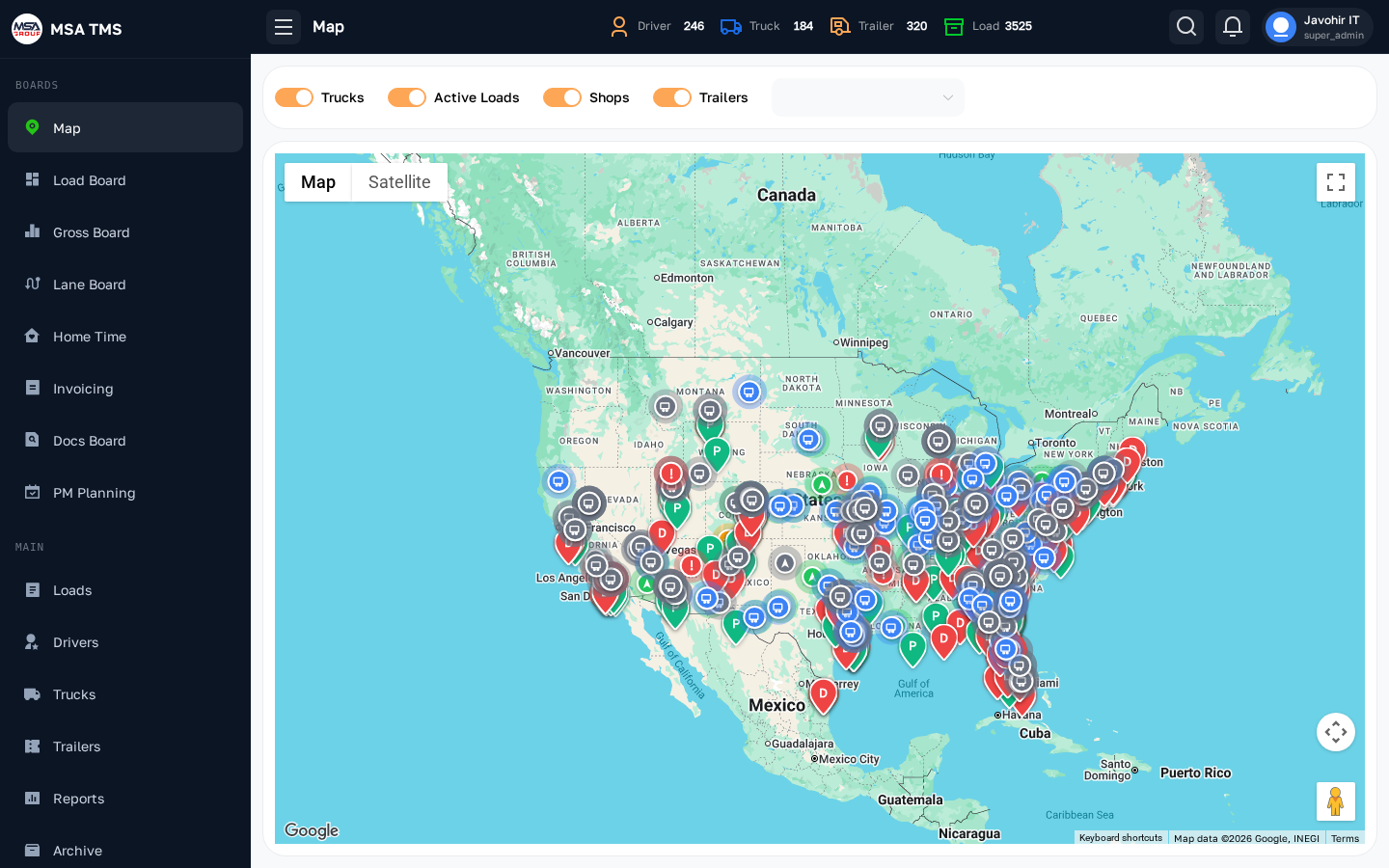
Map
A live map of the fleet. Use the switches at the top to show or hide Trucks, Active Loads, Shops, and Trailers. The search box finds a truck, trailer, load, shop, or address.
- Truck positions come from the truck's ELD (Samsara, OnTime ELD, or Five ELD).
- Active loads show their pickup and destination.
- When Trailers is on, a Trailer Leasing Company filter appears. Returned trailers and trailers in Others status are not shown.
- Click a coordinate to copy it.
Load Board
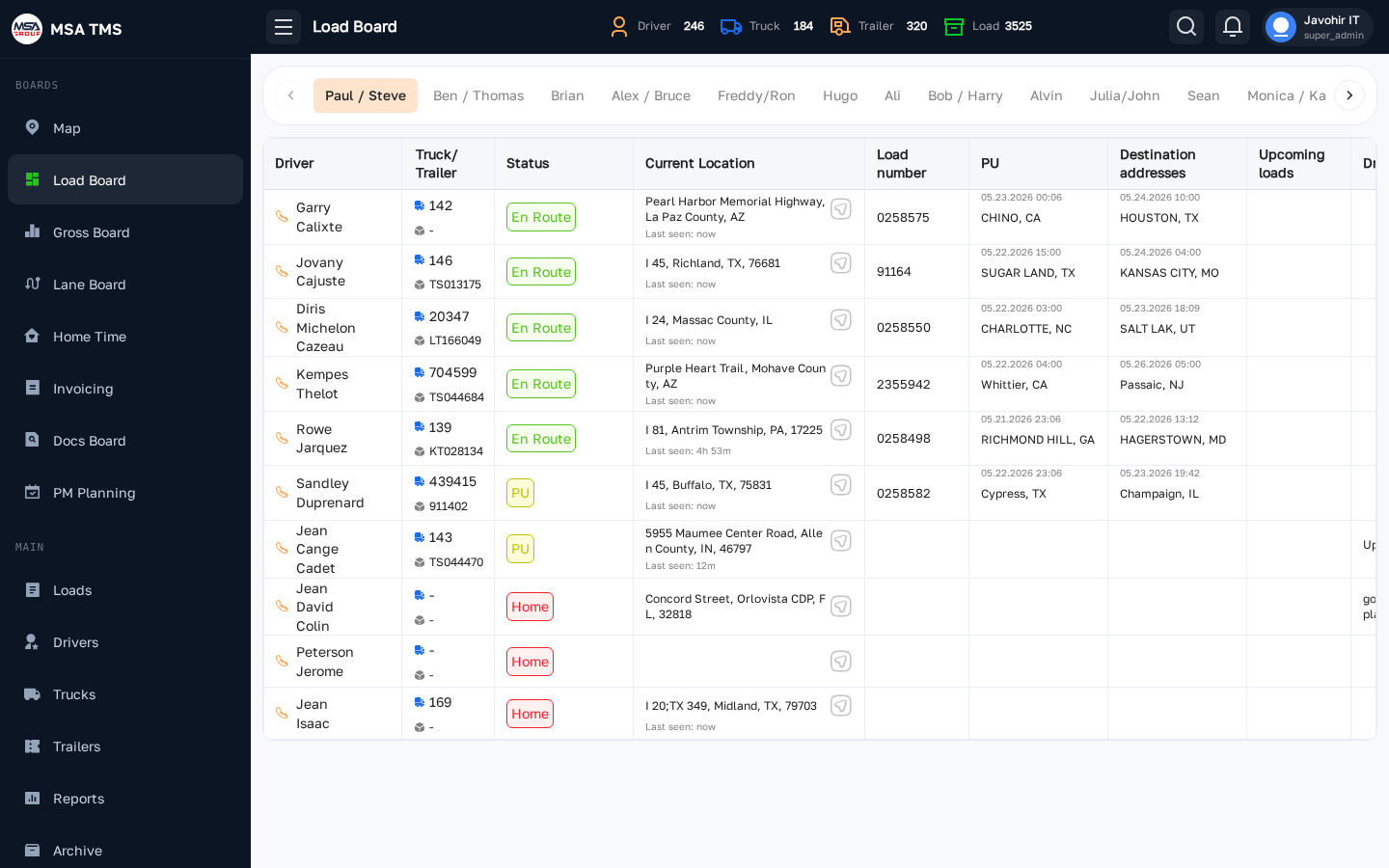
The dispatcher's home base. Each row is a driver (or a Driver Team), with their truck, status, location, and the loads they're running or about to run. Rows are grouped by this week's Dispatch Teams.
Columns:
- Driver, Equipment (truck and trailer), Status, Current Location.
- Active, PickUp, Delivery (with ETA), Upcoming, and OnHold loads.
- Lanes — the driver's lane assignments for the next two weeks (from the Lane Board).
- Driver Notes and Load Notes.
What you can do here:
- Switch between All and Team. In Team mode a bar of dispatch teams appears — drag the tabs to reorder them.
- Click a driver's status to change it (Ready, PU, PU checked in, En Route, Unloading, Home, Hold, Sleeping, OOS, Trailer move, ELD, DOT).
- Click a location to see the truck on a map with speed, fuel, and odometer.
- Add a note to a driver or a load.
Driver Team rows
A Driver Team shows as one row with the team name (click it to open the team), the team's truck and trailer, one location from the truck's GPS, and the team's own status. Team members are not listed again as solo drivers. Team rows are sorted by status together with solo drivers.
The red PM badge
When Fleet has asked for a truck to come in for maintenance, a pulsing red PM badge appears next to the truck and the row flashes red. It stays while the request is Pending or Escalated. Click the badge to open the request and answer it — see PM requests.
Gross Board
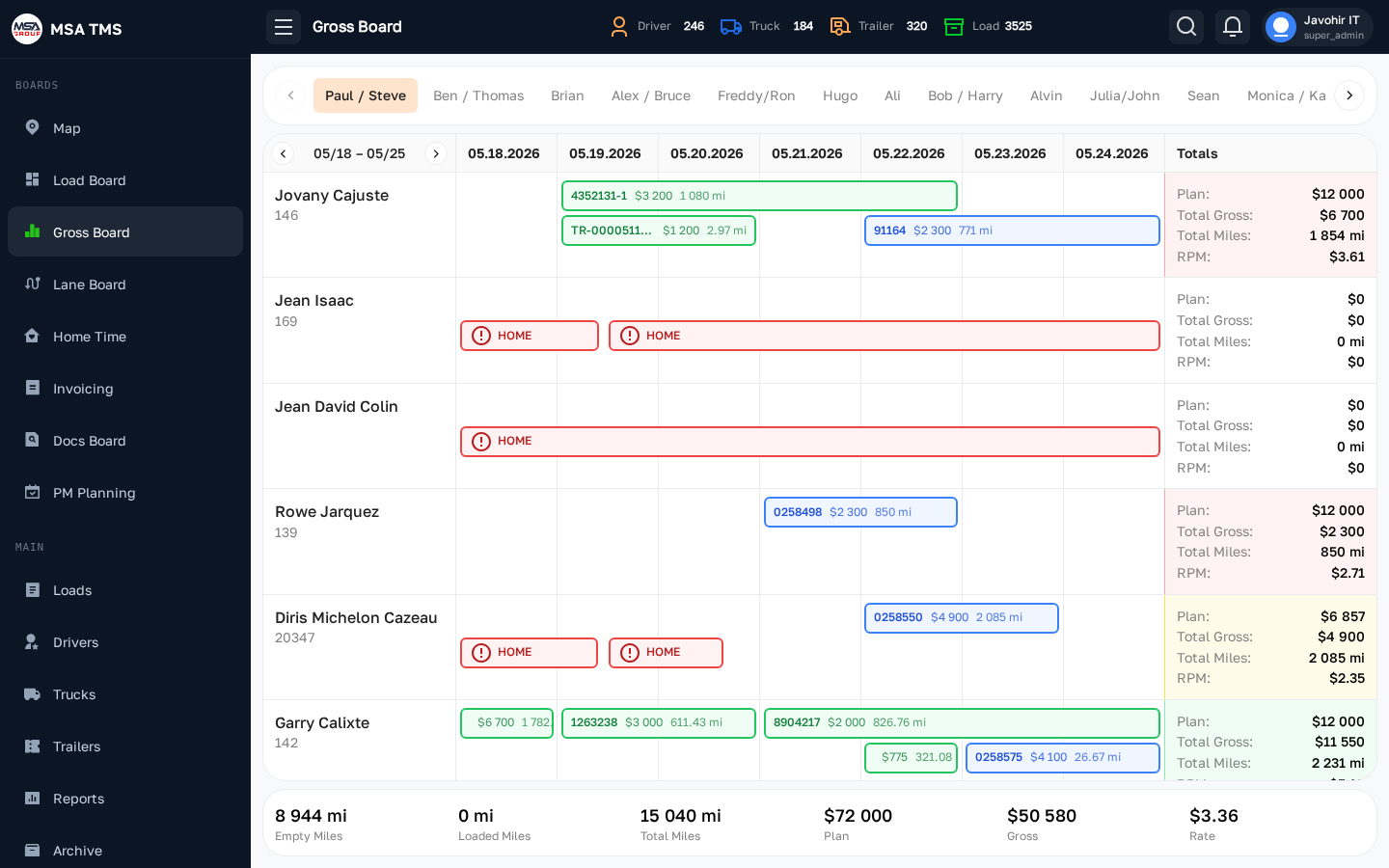
A weekly timeline per driver. Each load is drawn as a bar across the days it runs, showing its rate, miles, and load number. Overlapping loads stack on separate lines.
- Week chips at the top are labelled by date range (e.g. 08/24-08/30). The ☰ button opens a list of all weeks.
- All / Team tabs work like the Load Board. Teams come from that week's Dispatch Teams roster.
- The Status Log switch shows a strip of the driver's statuses under the bars. HOLD is grey, and days before the driver existed show a yellow No status.
- Each row totals Plan, Total Gross, Total Miles, Loaded Mile, Empty Mile, and RPM.
Plan and Plan to Date
The weekly Plan is set in Settings → Gross Board (separate amounts for solo drivers and Driver Teams). For the current week, Plan to Date shows how far along the driver should be by now, coloured green, yellow, or red. The plan is reduced for the hours a driver was OOS, Home, or had no status.
Lane Board
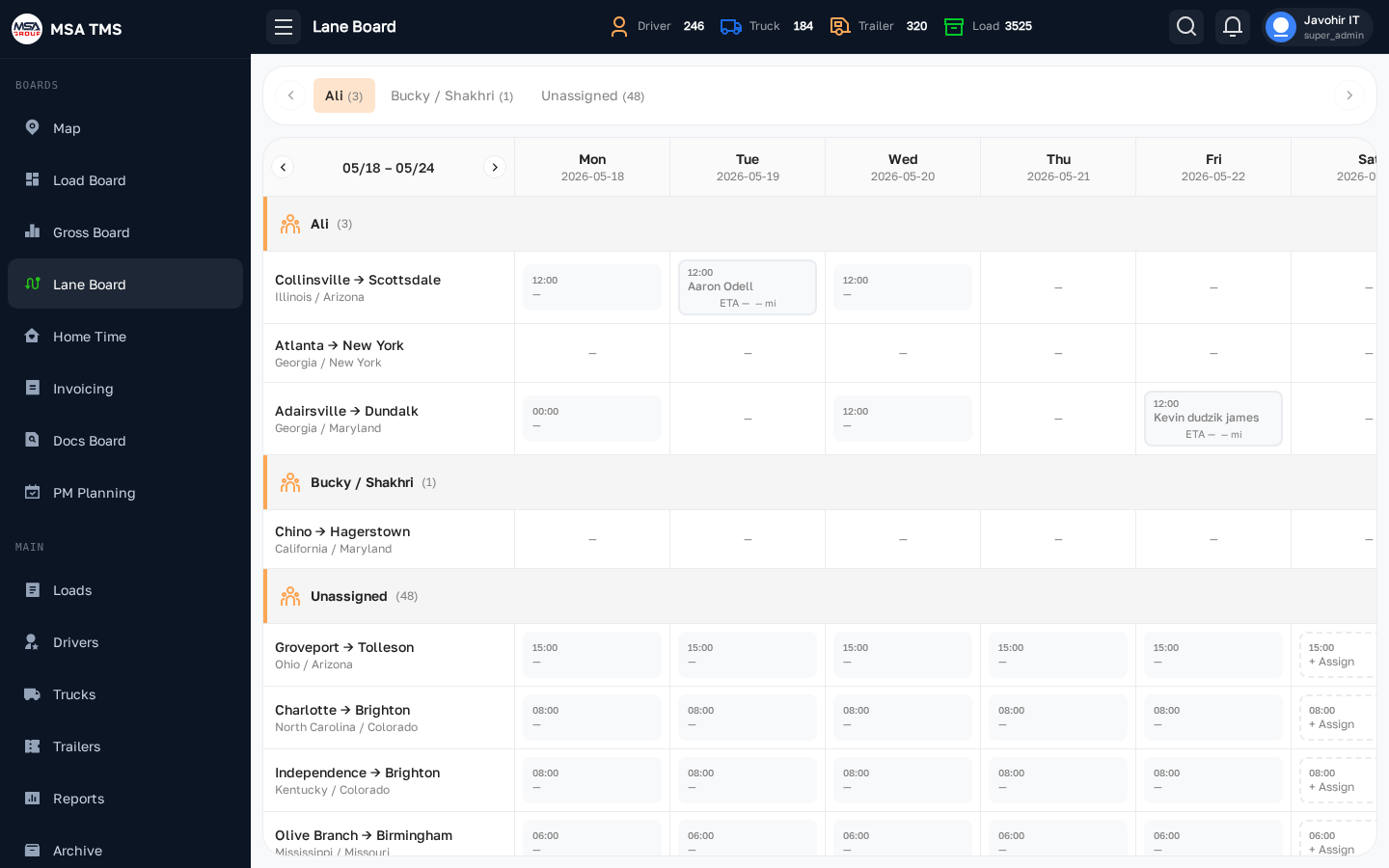
Plans who runs each recurring lane. Rows are lanes and columns are the days of the selected week. Pick a week with the arrows or Pick a week, and switch between All and Team.
- A cell shows — when the lane doesn't run that day, + Assign when it's free, or the driver's name with their ETA and the miles to the pickup.
- ETA colour: green on time, yellow up to half an hour late, red later than that.
- Assignments show on the Load Board's Lanes column.
- Past days can't be edited.
Assigning a driver to a lane-day
- Click the cell where the lane row meets the day.
- Search by name or truck number, or use Nearest drivers — the five closest, with the distance to the pickup. Drivers already on another lane that day are marked assigned.
- Pick the driver. If they are already on another lane that day, a Driver already assigned box asks you to confirm.
Unassign on the cell removes the driver from that day.
Home Time
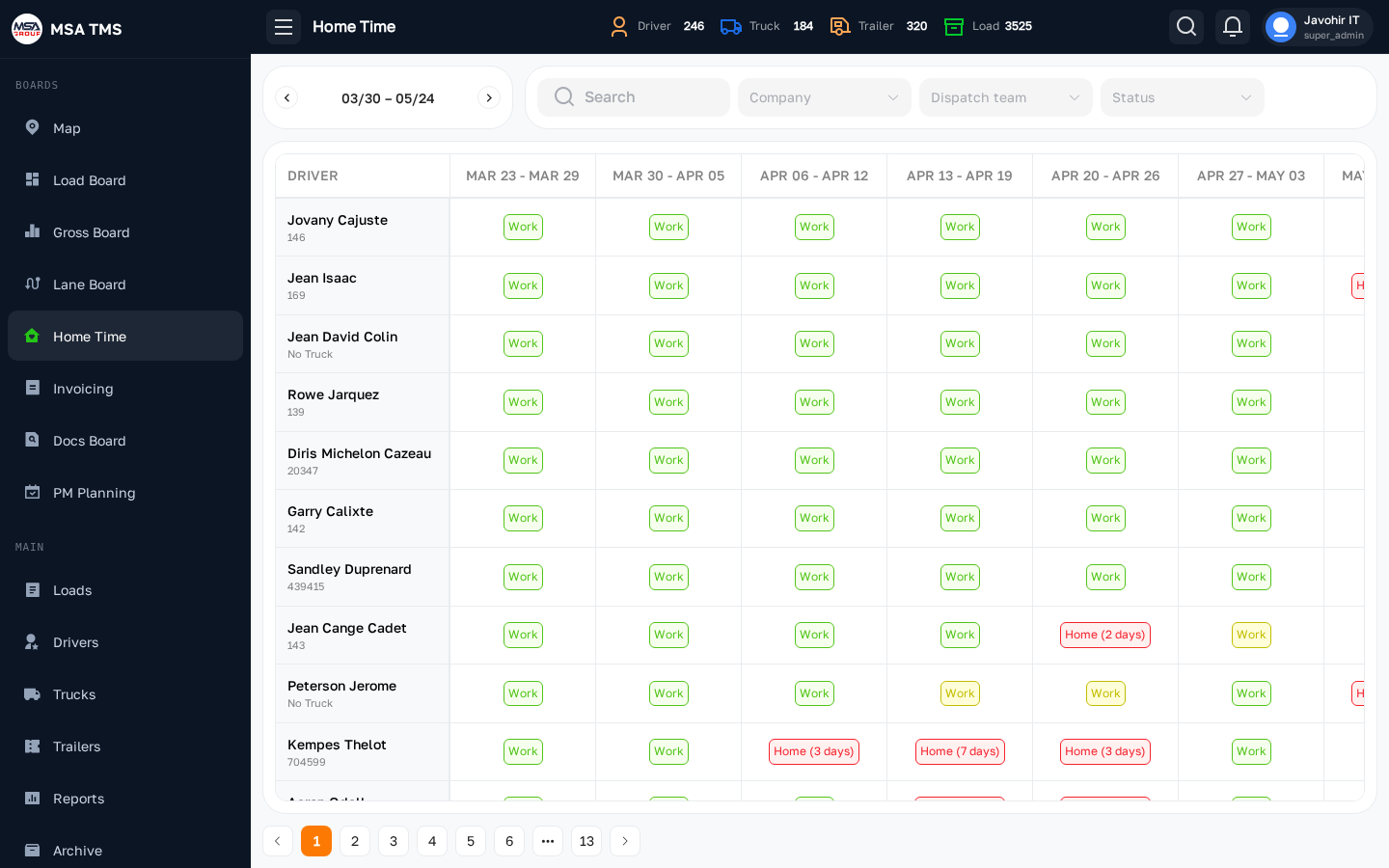
Shows each driver's status week by week, so you can see who was home, on hold, or out of service, and plan home time. Rows are drivers; columns are weeks. Move through the range with the arrows.
Each cell sums the time that driver spent in Home status that week:
| Cell | Means |
|---|---|
| Home (N days), red | 24 hours or more at home. |
| Work, yellow | Some home time, but under 24 hours. |
| Work, green | No home time at all that week. |
| None | A week that hasn't happened yet. |
- Filter by Search, Company, Dispatch team, and Status.
- The figures come from the driver status changes made on the Load Board and the driver's page, counted in Eastern time.
- This board is read-only — to change a driver's status, use the Load Board or the driver's page. Clicking a name opens the driver.
Invoicing
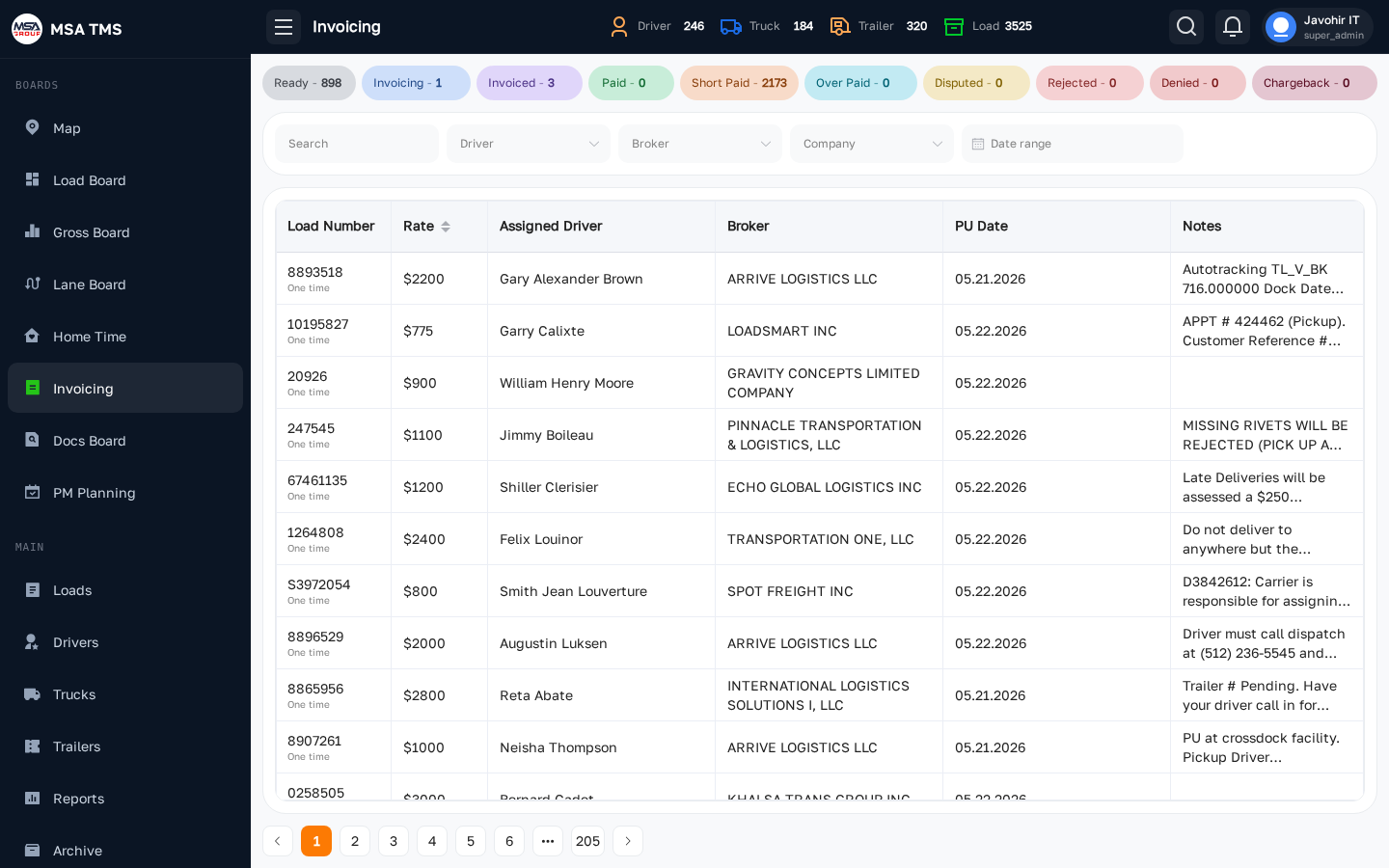
Accounting's worklist for getting paid. Two tabs — Delivered and Canceled — and payment-status pills: Ready, Invoicing, Invoiced, Short Paid, Paid, Over Paid, Disputed, Rejected, Denied, Chargeback.
- Filter by search, Broker, Company, Driver, and date range. The date range is kept when you open a load and come back.
- Columns: Load Number, Status, Rate (on the Canceled tab this shows the Tonu), Assigned Driver, Broker, PU Date, Notes.
- Tick rows to act on many loads at once: change payment status, generate invoices, email them, or send them to TriumphPay / Triumph factoring.
- Export downloads the list; Import updates payment statuses from a factoring file.
How to invoice a batch of loads?
Generate and send invoices for many delivered loads in one go.
1Select the loads
Open Boards → Invoicing, stay on the Delivered tab, filter (e.g. by broker and date range), and tick the loads to invoice.
2Generate the invoices
Click Generate invoices. Enter the payment Terms (days). Choose whether to regenerate invoices that already exist and whether to move the loads to Invoicing. Progress is shown row by row.
3Email them
With the same rows ticked, click Send via email. The
Send Invoice Batch dialog lets you set To, CC, BCC, Subject, and Message, and
tick which documents to attach (Rate confirmation, Bill of lading, Proof of delivery,
invoice). Each load gets its own email — use {load} and
{company} in the subject and they are filled in per load.
Sending is what marks the work done: every load that goes out successfully moves to Invoiced, so the Invoicing tab always shows what is still waiting to be sent.
4Update payment status
When payments come in, tick the loads and change their payment status (e.g. Paid or Short Paid) — or use Import.
Importing a factoring file
- Click Import and choose the file — an Excel file or a factoring schedule PDF. PDFs are read in the background with a progress bar.
- Review the matches. Rows are matched to delivered loads by load number, and you see Driver, Load #, Rate and Status for each.
- Adjust the status on any row that needs it.
- Save. Rows that didn't match a load are counted so you can follow them up.
Docs Board
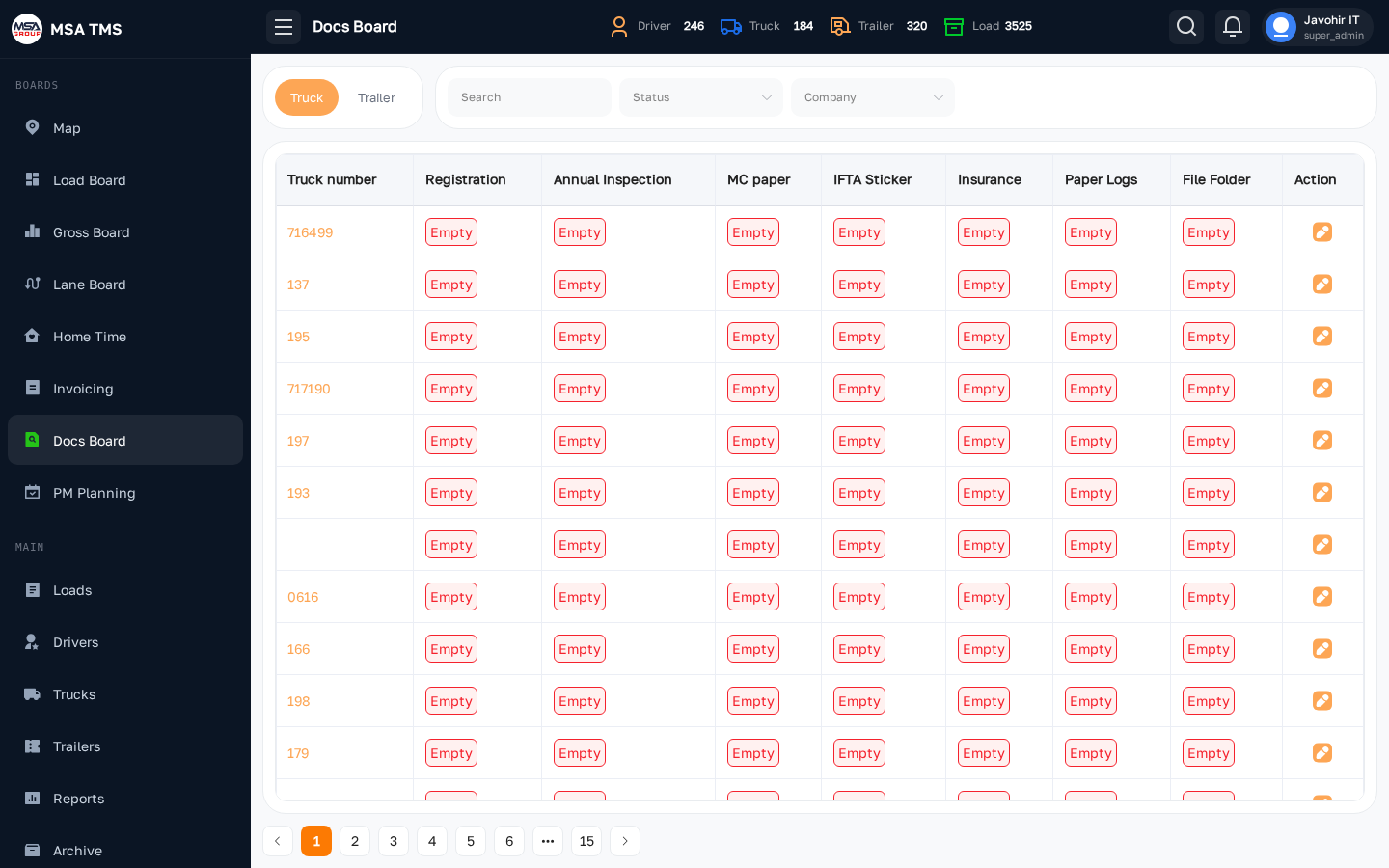
Tracks the paperwork every truck and trailer must carry. Switch between the Truck and Trailer tabs; filter by search, company, and status.
For each unit it shows Registration, Annual Inspection, MC paper, IFTA Sticker, Insurance, Paper Logs, and File Folder. Each document is Printed, NTA, or empty. Use Action to update a unit's documents.
PM Planning
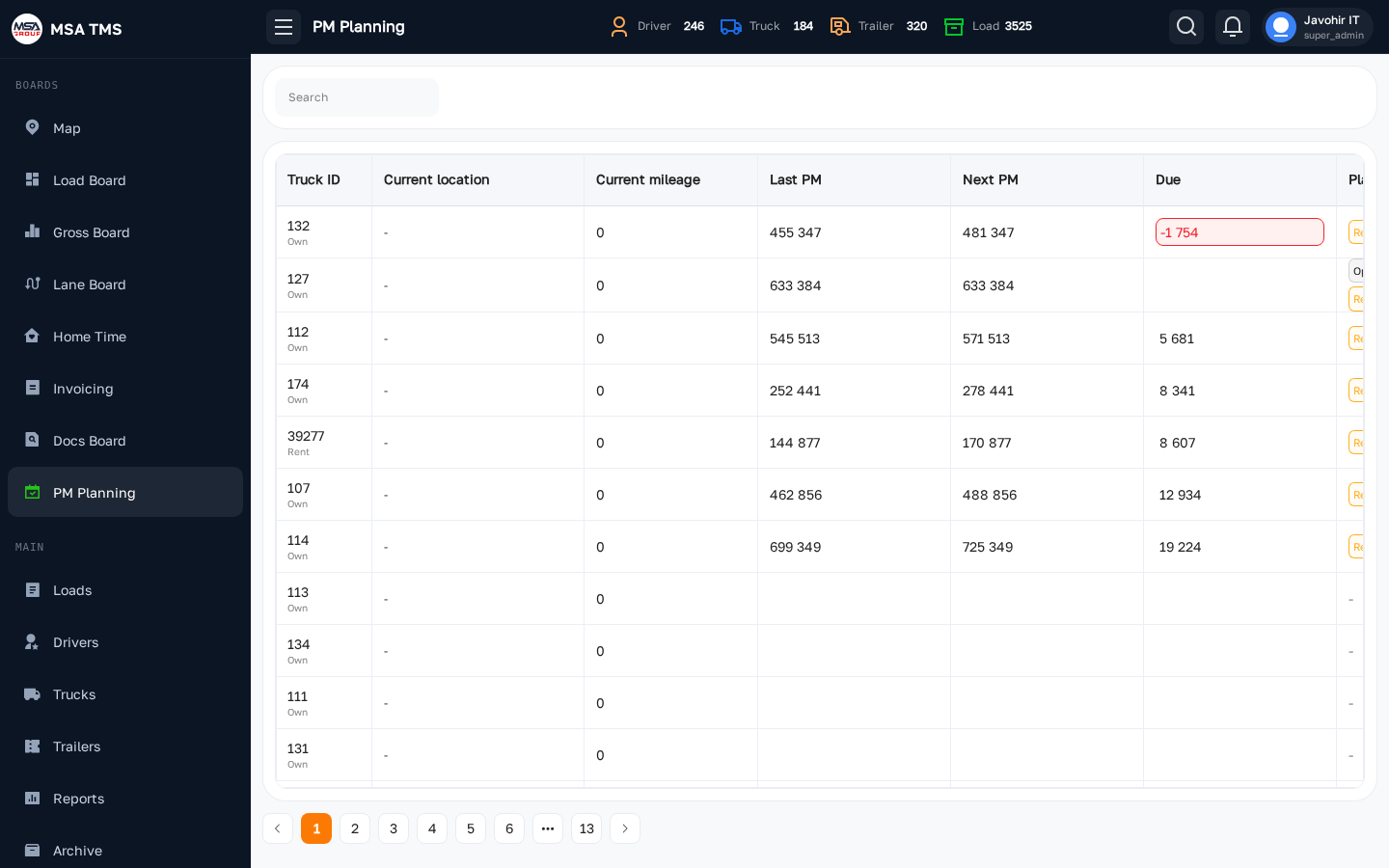
Which trucks are due for preventive maintenance, and where each PM request stands. Columns: Truck, Last PM, Next PM, Due (miles left), Current mileage, Current location (with last seen), and PM Request.
- Next PM = Last PM + the truck's PM frequency (set on the truck's Fleet tab).
- The PM Request cell shows the latest request's status, the dispatch team, the time, and — once approved — the city. An empty cell has a dashed + to raise a request; a rejected one shows + New.
- Click a row to open the truck.
PM requests New
A PM request is how Fleet asks Dispatch to bring a truck in for maintenance. Fleet raises it from PM Planning or the truck's PM tab (New Request). Dispatch sees the red PM badge on the Load Board and answers from there.
| Status | Meaning | Next steps |
|---|---|---|
| Pending | Waiting for Dispatch. | Approve · Reject · Cancel |
| Approved | Dispatch agreed and scheduled it. | Close (after the PM is done) · Reject · Cancel |
| Rejected | Dispatch said no, with a reason. | Fleet overrides → Escalated, or accepts → Cancelled |
| Escalated | Fleet overruled the rejection. Still waiting for Dispatch. | Approve · Cancel (cannot be rejected again) |
| Cancelled | Dropped. | Final — raise a new request if needed. |
| Closed | PM done. A PM record is created in Fleet → PM. | Final. |
Raising a request (Fleet)
- Open PM Planning, or the truck's PM tab.
- Click New Request on the truck that needs the service.
- Say what is needed and send it. The request sits at Pending, and Dispatch sees the red PM badge on the Load Board.
Answering one (Dispatch)
- Click the red PM badge on the Load Board.
- Choose Approve, Reject or Cancel.
- Fill in what that decision needs — see below — and confirm. Who decided what, and when, is recorded on the request.
What each decision needs:
- Approve — a PM date & time in the future and a city.
- Reject — a reason.
- Close — the shop and the current mileage.
The truck's PM tab has two views: Requests (every request) and Log (completed PMs).
Fleet Board New
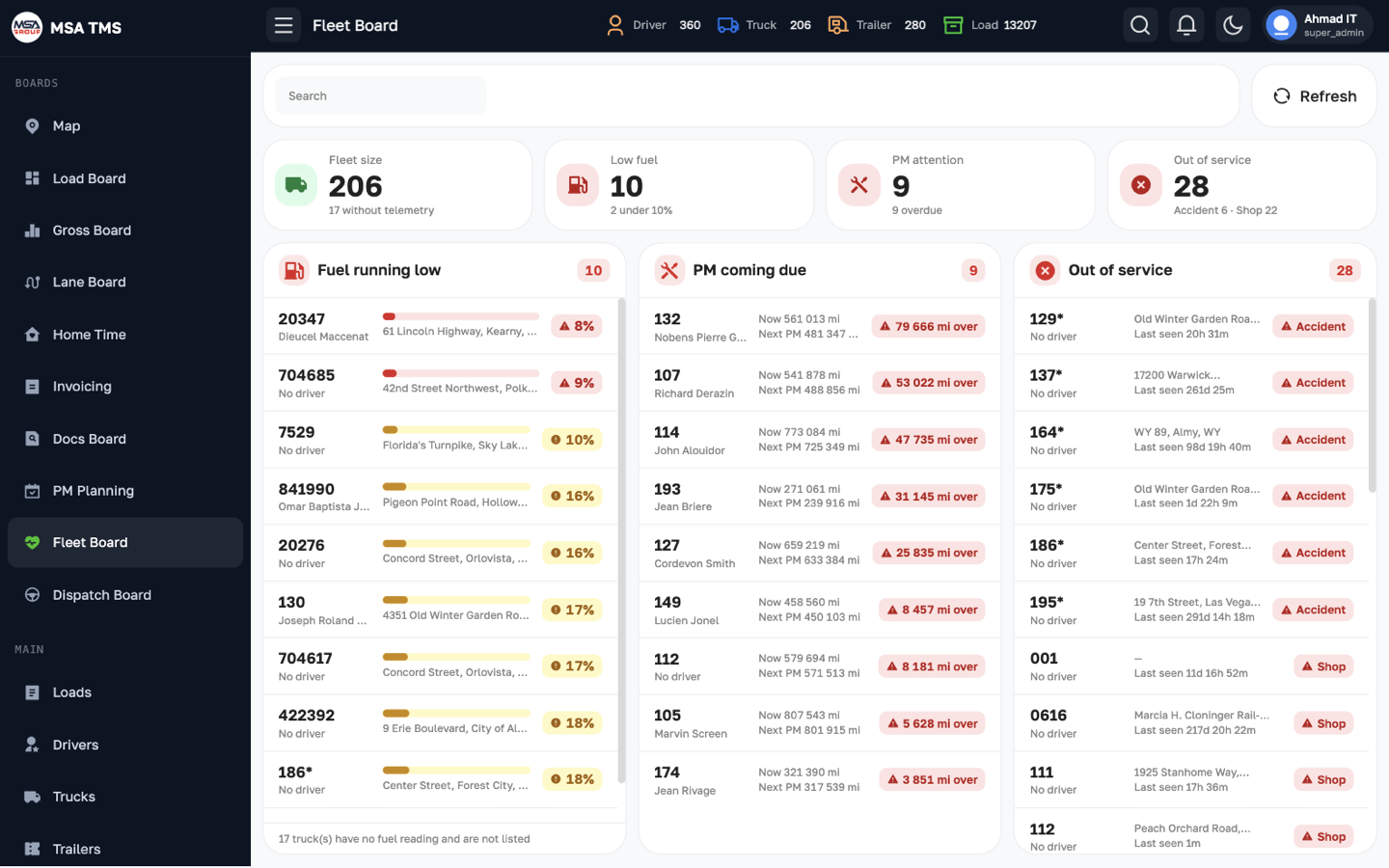
Fleet health in one screen. Four tiles on top — Fleet size, Out of service, Low fuel, and PM attention — and three lists below:
- Out of service — trucks in Shop, Accident, or Towing yard status.
- Fuel running low — under 20 % fuel (critical under 10 %). Trucks without an ELD fuel reading are not listed.
- PM coming due — fewer than 2,000 miles to the next PM, or overdue.
Search by truck, driver, or company, and use Refresh to reload.
Dispatch Board New
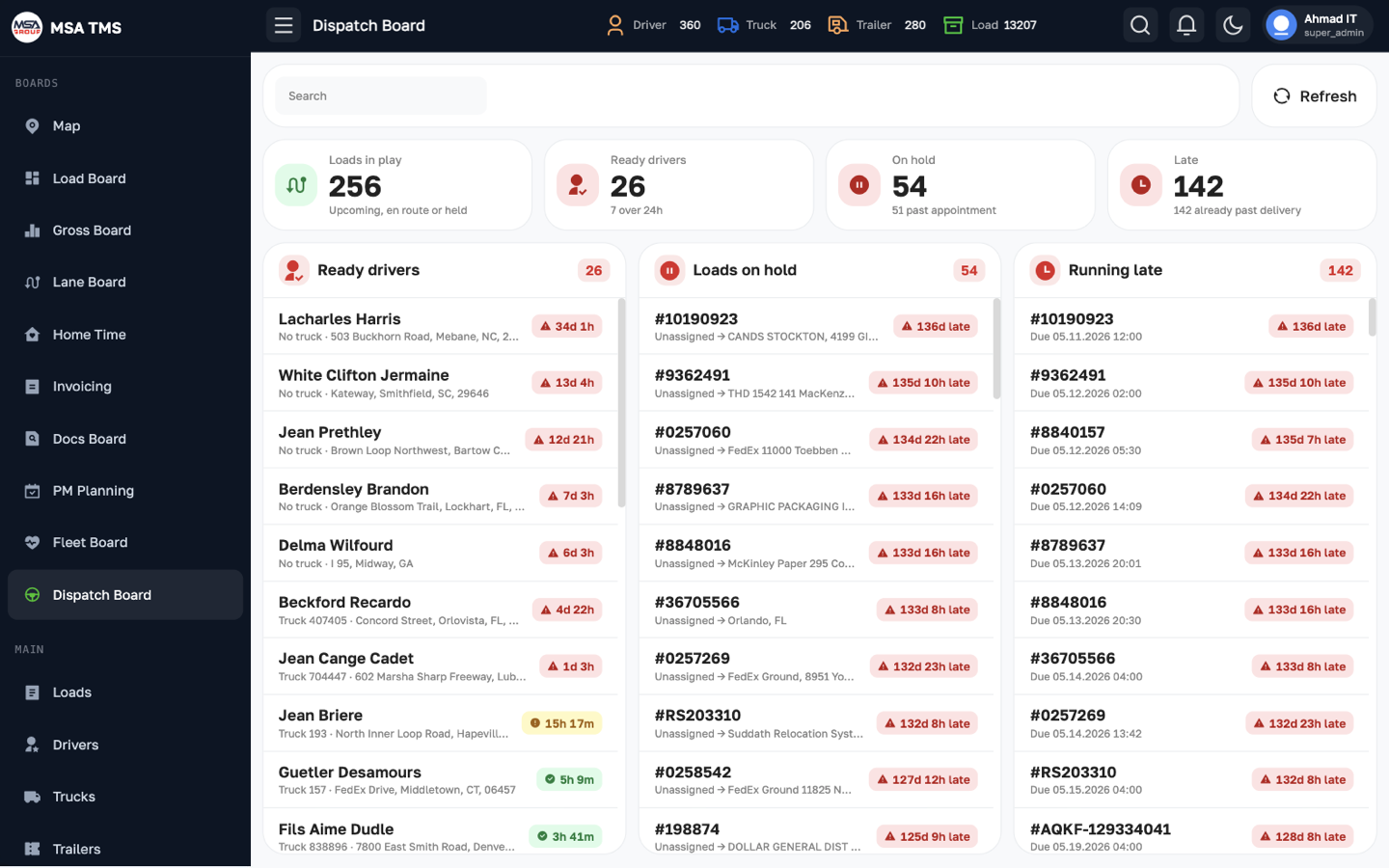
What needs a dispatcher's attention now. Tiles: Loads in play, Ready drivers, On hold, Late, and No dispatch team. Click a tile to show only its list at full width; click it again to bring the others back. Lists:
- Ready drivers — drivers in Ready status and for how long. Amber after 12 hours, red after 24 hours.
- Loads on hold — red when the delivery appointment has already passed.
- Running late — loads whose driver ETA is after the delivery appointment (amber), or whose appointment has already passed (red).
- No dispatch team — working drivers who are in none of this week's Dispatch Teams: they have a truck, an active status (PU, En Route, Unloading, Ready, Hold), or were added in the last 14 days. Until they're put on a team they're missing from the Gross Board and the Load Board.
Search by load, driver, or truck, and use Refresh to reload.
Main
The records everything else is built on: loads, drivers, trucks, trailers, and the weekly reports and statements.
Loads
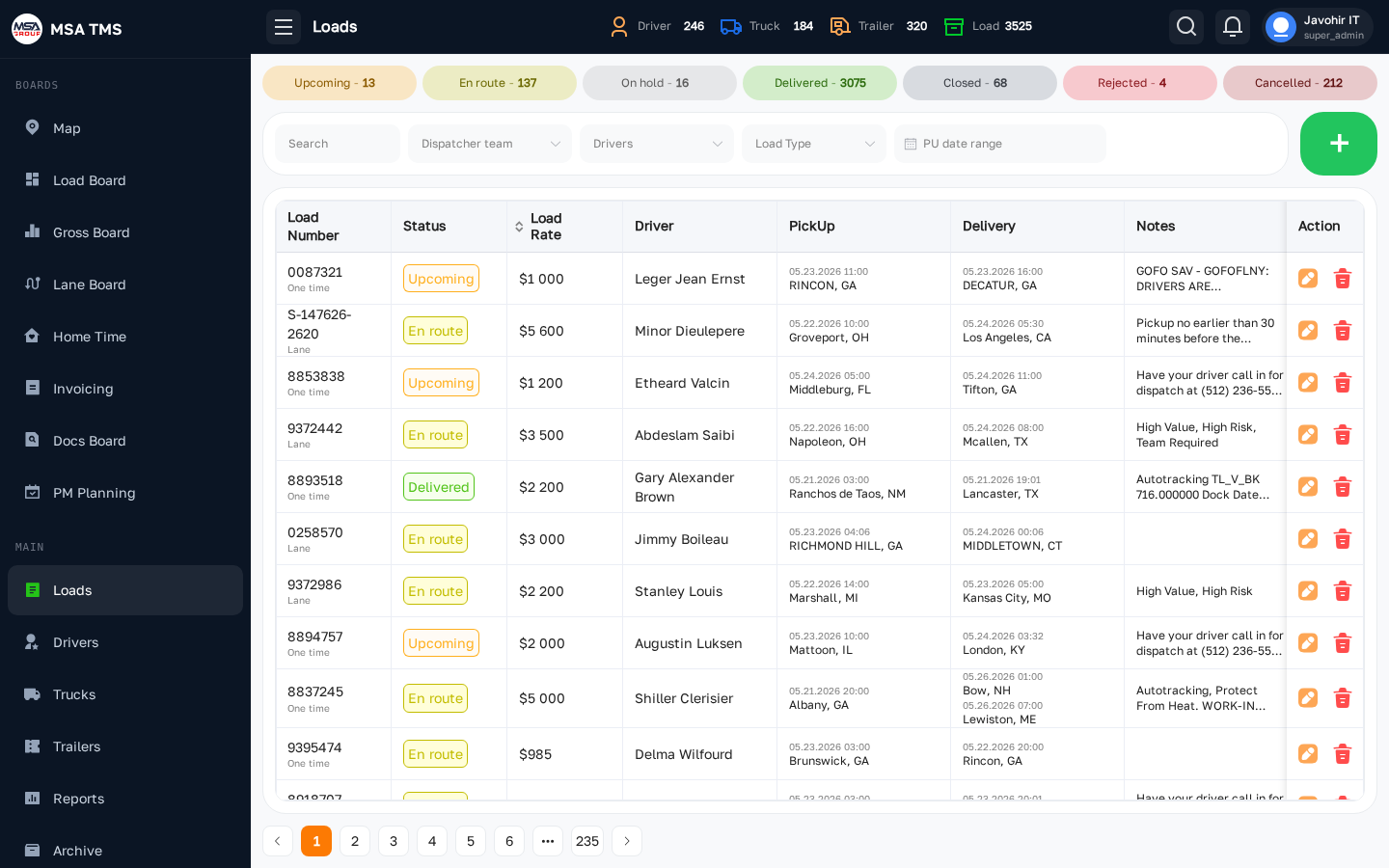
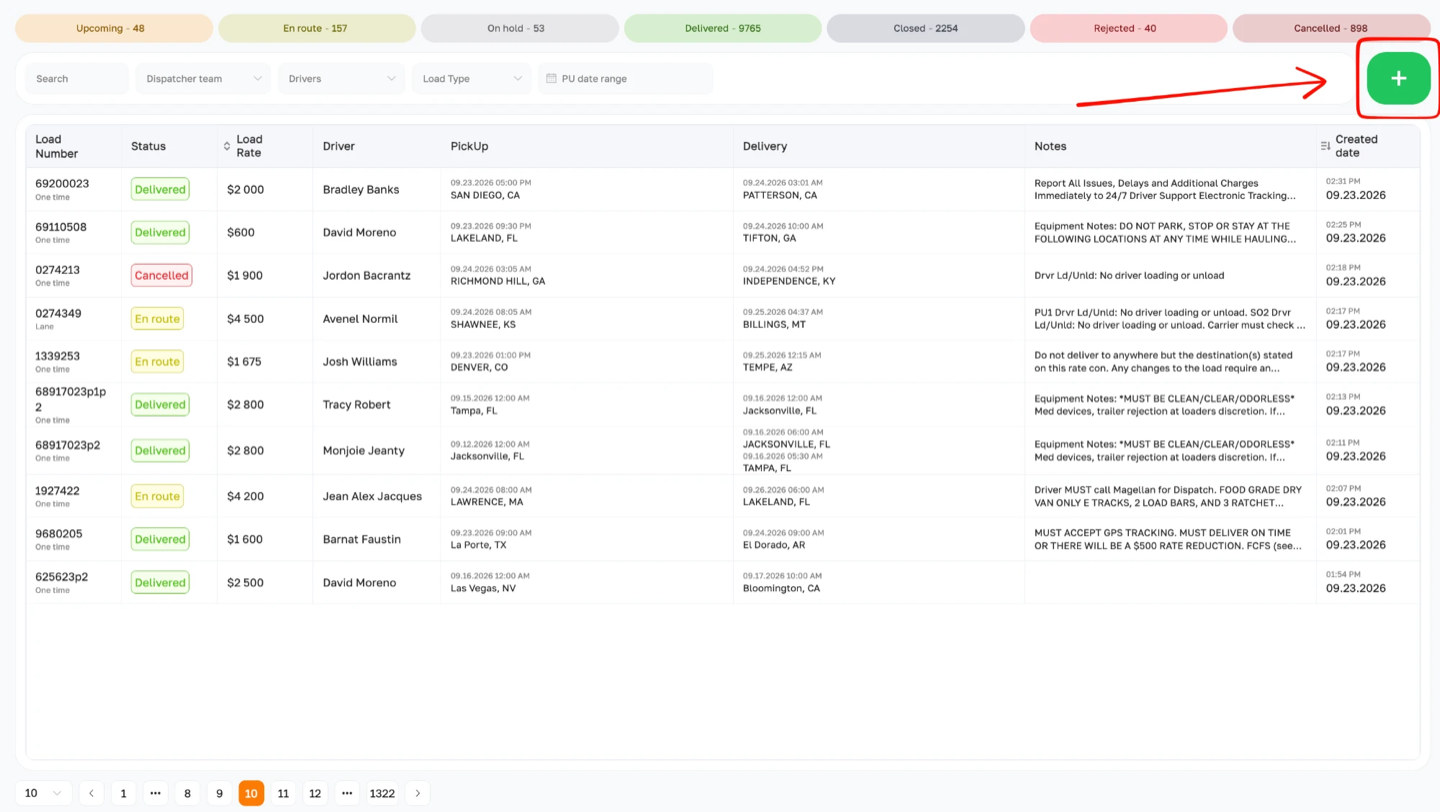
The full load ledger. Status pills across the top show how many loads are in each status; click one to filter. Below them: Search, Dispatcher team, Drivers (including Unassigned), Load Type, and a PU date range.
Columns: Load Number (with the load type underneath), Status, Load Rate, Driver, PickUp, Delivery, Notes, and Created date. Load Rate and Created date can be sorted.
Without opening a load you can:
- Click the status chip to change the load's status.
- Click + Assign in the Driver column to assign a driver or team.
- Click the Notes cell to read the load's notes.
- Click the green + to add a load.
Click any row to open Load Info.
Load Info page
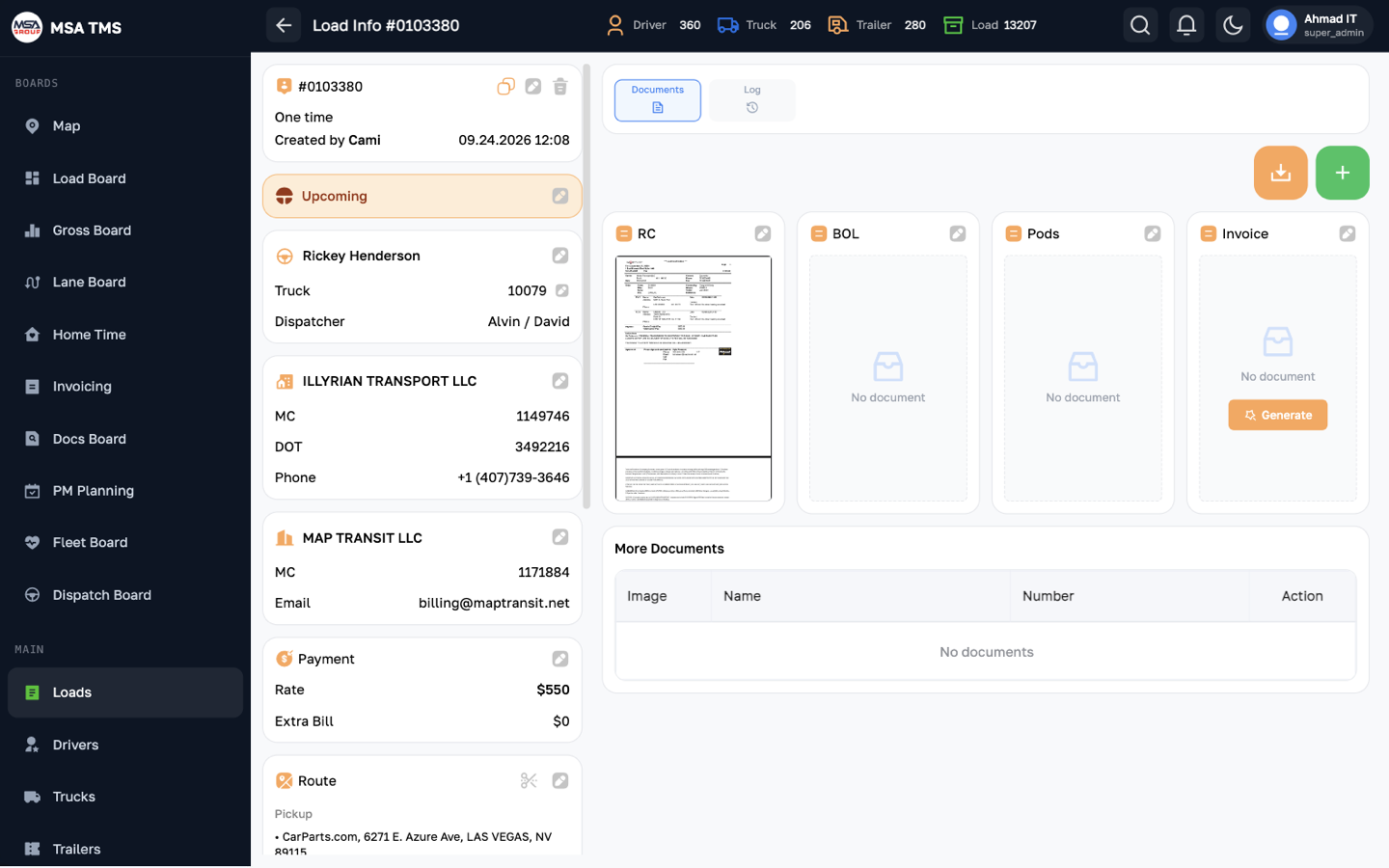
Everything about one load. The left column is a stack of cards; the right side has the Documents and Log tabs. Each card has a pencil that opens its own drawer.
| Card | What you change there |
|---|---|
| General | Load number and load type. Also holds the copy icon (copies the load's details) and the delete icon. |
| Status | The load status — see Load statuses. |
| Payment Status | Ready, Invoiced, Paid and so on. Only appears once the load is Delivered or Cancelled. |
| Statement status | Read-only. Whether a driver and an owner statement cover this load. Click a badge to open that statement. |
| Assignment | The driver (or Driver Team) and, separately, the truck. |
| Company · Broker | Which of your companies hauls it, and who booked it. |
| Payment | Rate and Extra Bill. |
| Route | Pickup and delivery stops, empty / loaded / total miles, and the scissors icon that starts a redelivery. |
| Weeks | The week split — how the load's miles and rate are shared across carrier weeks. |
| Notes | Free text about the load. |
Changing what's on a card
- Click the pencil on the card. Its drawer opens on the right.
- Change the fields.
- Click Submit to save, or Cancel to leave the card as it was.
To change the driver or the truck, use the Assignment card. Switch between Solo and Team first — Team lists the Driver Teams for the pickup week — then pick the driver, and the truck separately.
One person at a time
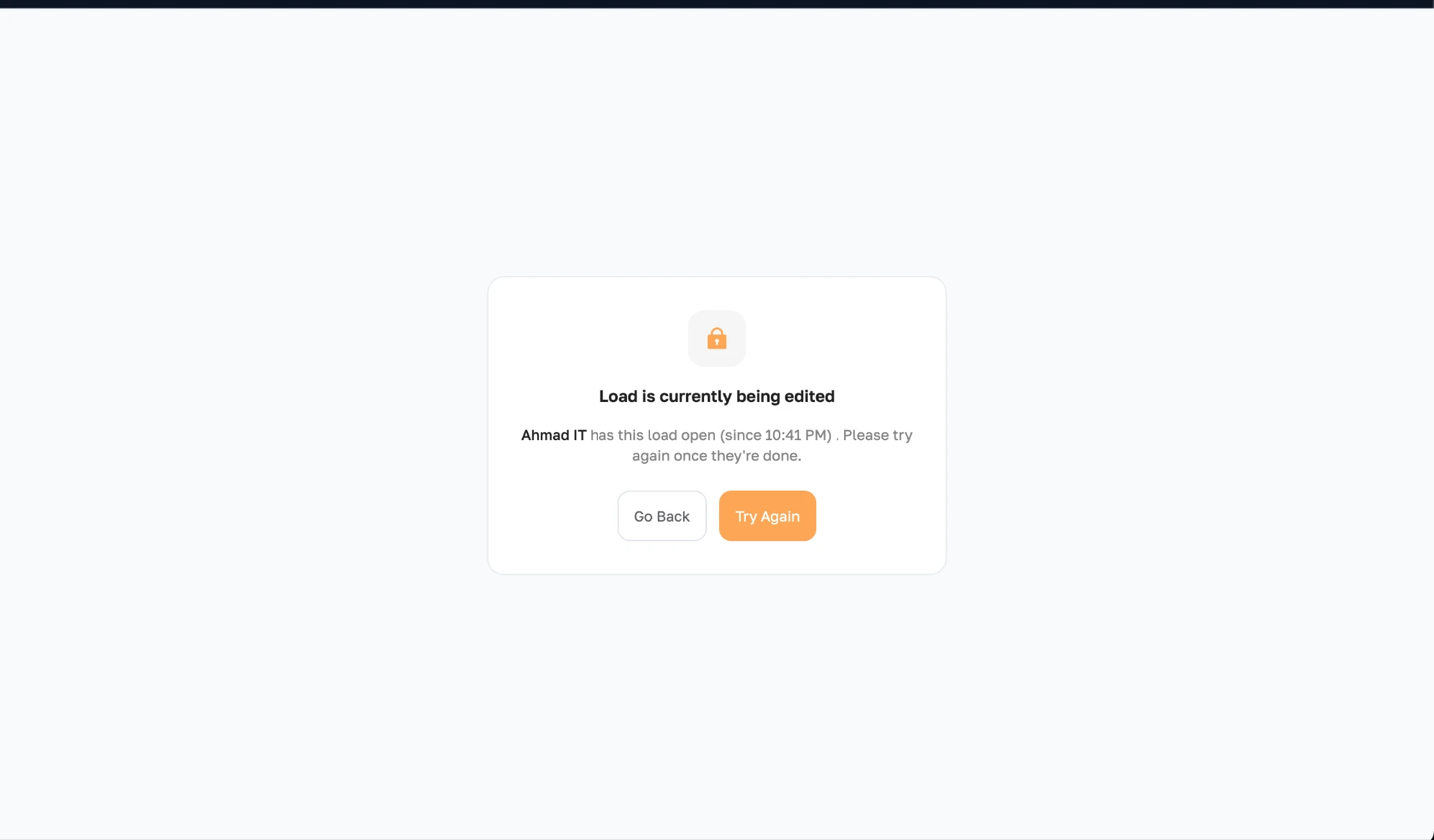
A load can only be open by one person. While you have it open it is reserved for you, so two people can't overwrite each other's changes.
If someone else already has it open, you get this screen instead of the load, naming who has it and since when:
- Try Again — check whether they've finished.
- Go Back — return to where you came from.
- Take Over — admins only. Takes the load from the other person after a confirmation; their tab switches to the locked screen within half a minute.
Leaving the page releases the load. If someone closes their laptop mid-edit, it frees itself about a minute later, so you're never locked out for long.
A tab left open and untouched for 30 minutes gives the load back too. Whoever left it sees a note that the page was inactive, and clicks Resume to pick the load up again.
Load number & type
Load number
The broker's reference for the shipment, shown in the first column of the Loads list and at the top of Load Info. Use it in every call, message and document about that load.
- It must match the number printed on the Rate Confirmation exactly — accounting ties the invoice to the RC with it.
- Copy it character for character from the broker's confirmation. One wrong digit delays payment.
- To change it: Load Info → General card → pencil.
Load type
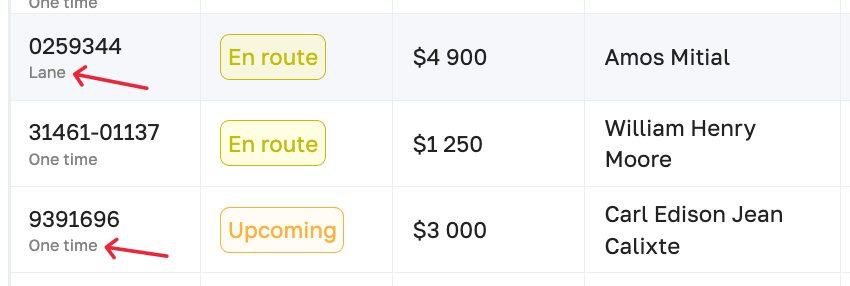
- One time — a spot-market load. Everything is entered fresh. A driver must be assigned before you can save it.
- Lane — a recurring run tied to a saved lane. Picking the lane fills in the route.
- Load out — a third classification, used for reporting and filtering. TMS handles it like a One time load, except that it can be saved without a driver.
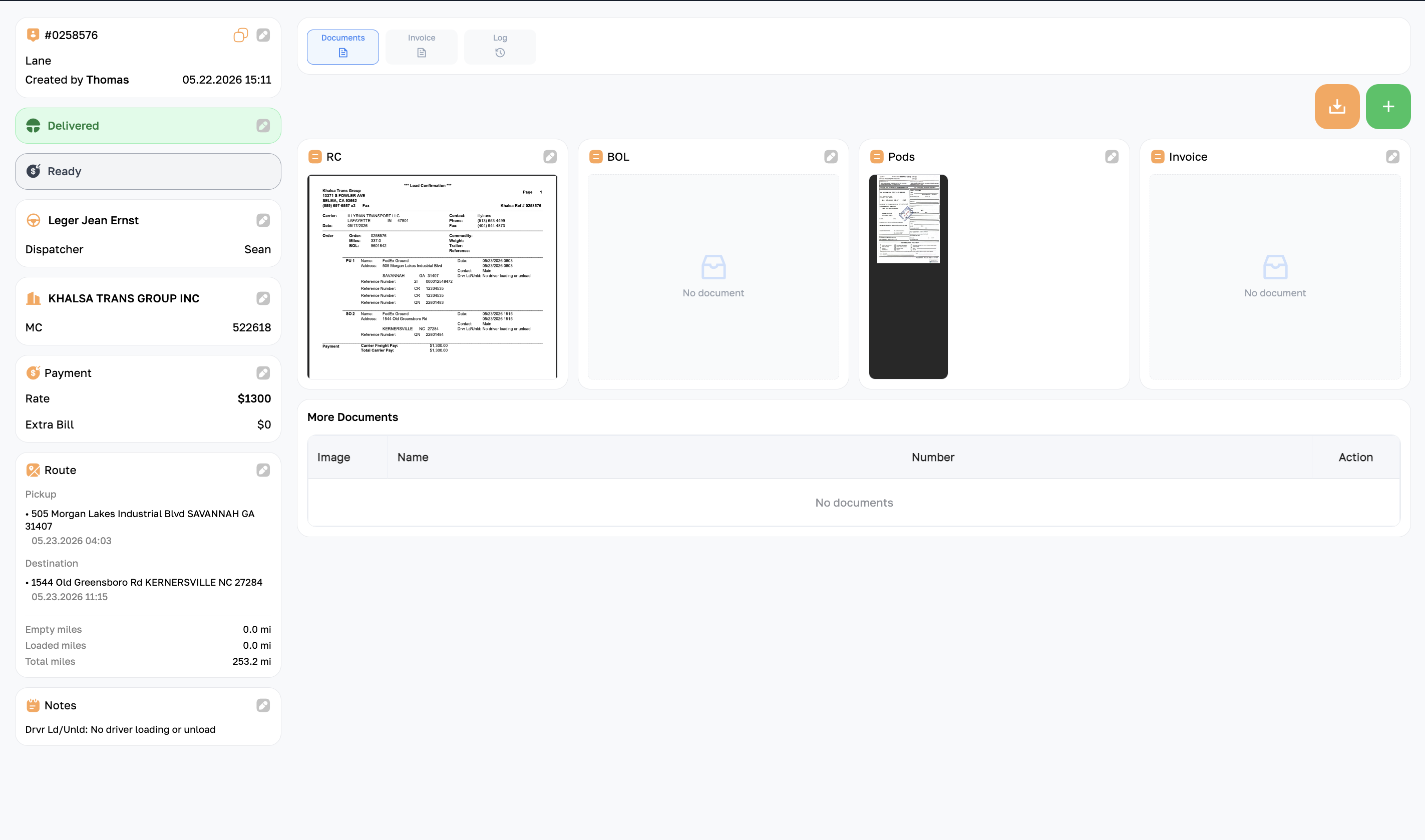
Documents — RC, BOL, POD, Invoice
The Documents tab holds four document slots and a More Documents table for anything else. Each slot shows a thumbnail once a file is uploaded, or No document when it is empty.
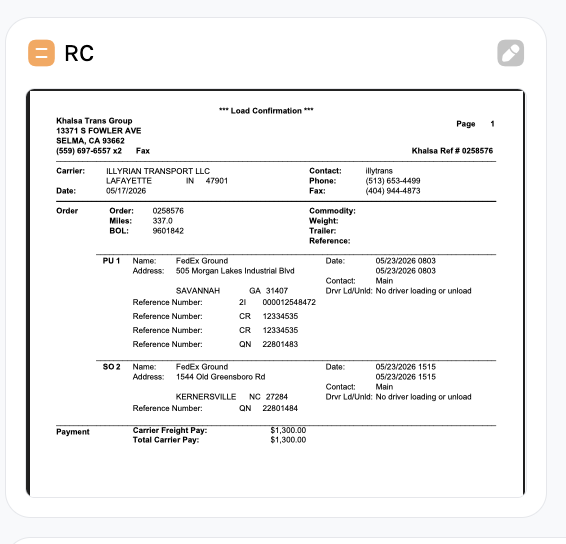
RC — Rate Confirmation
The agreement between your carrier and the broker: the rate, the addresses, the commodity and any special requirement. The broker sends it before the load moves. Check every figure against what was agreed before the driver leaves — this is what accounting invoices against.
A load cannot be set to En route until an RC is uploaded.
BOL — Bill of Lading
The shipper's receipt, listing the freight, the piece count, the weight and the condition of the cargo at pickup. The driver gets it signed and stamped before leaving the dock. It is the carrier's proof the freight was received in good condition, and the first thing you need if a damage claim is filed.
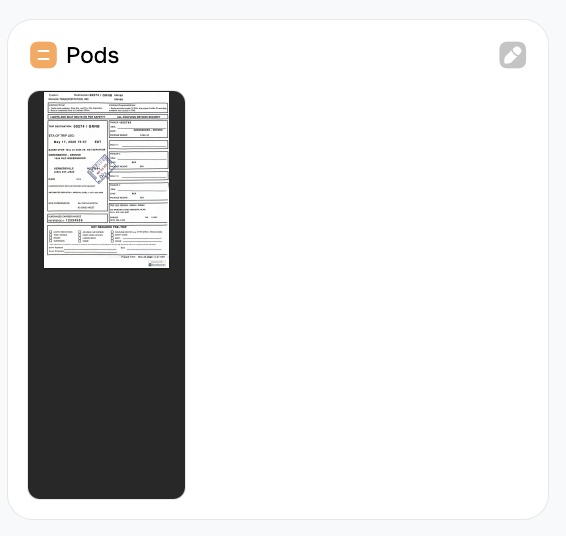
POD — Proof of Delivery
The delivery receipt signed by the consignee. Upload it as soon as the driver sends a photo. No POD, no invoice — most brokers will not pay without it.
A load cannot be set to Delivered until a POD is uploaded.
Invoice
The invoice sent to the broker or the factoring company. You can build it here with Generate, or produce invoices for many loads at once from Invoicing.
Generate opens a form with Invoice ID, Date, Terms and Due Date. Use Preview PDF to check it, then Download or Save. Saving attaches it to the load.
Route & miles
The Route card holds the stops and the three mileage figures. A load can have several pickups and several deliveries; they run in order.
The Pickup and Destination blocks each show the facility, the full address and the appointment date and time, in Eastern time.
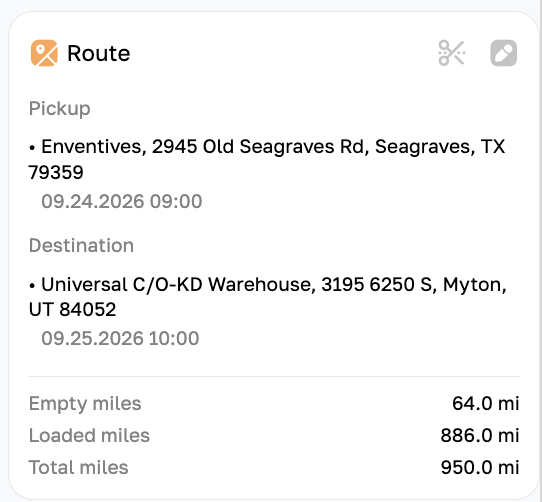
The three mileage figures
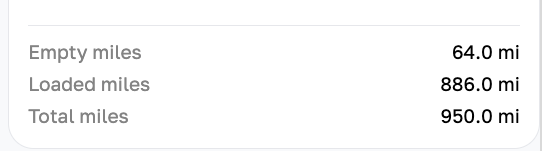
At the foot of the card sit the numbers everything financial is built on — driver pay, rate per mile, and fuel cost.
- Empty miles (deadhead) — driven with no freight, from where the truck finishes the work it's on now to this load's pickup. They burn fuel and time and earn nothing, so they are worth keeping low.
- Loaded miles — driven with the freight on board, from pickup to final delivery. These are the earning miles, and the basis of rate per mile on the Gross Board.
- Total miles — the two added together, filled in for you.
A driver paid per mile is paid from these two figures, each at its own rate — see Pay types & rates.
Changing the stops
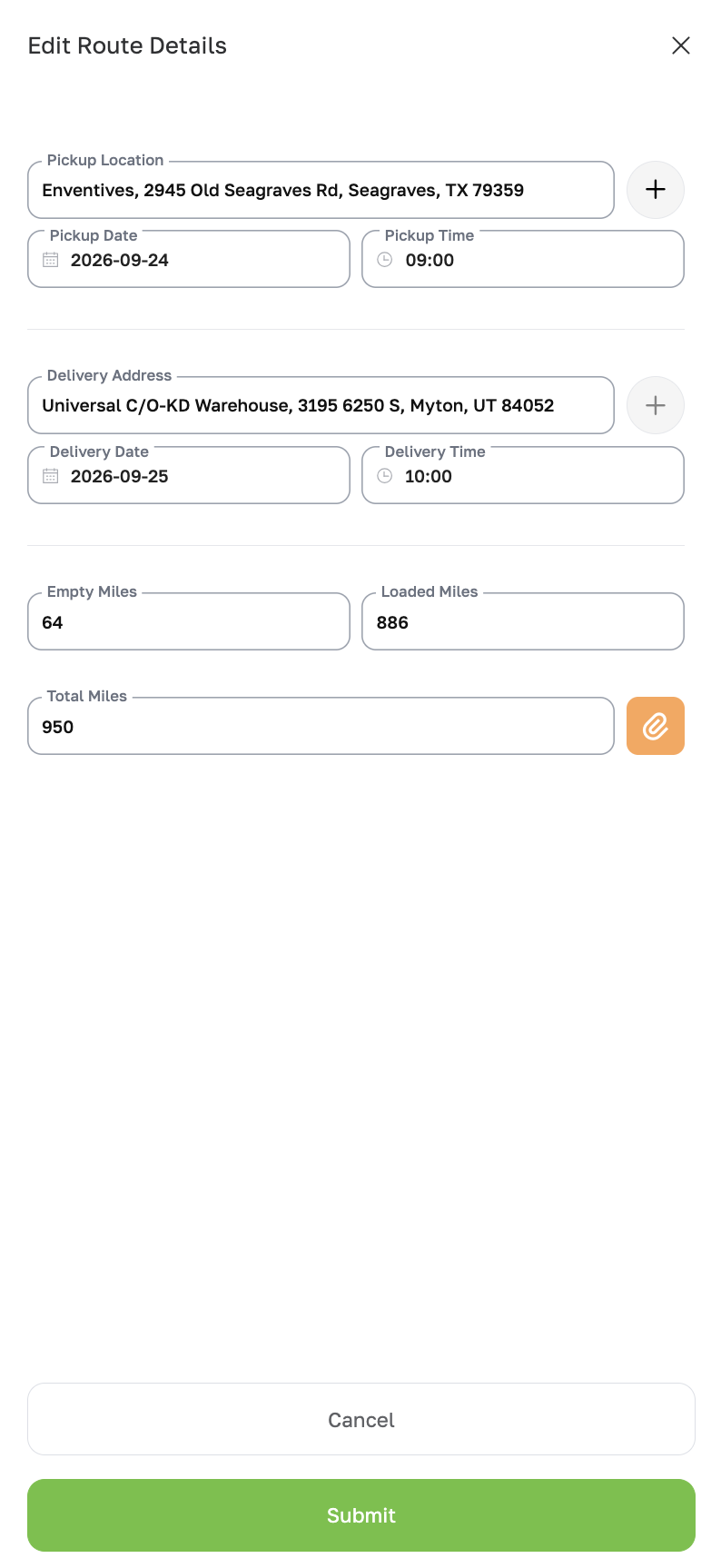
- Click the pencil on the Route card. Edit Route Details opens.
- Set the Pickup Location, Pickup Date and Pickup Time. The + beside a location adds another stop of that kind, for a multi-pickup load.
- Set the Delivery Address, Delivery Date and Delivery Time — again, + for a multi-drop load. A delivery can't be earlier than its pickup; the drawer refuses to save and tells you so.
- Check the three mileage fields. Total Miles has a recalculate button beside it.
- Click Submit to save, or Cancel to leave it alone.
Week Split (the Weeks card)
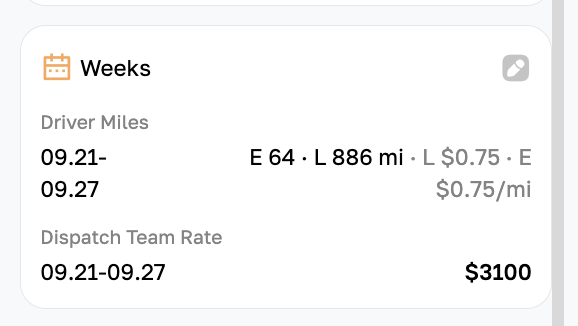
A load that runs across two carrier weeks has to be divided, so each week's driver pay and each week's dispatch revenue land in the right place. That is what the Weeks card does. Most loads sit in a single week and need no attention.
The card shows two lists:
- Driver Miles — per week: empty and loaded miles, and the rates they're paid at. Read as E 64 · L 886 mi · L $0.75 · E $0.75/mi. This drives the driver's statement.
- Dispatch Team Rate — per week: how much of the load's rate counts for that week. This drives the Gross Board.
Nothing warns you when you save: the counters only check that the miles and the money add up, not that the weeks make sense. If a load has gone missing from the board or from a statement, open its Weeks card first — a mistyped week is the usual cause, and correcting it brings the load straight back.
Editing it
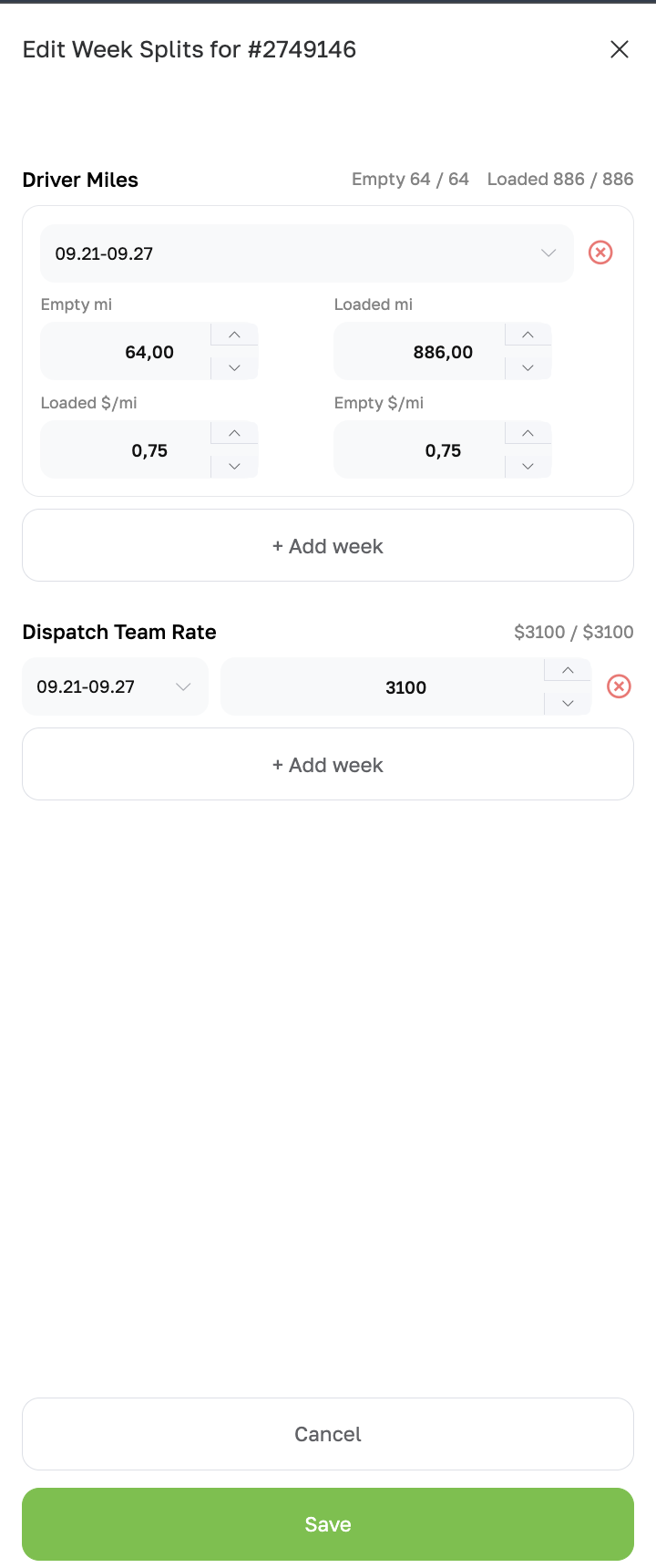
- Click the pencil on the Weeks card. The drawer Edit Week Splits for #<load> opens. You need the Week Split permission to see the pencil.
- Use + Add week to add a row, pick the week, and enter that week's Empty mi, Loaded mi, Loaded $/mi and Empty $/mi. The red ⓧ removes a row.
- Do the same under Dispatch Team Rate — one row per week, with that week's share of the rate.
- On a team load each row also has a driver picker — choose which team member drove that week.
- Click Save.
Watch the counters beside each heading — Empty 64 / 64, Loaded 886 / 886, $3100 / $3100. The first number is what you've entered, the second is the load's total. Save stays disabled until all three match, so a split can never lose or invent miles or money.
Locked after a statement
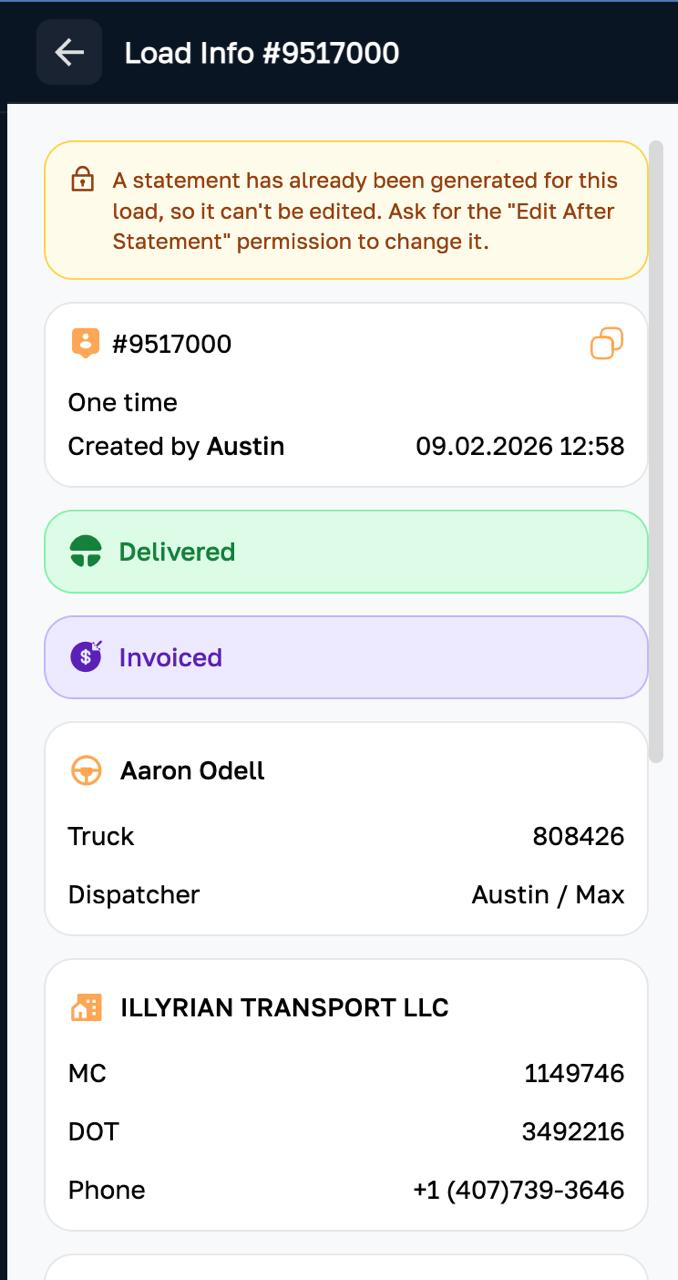
Once a load has been paid out — that is, once accounting has generated a driver or truck-owner statement that includes it — the load is locked, so the figures behind a settled payment can't change afterwards.
Who can still edit it
Accountant, Manager and roles with higher authority can still change a locked load — they are the ones who answer for the figures. Dispatchers and updaters cannot.
What's blocked
For everyone else, the load opens with this banner and the edit controls gone:
- The load rate and extra bill.
- The miles and the route.
- The week split.
- The driver and the truck.
- The company, the broker, the notes — and deleting the load.
What still works for everyone
Moving the load's status on — En route, Delivered and the rest — still works for dispatchers and updaters, because a load that has been paid out may still be running. So do uploading documents, writing comments, and changing the payment status, which keeps dispatch, invoicing and collections all working as normal.
If something does need fixing
Don't leave a load wrong because it's locked. Tell your manager or the accounting department what needs to change and they will correct it — either directly, or by deleting the statement, fixing the load and generating the statement again.
The Statement status card on the load tells you which statement caused the lock.
Uploading documents
Every document is uploaded the same way, from the Documents tab:
- Open the load and go to the Documents tab.
- Click the pencil on the card you're filling — RC, BOL, Pods or Invoice.
- Drop the file into the upload area, or click it to browse.
- Click Submit.
To replace a file, open the same drawer, delete the old one with the trash icon and upload the new one.
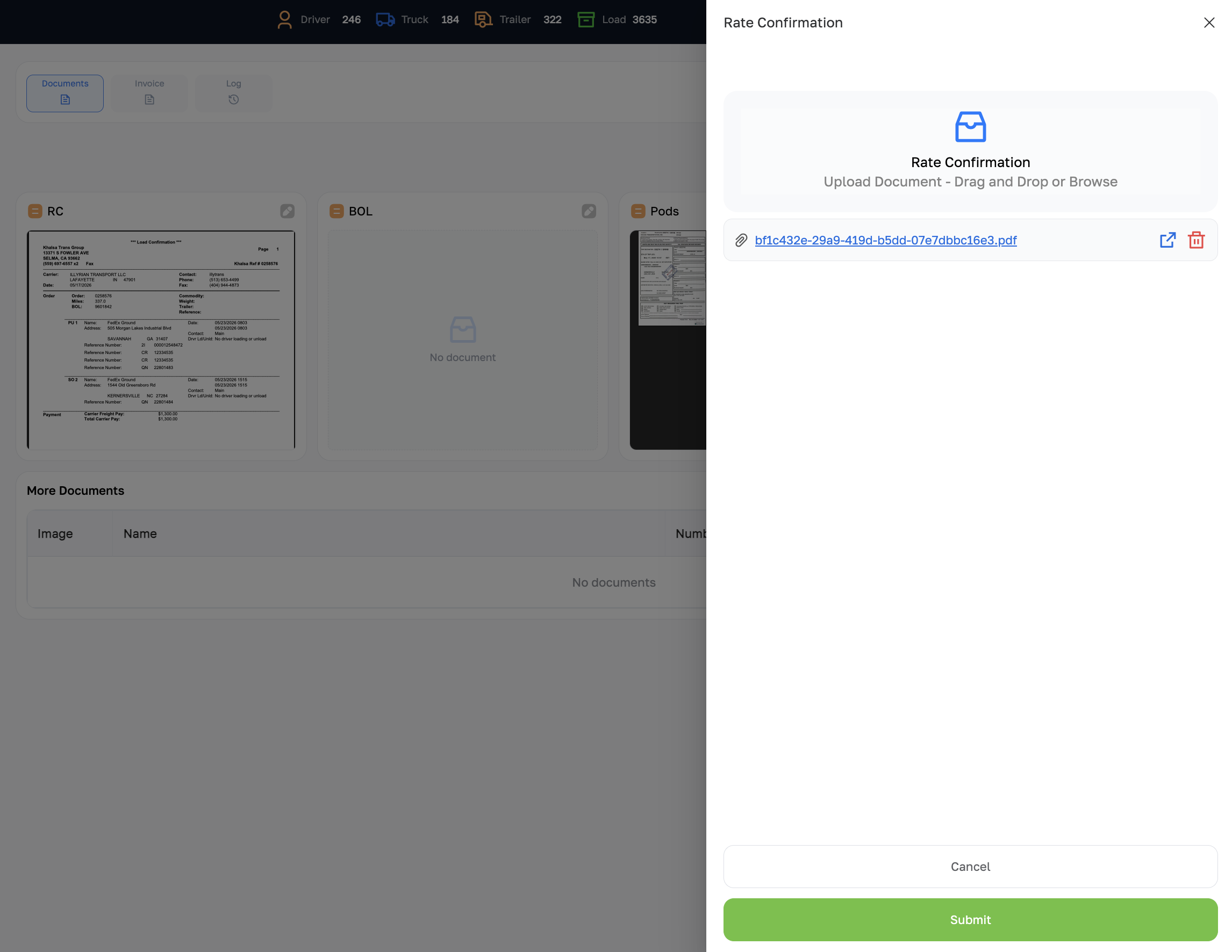
RC — Rate Confirmation
Pencil on the RC card. Upload the broker's PDF as soon as it arrives — the load can't go En route without it.
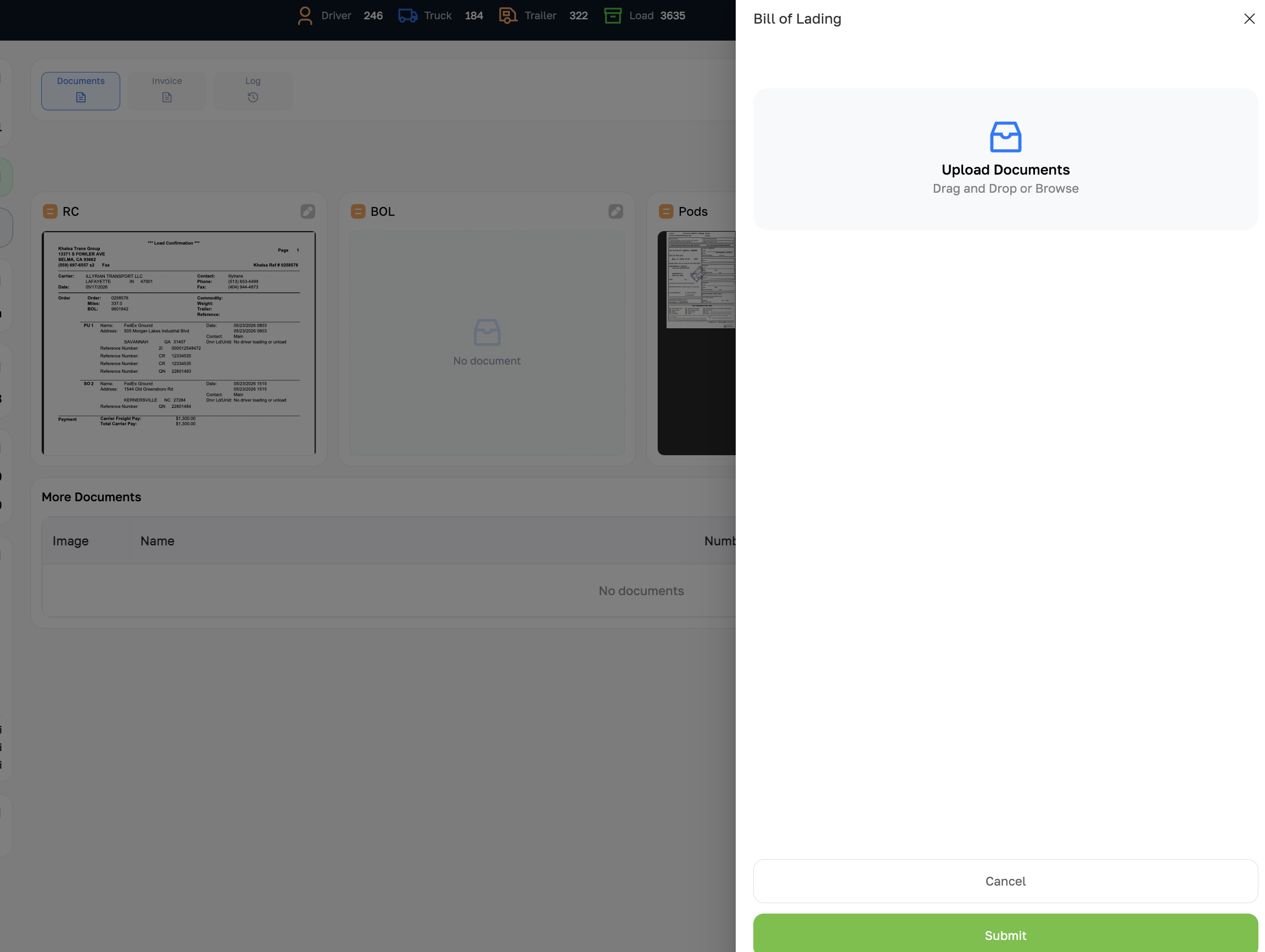
BOL — Bill of Lading
Pencil on the BOL card. Upload the driver's photo or scan as soon as they confirm pickup.
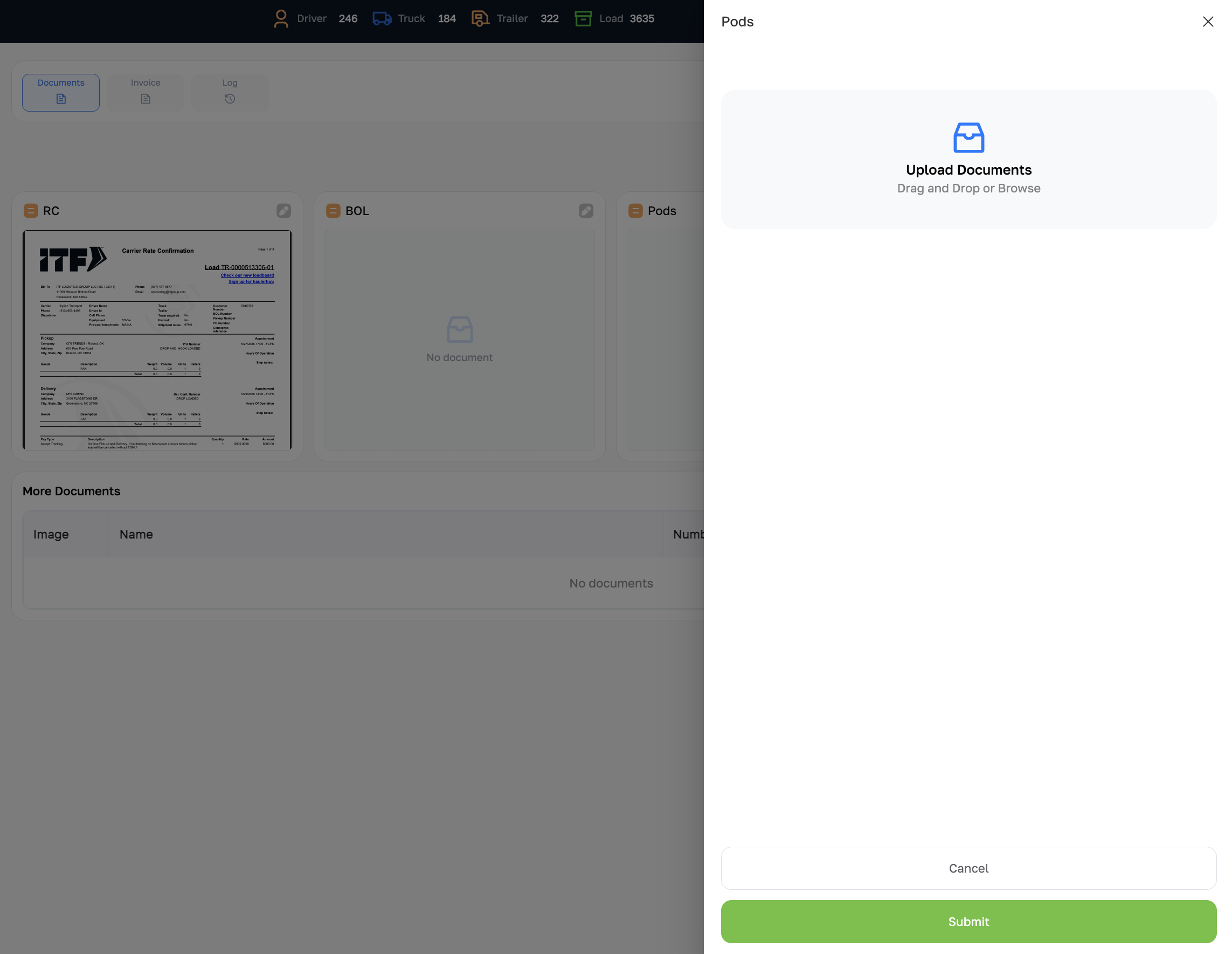
POD — Proof of Delivery
Pencil on the Pods card. Upload the signed receipt the same day the load delivers — the load can't be marked Delivered without it, and it can't be invoiced either.
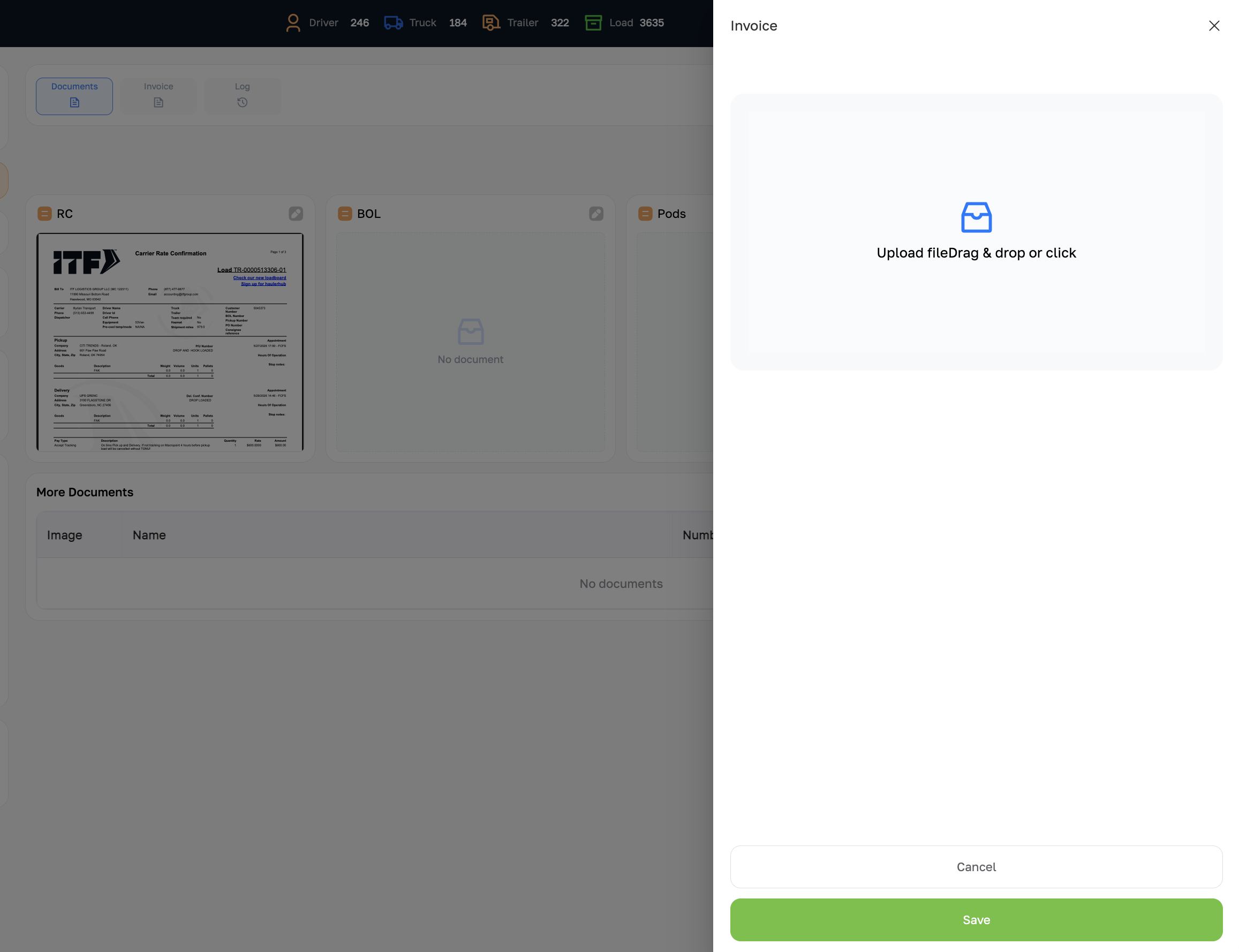
Invoice and other documents
Pencil on the Invoice card to attach an invoice you produced elsewhere. Anything else — lumper receipts, scale tickets, detention paperwork — goes in More Documents with the green Add tile, where each file gets a name and a number.
How to add a new load?
Upload the broker's Rate Confirmation and the system reads it, filling in most of the form. You then choose the few things it can't know, check its work, and submit.
1Open the form
Main → Loads, then the green + at the right of the filter bar. The Add Load drawer opens.
2Upload the Rate Confirmation
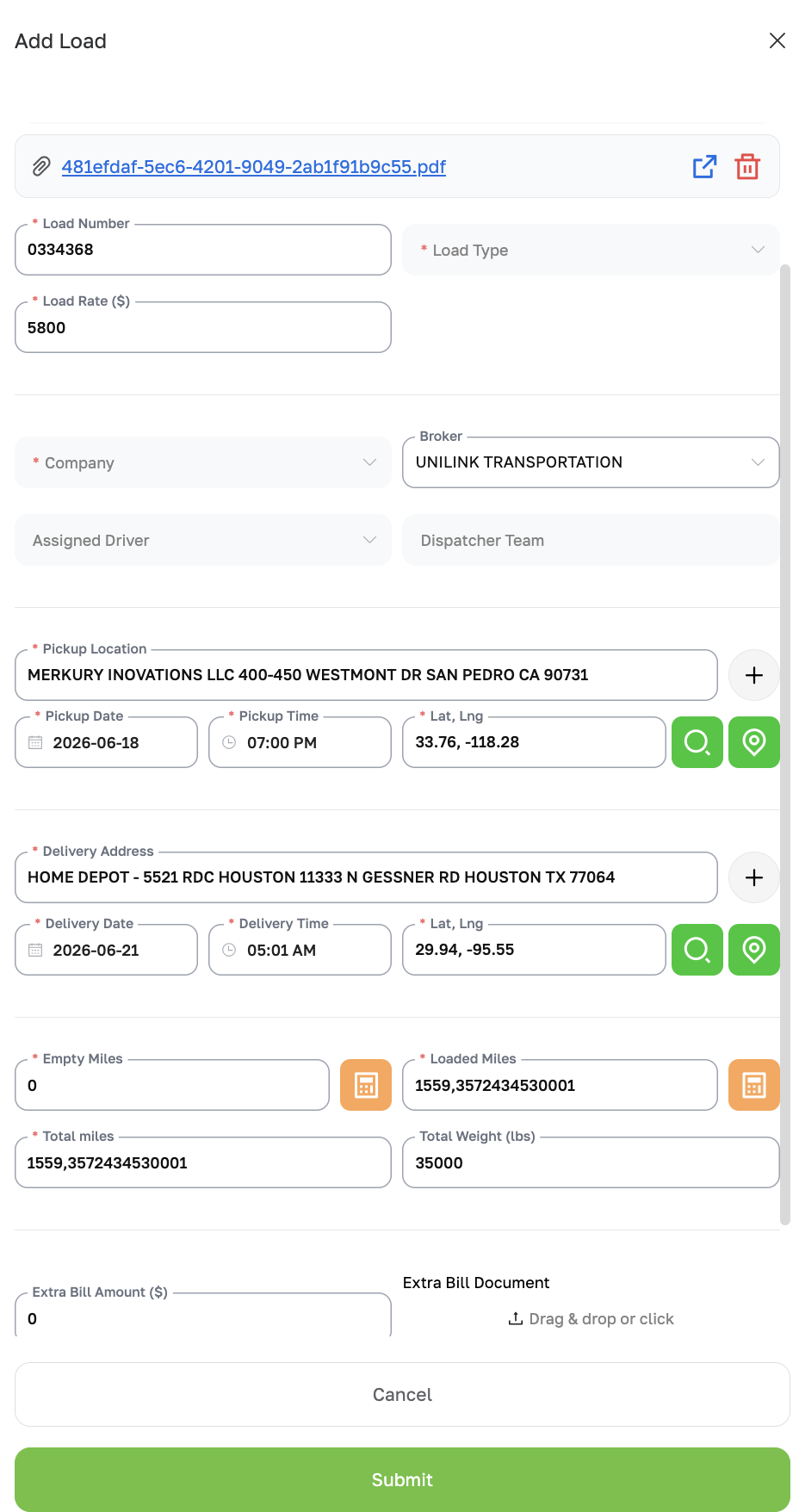
Drop the RC onto Upload Document - Drag and Drop or Browse at the top of the drawer. A circle shows Reading document… while it works — this takes a few seconds, occasionally up to a minute.
It fills in: load number, rate, broker, company, every pickup and delivery with its address and appointment, total weight, notes, and the loaded miles.
3Fill in what the RC can't tell it
- Load Type — One time, Lane or Load out. Required.
- Company — which of your companies runs it. Required.
- Assigned Driver — switch between the Solo and Team tabs first. On the Team tab the field becomes Assigned Team and lists the Driver Teams for the pickup week. Required for a One time load.
- Lane — only appears for a Lane load.
Dispatcher Team fills itself in from the driver or the team, and can't be typed over.
4Check the stops
Compare each pickup and delivery against the RC — the address, the date and the time. Add a stop with the + next to the first pickup or delivery, and remove one with –. If a stop has no coordinates, use Geocode from address, or Pick on map to place it by hand.
5Check the miles
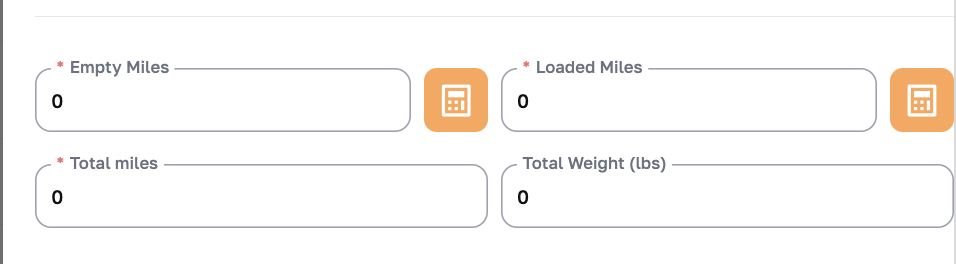
Empty Miles, Loaded Miles and Total miles are all required. Loaded miles come from the route the system read off the RC; total miles adds itself up.
Empty miles run from where the truck finishes its current work to this load's pickup — not from the driver's GPS position at the moment you're booking, which will have moved by the time they're free. TMS fills the figure in when you pick the driver or team, and again if the first pickup changes. It starts from the first of these that exists:
- the last delivery of the load the truck is En Route on;
- otherwise, the Upcoming load that delivers latest before this pickup;
- otherwise, the truck's live ELD position — or the driver's last saved location when the ELD has none.
A line under the field says which one was used, for example From #1234 delivery · Dallas, TX. If the figure replaced one you had typed, the line shows the old value with Undo. Read any warning there: the driver is still on another load past this pickup, an En Route load's delivery was more than a day ago, or the truck's position is more than a day old.
Opening a saved load never recalculates it, and neither does anything once the load is on a statement. To work the figure out yourself, use the calculator button beside Empty Miles.
6Submit
Click Submit. The load is created as Upcoming and the RC is already attached. If something is missing you'll get a message naming the field — for example "Load Number is required" or "Delivery date/time cannot be earlier than the pickup date/time".
How to redeliver a load (split it)?
A redelivery is for when the driver who picked the freight up can't finish the run — they break down, run out of hours, or are needed elsewhere — and another driver takes it the rest of the way.
Splitting the load records that properly. The load you're on becomes
<number>p1, ending where the first driver stopped, and a new load
<number>p2 is created, starting from that same point and running
to the original delivery — for example #SO-AAN00026555p1 and
#SO-AAN00026555p2. The loaded miles are worked out again for each leg, so
each driver is paid for the miles they actually drove.
1Open the load and start the redelivery
Open the load, and on the Route card click the scissors (Split load) — it sits in the card's header, next to the pencil. The Split Load drawer opens and names the two loads you are about to create, so you can check you're on the right one before you start.
2Say where and when the freight changed hands
- Split location — where the first driver stopped. This is p1's delivery and p2's pickup at the same time, so put in the real place, not the nearest city: both drivers' miles are measured from it.
- Lat, Lng — the search button fills these in from the address, or use the map button to place the point by hand. Check them before going on; a coarse point means coarse miles on both legs.
- Date & time — when the handover happened. It has to fall between the load's own pickup and delivery; the drawer refuses anything outside that.
3Choose the driver who finishes the run
Pick the Driver (p2), then set Empty miles (p2) — the miles that driver runs empty to reach the split point. The calculator button works them out once a driver is chosen. p1 keeps the empty miles it already had.
4Split
Click Split. You'll see "Split into <number>p1 and <number>p2", and both loads appear in the list. p2 carries over the load type and the Rate Confirmation.
5Set the rate on each leg
This step is yours to do. p2 is created carrying the original rate, and TMS does not divide the money — it can't know what the two dispatchers agreed. The dispatcher handing the load over and the one picking it up agree what each leg is worth, and then each opens their own load and sets its rate on the Payment card.
Until that's done both loads carry the full rate, so the week's gross and the drivers' pay will be overstated.
6Set each load's status
p1 is finished as a normal load — set it to Delivered once the POD is in, and close it. p2 is the run that hasn't happened yet: set it to Upcoming, or On Hold if the new driver can't start straight away. Neither status is set for you.
Drivers
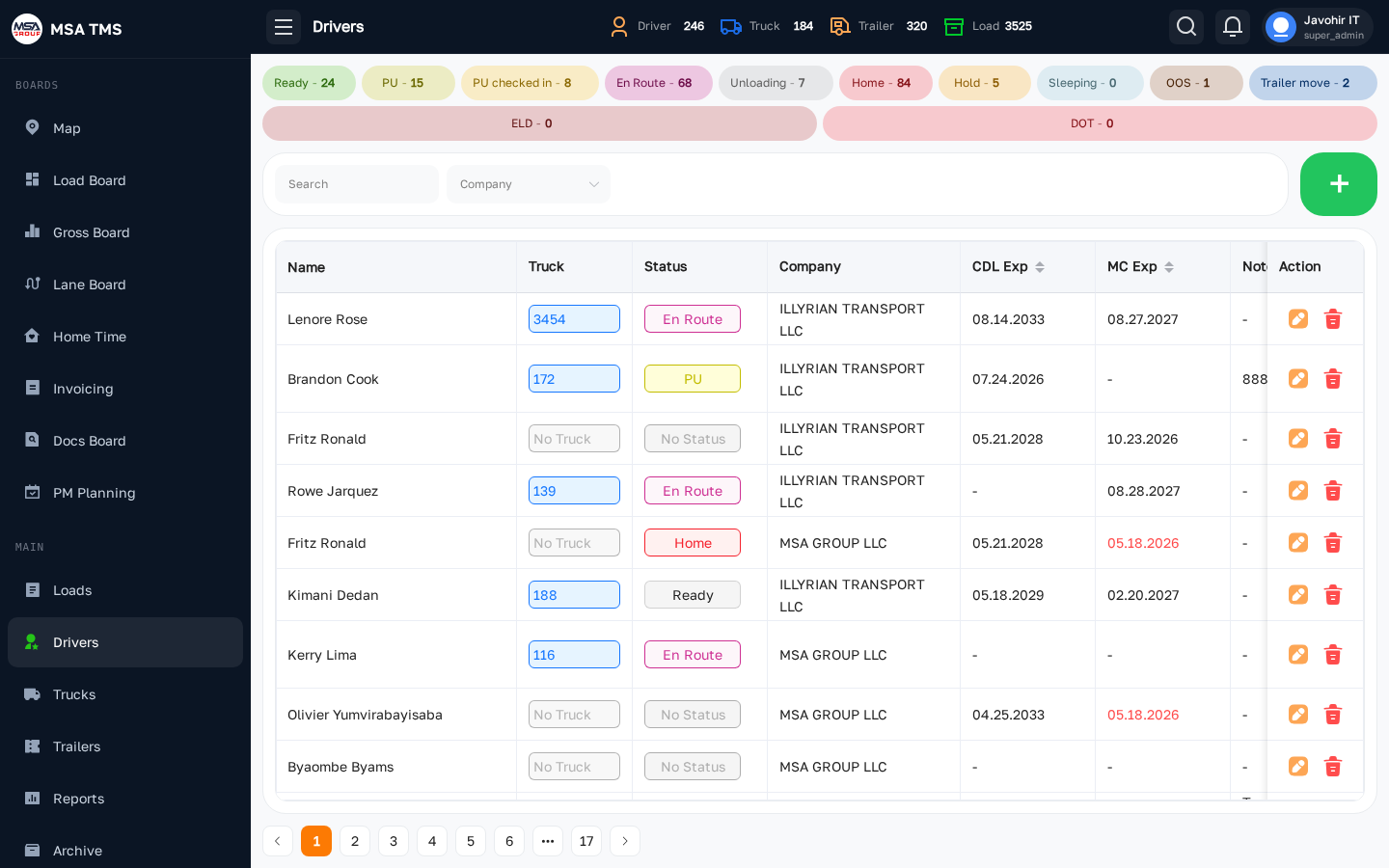
The driver roster. Status pills with counts sit on top; filter by search, Company, Type (contract type), and Solo / Team. Columns: Name (with the Driver Team name, or Solo, underneath), Truck, Status, Company, CDL Exp, MC Exp, Notes, and Current Location.
Adding a driver
- Click the green +. The Add Driver form opens.
- General info: First, Middle and Last Name, Date of Birth, Sex, Phone Number, Email Address, Address, Hire Date, and the CDL — License Number, License State, Issue Date and Expiration Date.
- Company: pick the company and the Contract
Type, then enter the pay — the four $/mi
rates for a company driver, or the percentage for a lease or owner driver.
Rates are dollars per mile: 75 cents is
0.75. - Documents: upload the driver licence, med card and agreement.
- Payment: record the security deposit and occupational accident insurance, then save.
- Click the Notes cell to read and add notes in a drawer.
- Click a row to open Driver Info.
Driver Info
Cards down the left: Contact, Status, Truck (with its live speed, fuel and odometer), Dispatcher Team, Driver Team, Company — contract type and the four pay rates — and Notes.
For a driver in a Driver Team, the status and the truck come from the team and the cards are read-only. Change them on the team instead.
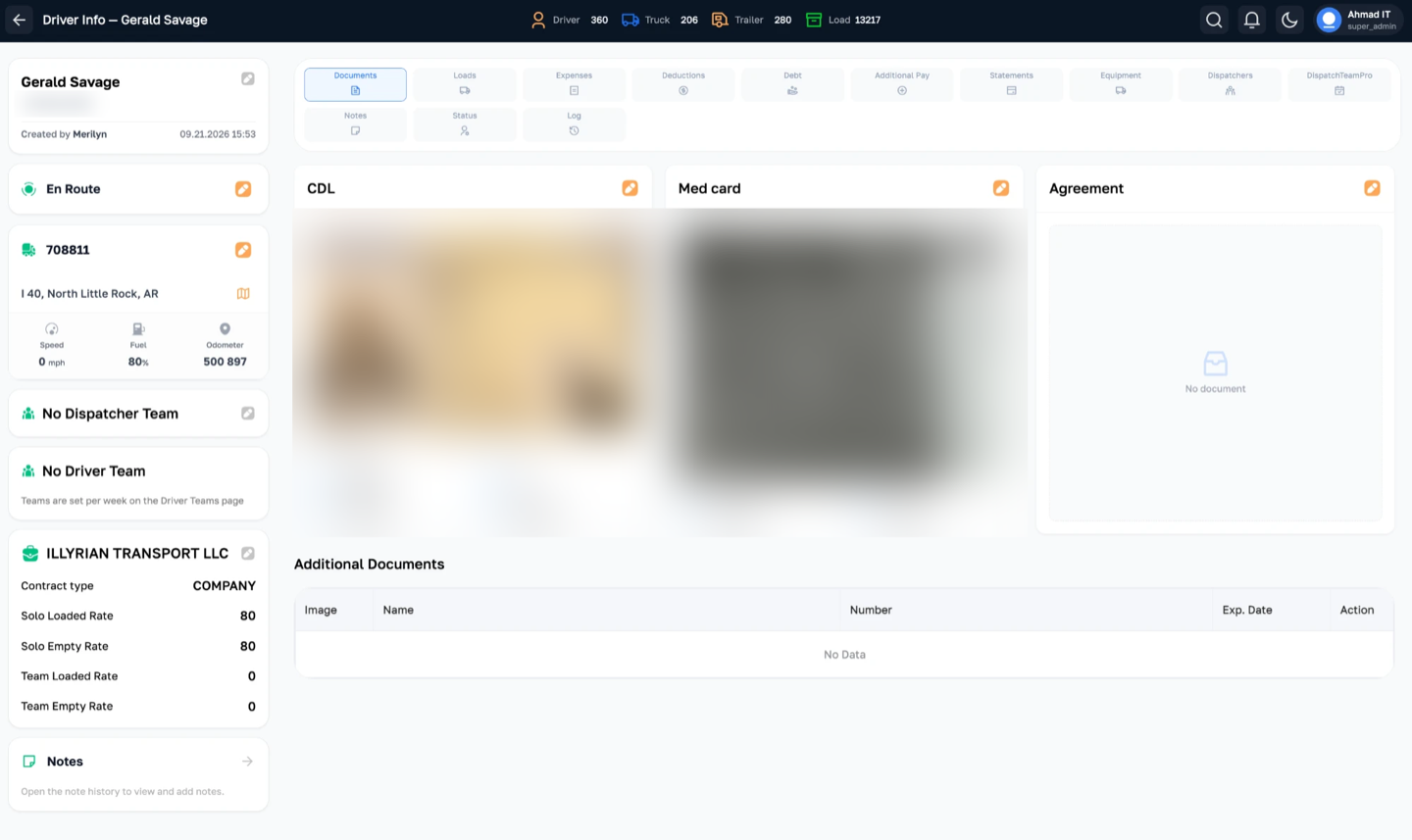
| Tab | What's there |
|---|---|
| Documents | CDL, Med Card, Agreement, additional files. |
| Loads | The driver's loads, with Solo and Team views. |
| Expenses · Deductions · Additional Pay | Money items that feed the weekly statement. |
| Debt | Debt and Security Deposit balances and entries. |
| Statements | Saved weekly statements — search, open, edit, delete, or create one with +. |
| Equipment · Dispatchers · DispatchTeamPro | History of trucks, dispatchers, and weekly dispatch teams (a mid-week change shows as A → B). |
| Notes | Every note, marked Fleet (written on the Drivers list) or Dispatch (written on the Load Board). |
| Status · Log | Status timeline and the full change log. |
Pay types & rates
A driver's Contract Type decides how they are paid:
| Contract type | Paid by | Statement |
|---|---|---|
| Company | Per mile (CPM) — or, if % of gross is chosen, a percentage of the load gross. | Company Driver Statement |
| Lease | Lease % of the load gross. | Lease Driver Statement |
| Owner | Owner % of the load gross. | Owner Driver Statement |
Per-mile rates are entered in dollars per mile, so 75 cents a mile
is 0.75, not 75. There are four of them, on the driver's
Company card:
75 instead of
0.75 pays the driver a hundred times over on their next statement. If a
statement total looks absurd, check the rates here first.
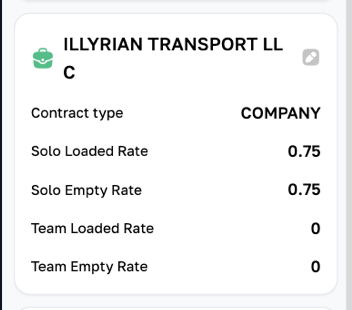
- Solo loaded / empty rate — used on the driver's own loads.
- Team loaded / empty rate — used on loads run as a Driver Team. If a team rate is empty, the solo rate is used.
Debt & Security Deposit
The Debt tab on Driver Info tracks two separate balances:
- Debt — money the driver owes the company (advances, damages, a negative week).
- Security Deposit — money held on the driver's behalf.
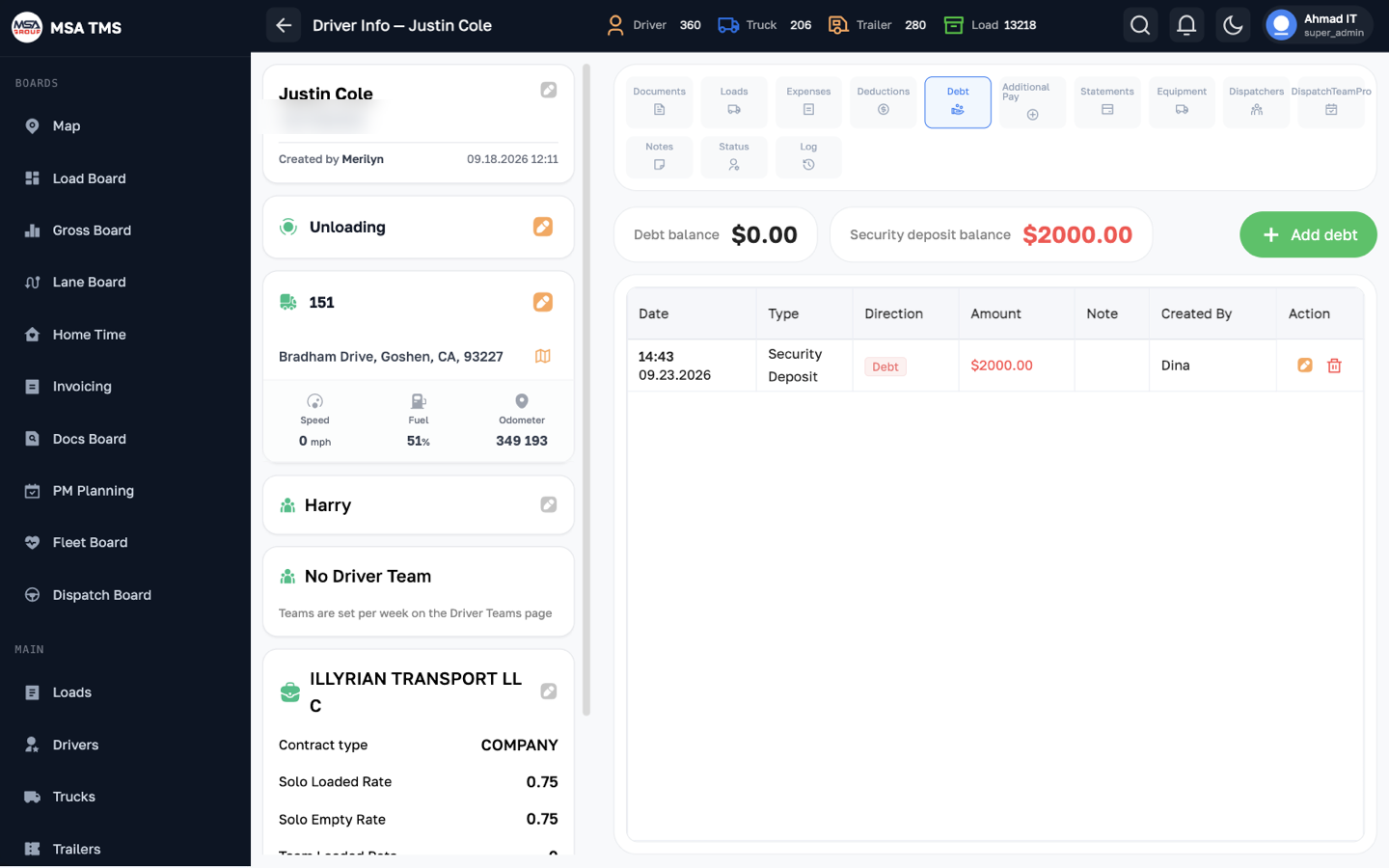
The two balances sit at the top. Every entry below shows its date, type, direction, amount, note and who created it.
Recording an entry
- Open the driver, then the Debt tab, and click Add debt.
- Choose the Type — Debt or Security Deposit.
- Enter the Amount ($).
- Write a Note saying what it is for. Nobody can reconstruct it later without one.
- Click Add. The pencil on a row edits an entry, the trash removes it.
Weekly statements can repay debt, and when a statement comes out negative, saving it asks whether to carry the shortfall into Debt. Deleting a statement puts back any debt it repaid — so entries created by a statement reappear if that week is generated again.
Truck owners have the same kind of Debt tab, kept per truck — see Truck Owners.
Trucks
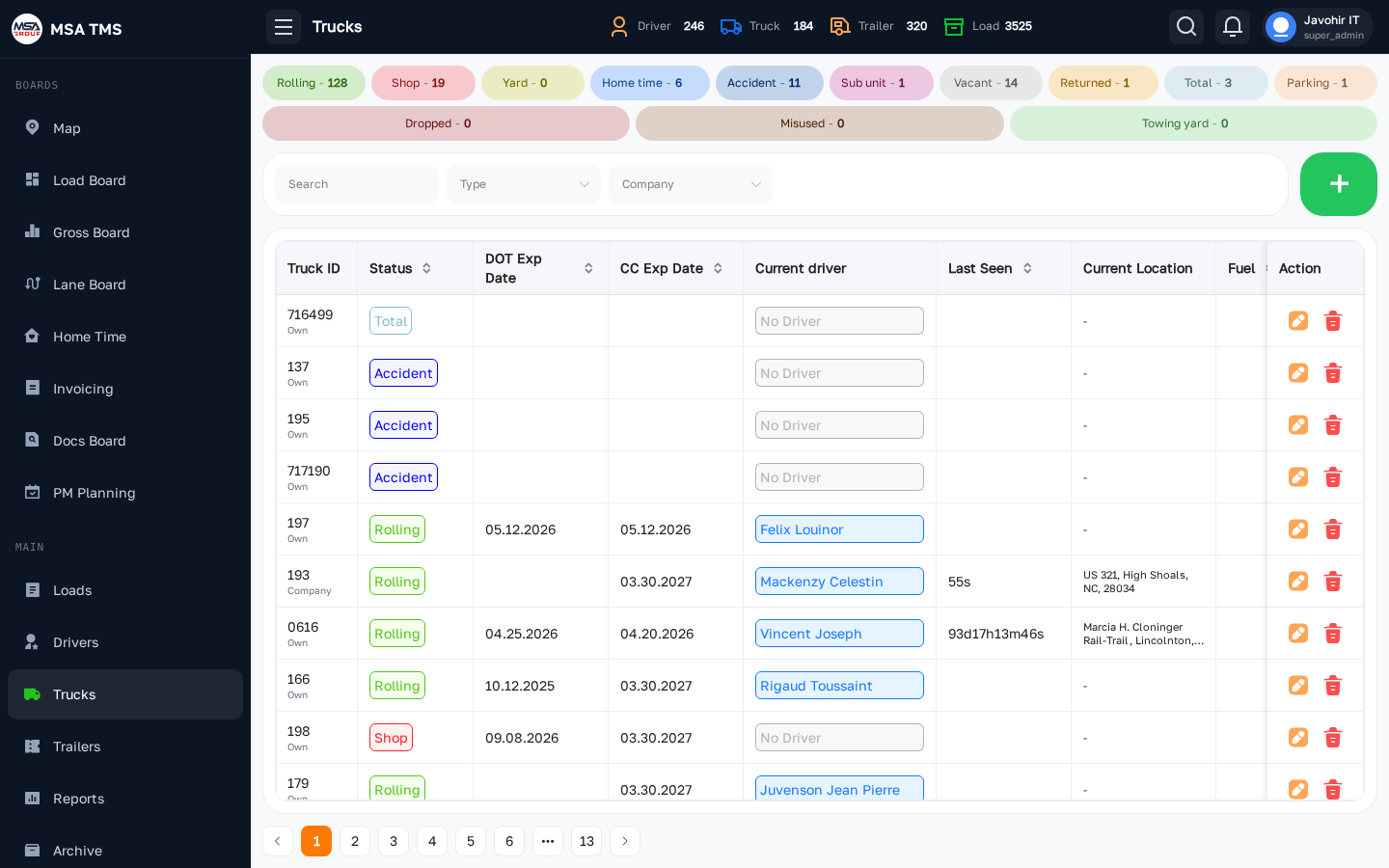
Every power unit. Status pills: Rolling, Shop, Vacant, Attention. Filters: search, Company, Type (Company / Lease / Owner Operator / Rent), and Status Type (Normal / Sub Unit).
Columns: Truck ID, Status, DOT Exp Date, CC Exp Date, Current driver, Last Seen, Current Location, Fuel %, Year, Make, Notes.
- Status Type: a Normal truck can be Rolling, Shop, Vacant, or Attention; a Sub Unit can only be Rolling, Shop, or Vacant and carries a Sub Unit badge.
- Need Inspection, Accident, Parking, and Towing yard are all counted under Shop.
- Location always comes live from the truck's ELD — it can't be typed in by hand.
- The Notes column shows the latest note; click it to read or add notes.
Adding a truck
- Click the green +. The Add Truck drawer opens.
- Enter the Truck Number and pick the Company.
- Choose the Type — Own, Lease or Rent — and its Value. A leased truck also needs its Truck Leasing Company.
- Fill in the unit itself: State, Plate, Make, Model, Year and VIN.
- Add the paperwork dates — Dot Expiration Date, CC Expiration Date, federal inspection sticker, IFTA licence, permits and insurance status — then save.
Truck Info
Cards down the left: the truck itself (type, company, plate, VIN, make and year), Status, Driver (or Driver Team), Trailer, Location with its last-seen time, speed, fuel and odometer, and either the Company or — for an Owner Operator truck — the Owner.
The tabs across the top hold everything else recorded against the truck.
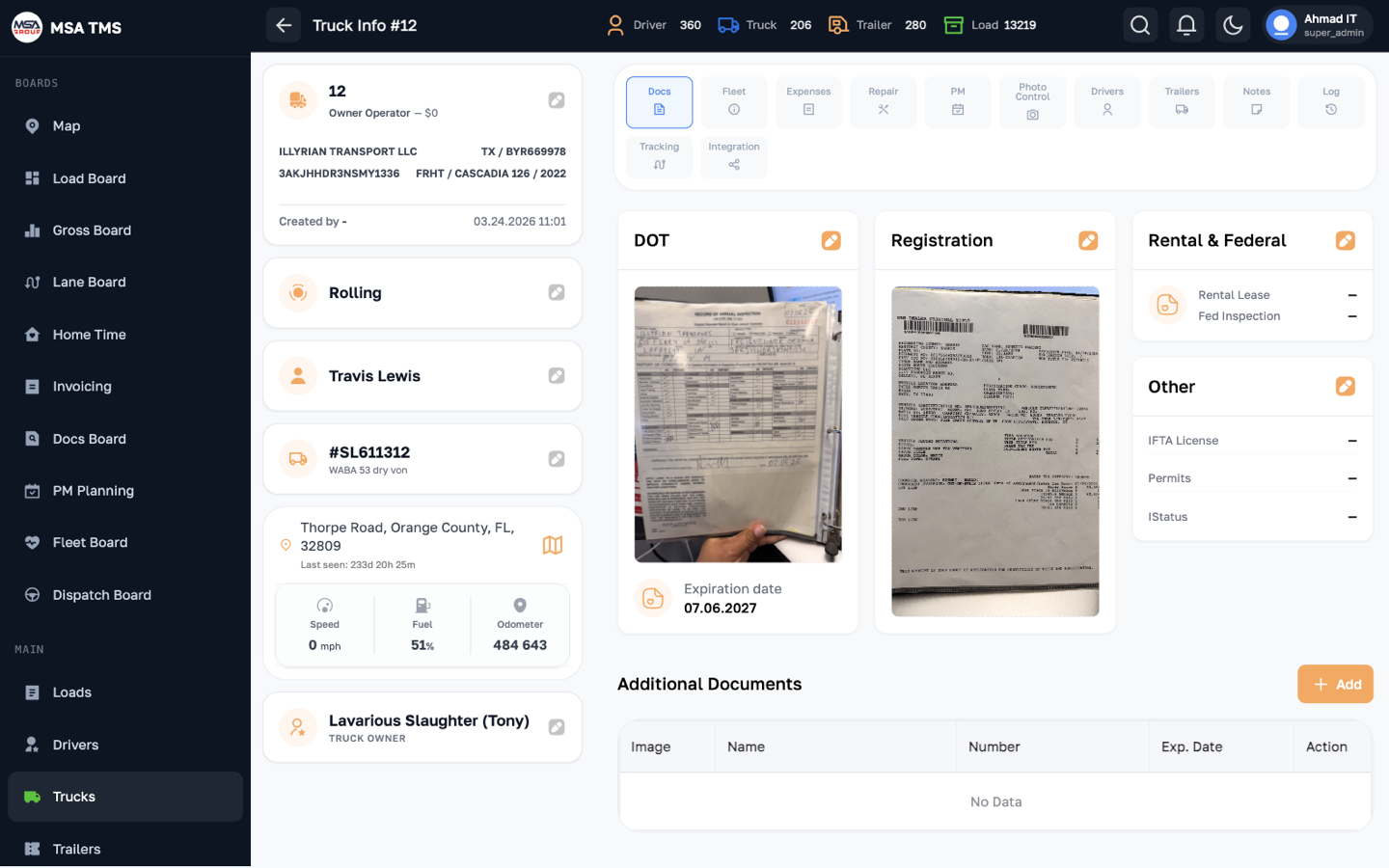
| Tab | What's there |
|---|---|
| Docs | Truck documents. |
| Fleet | General info, partner & payment, equipment, PM frequency, and installed devices (ELD, Samsara, camera, Bestpass, tablet). |
| Expenses · Repair · Photo Control | Everything spent on and recorded for this truck. |
| PM | Requests and Log views — raise a PM request with New Request. |
| Drivers · Trailers | Assignment history. The Type column shows Solo or Team; team rows open the Driver Team. |
| Notes · Log | Notes and the full change log. |
| Tracking | Replay the truck's route at 1×, 2×, 5×, or 10× speed. |
| Integration | Choose the ELD provider — Samsara, OnTime ELD, or Five ELD — and link the vehicle. |
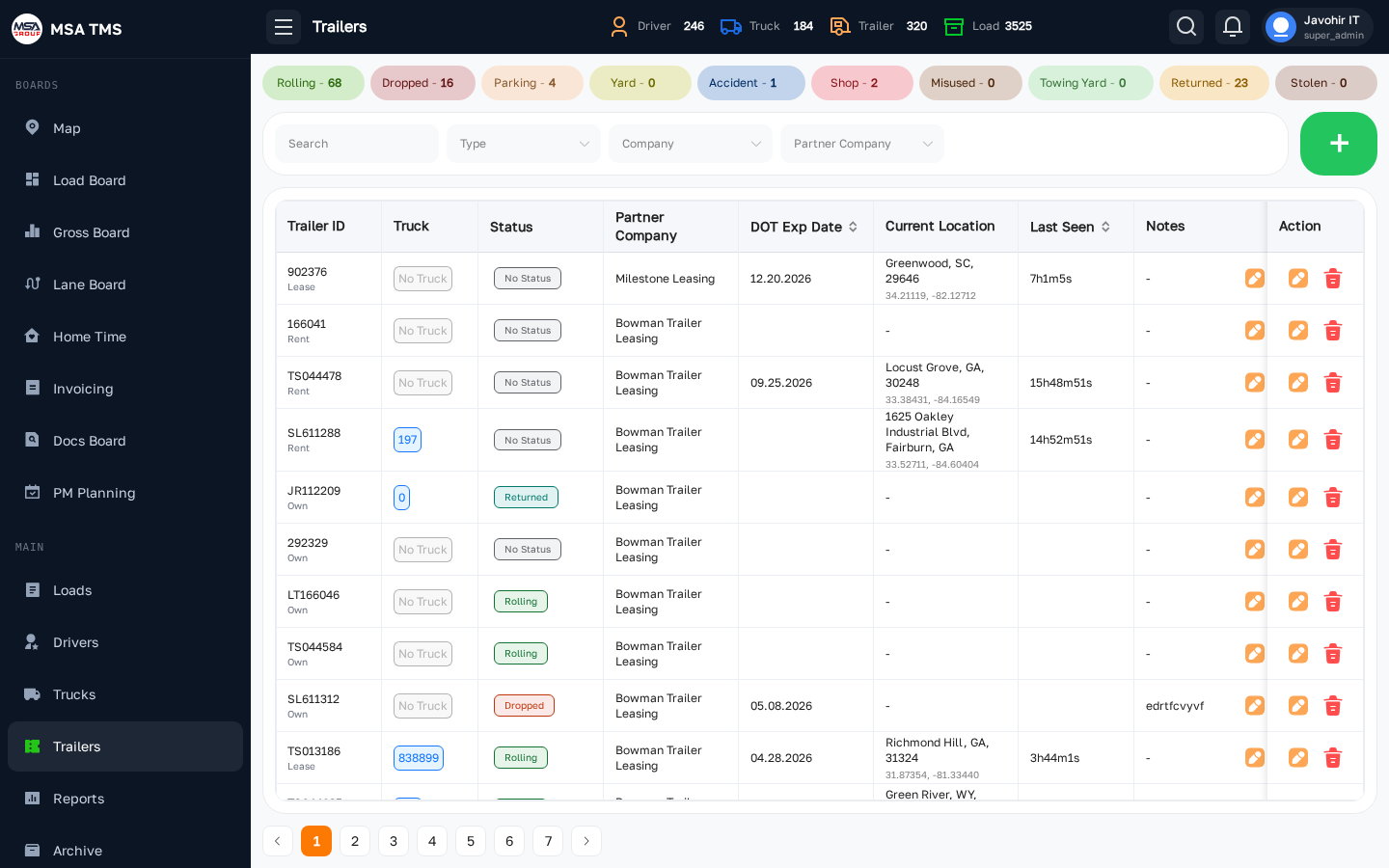
Trailers
Every trailer. Status pills: Rolling, Shop, Parking, Dropped, Misused, Others, and Returned. Returned trailers sit at the end of the list and aren't counted as active. Filter by search, State (where the trailer is), and Trailer Leasing Company.
- Columns: Trailer ID, Truck, Status, Trailer Leasing Company, DOT Exp Date, Current Location, Last Seen, Notes.
- DOT Exp Date is red when expired, yellow within a month, and green otherwise.
- Click the Trailer ID (or a location) to copy it. The last trailer you opened or copied stays outlined, and the list keeps its scroll position when you come back.
Adding a trailer
- Click the green +.
- Enter the Trailer Number and pick the Company.
- Choose the Type and the Trailer Leasing Company if it is leased, and enter its Price.
- Fill in State, Plate Number, Make, Model, Year, VIN and the DOT Number.
- Save. The SkyBitz tracker is linked afterwards, from the trailer's Integration tab.
Trailer Info
Cards down the left: the trailer (ownership, plate, VIN, make and year), Status, the Connected Truck, the Location with its last-seen time, speed, temperature and battery, and the Leasing Company.
Tabs: Documents, Repair, Expenses, Notes, Photo Control, Trucks, Tracking (replays the connected truck's route), Cargo History, Integration (SkyBitz) and Log.
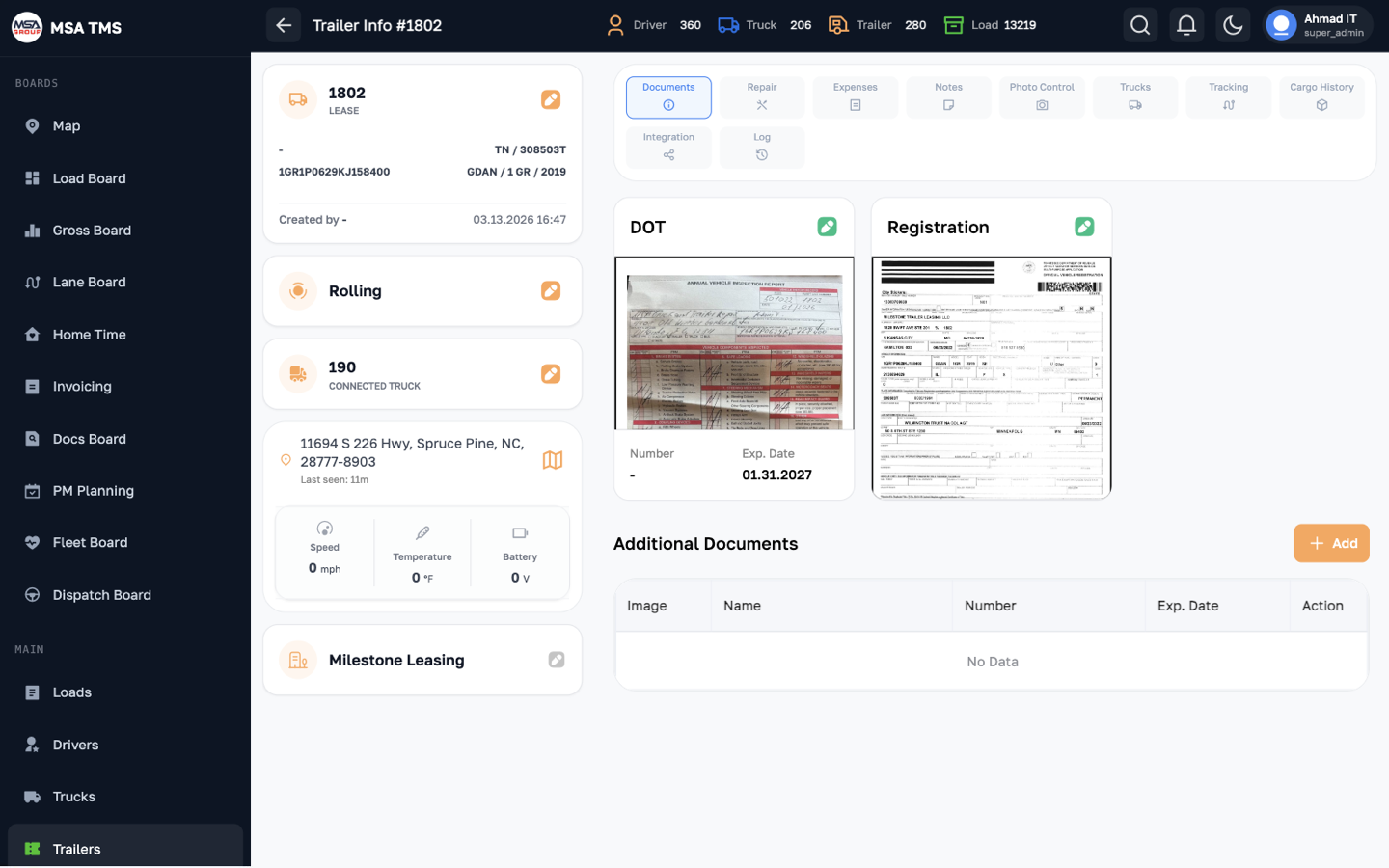
Cargo History comes from the SkyBitz tracker: map points are coloured Loaded or Empty, and drop / pickup events are listed. Click a point to see its date and time; click a legend item to show or hide that kind of point.
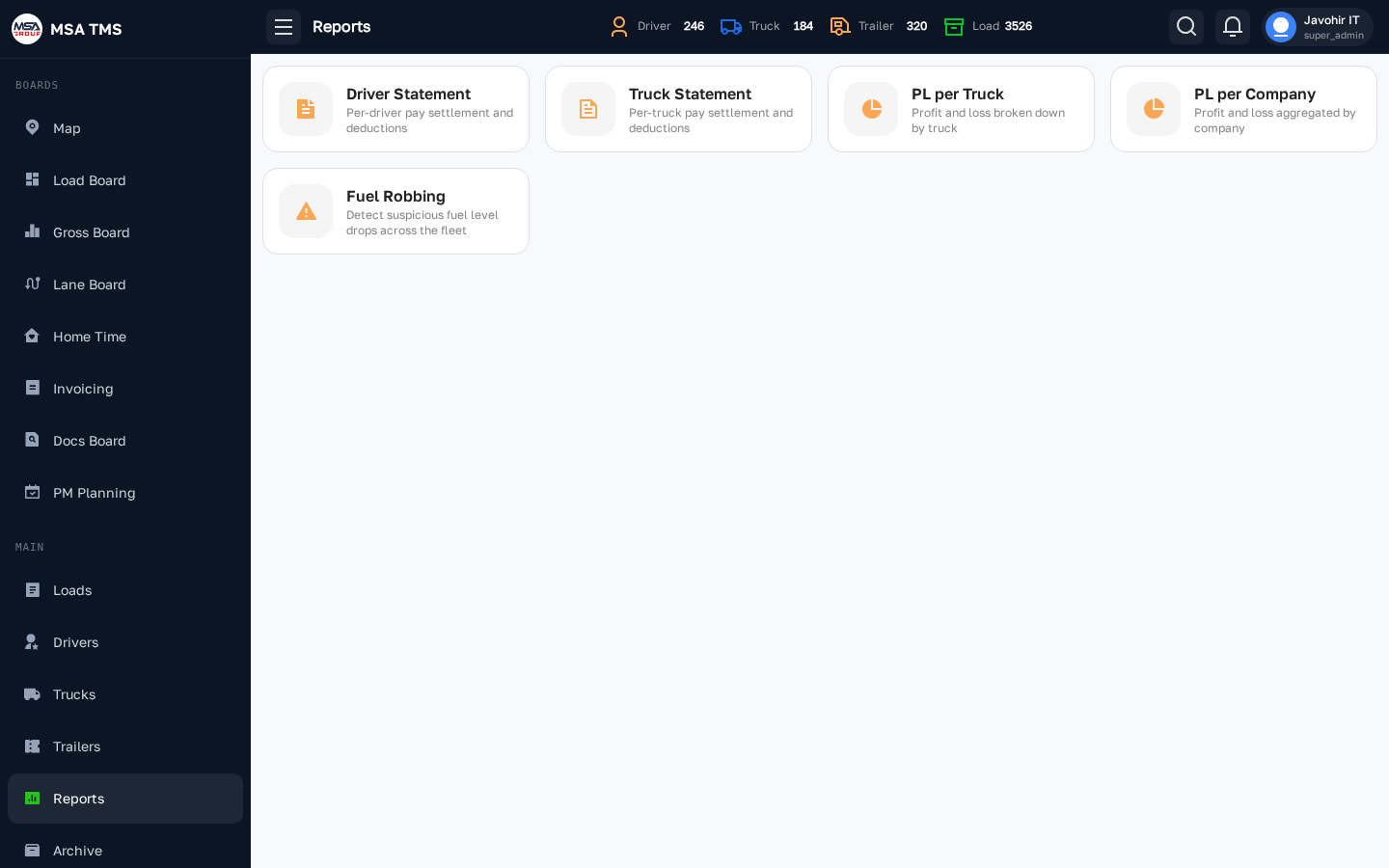
Reports
A grid of report cards. You only see the ones your role allows.
| Report | What it's for |
|---|---|
| Company Driver Statement | Weekly pay for company drivers, solo and team. |
| Lease Driver Statement | Weekly pay for lease drivers, as a percentage of gross. |
| Owner Driver Statement | Weekly pay for owner-operator drivers. |
| Truck Owner Statement | Weekly settlement for each truck owner, per truck. |
| PL per Truck | Weekly profit and loss for every truck. |
| Fuel Theft | Unexplained fuel drops. |
| Load Status | Load counts by status and payment status. |
Driver statements
A statement is one driver's pay for one carrier week: what they earned, minus deductions, plus expenses and extra pay, adjusted for debt. There are three, one per contract type, and they work identically.
| Report | Covers | Paid by |
|---|---|---|
| Company Driver Statement | Company drivers, plus Driver Team members | Per mile, or a percentage of gross if the driver is set up that way |
| Lease Driver Statement | Lease drivers | Their lease percentage of gross |
| Owner Driver Statement | Owner-operator drivers | Their owner percentage of gross |
The roster
After choosing a week you get one row per driver, showing their truck, their loads for the week, whether a statement exists, and the net pay. Company drivers' loads are split into three buckets so nothing falls between weeks:
- PU prev wk · Del this wk — picked up last week, delivered in this one.
- PU & Del this wk — entirely within the week.
- PU this wk · Del next wk — started this week, finishes next.
Cancelled and rejected loads are outlined in red. Add driver brings in someone the week's list missed. Each row offers Generate, or Open and Edit once a statement exists.
Team loads
A load run by a Driver Team appears on every member's statement, each with their own pay. Team loads use the driver's team rates, falling back to the solo rates if none are set. If the load's week split names one member for a week, that is respected.
How to generate a driver statement?
1Pick the report and the week
Main → Reports → Company Driver Statement (or the Lease or Owner one). Choose the week — the current one is marked This week.
2Open the driver's statement
Find the driver and click Generate. The builder opens with the week already calculated: a PDF preview on the left, the figures on the right.
3Check the loads
The Loads card lists every load in the week. You can correct the empty and loaded miles and the rates per load; for a percentage-paid driver you edit the gross instead.
4Add the money items
- Additional pay — bonuses, reimbursements.
- Expenses — items already recorded against the driver appear automatically; add anything else.
- Deductions — pick from your Deduction Types, or choose Other… and type a name. Types set to add themselves are already there. Percentage deductions are worked out from the week's gross.
- Debt and Security Deposit — these cards appear only when there is a balance. Enter how much to take back this week, or use Apply all.
5Save
Check NET PAY at the bottom, then click Save. Use the download icon if you need the PDF.
If the net pay is negative, a Negative statement box asks whether to carry the shortfall into the driver's debt. Save to debt saves the statement and records the debt; Cancel saves nothing.
What saving changes
The builder is not a calculator you work in and throw away. Whatever you type into it becomes the real record when you press Save. That is deliberate — the statement is what the driver was actually paid, so the rest of TMS is brought into line with it.
Concretely, saving:
- Updates the driver's own tabs. The deductions, additional pay and expenses you added, changed or removed in the builder are added, changed or removed on the driver's Deductions, Additional Pay and Expenses tabs for that week. Delete a deduction here and it is gone from the driver's record too.
- Updates the loads. If you corrected a load's miles or rate, that correction is written into the load's Week Split. So the Gross Board and the load itself agree with what you paid.
- Moves money on the debt ledger. Whatever you applied under Debt or Security Deposit is recorded on the driver's Debt tab, and a negative week you chose to carry over is added there as new debt.
- Locks the loads. Every load on the statement becomes locked, so the figures behind a settled payment can't be changed afterwards.
Truck Owner Statement
What a truck owner is paid for a week, worked out per truck. An owner with three trucks gets three statements.
- Open Main → Reports, click the Truck Owner Statement card, and pick the week.
- Find the truck's row. Add owner brings in someone the list missed.
- Click + Generate — or View / Edit if a statement already exists.
- Check the cards and adjust the money items, then Save.
The builder totals up:
- Gross from the truck's loads, and the driver pay charged against them. On a team load this is the pay of both members.
- Additional Pay.
- Deductions, including any Deduction Type set to add itself to owner statements.
- Expenses recorded against the truck. The trash icon on a row excludes it from this statement — the expense record itself is kept.
- Debt for that truck, repaid here.
NET OWNER PAY is the result. A negative total offers to carry the shortfall into the owner's debt, exactly like a driver statement.
P&L per Truck
Profit and loss for every truck, one week at a time. Each row starts from what TMS already knows — gross and miles from the loads, fuel, tolls and expenses from Accounting — and works out Total Expense, Profit / Loss and $/mi.
Costs that aren't recorded per load — insurance, IFTA, trailer lease, office supply, the dispatch fee and the factoring fee — come from P&L Settings, where you set a weekly amount per truck, or a percentage of gross.
Overriding a number
- Type over any cell. It turns orange to show it's a manual figure.
- Add a Note saying why.
- Click Save. Overrides are kept per truck, per week.
Clearing a cell brings back the calculated value, and Reset overrides on the row clears all of them at once.
Fuel Theft & Load Status
Fuel Theft
Looks for fuel disappearing from tanks without a matching purchase. Choose a date range and click Scan. Each row shows the truck, the driver, when and where it happened, the total and worst drop, how many events, and the miles covered.
Treat it as a list of things to ask about — a sensor fault looks much like a siphon.
Load Status
A count of loads by status for a date range, and of delivered loads by payment status — a quick read on how much work is booked and how much money is still owed. Filter by date range and dispatcher team.
Dispatch
Who dispatches whom, which drivers run together, and the lanes you run regularly. All three are set week by week.
Dispatch Teams
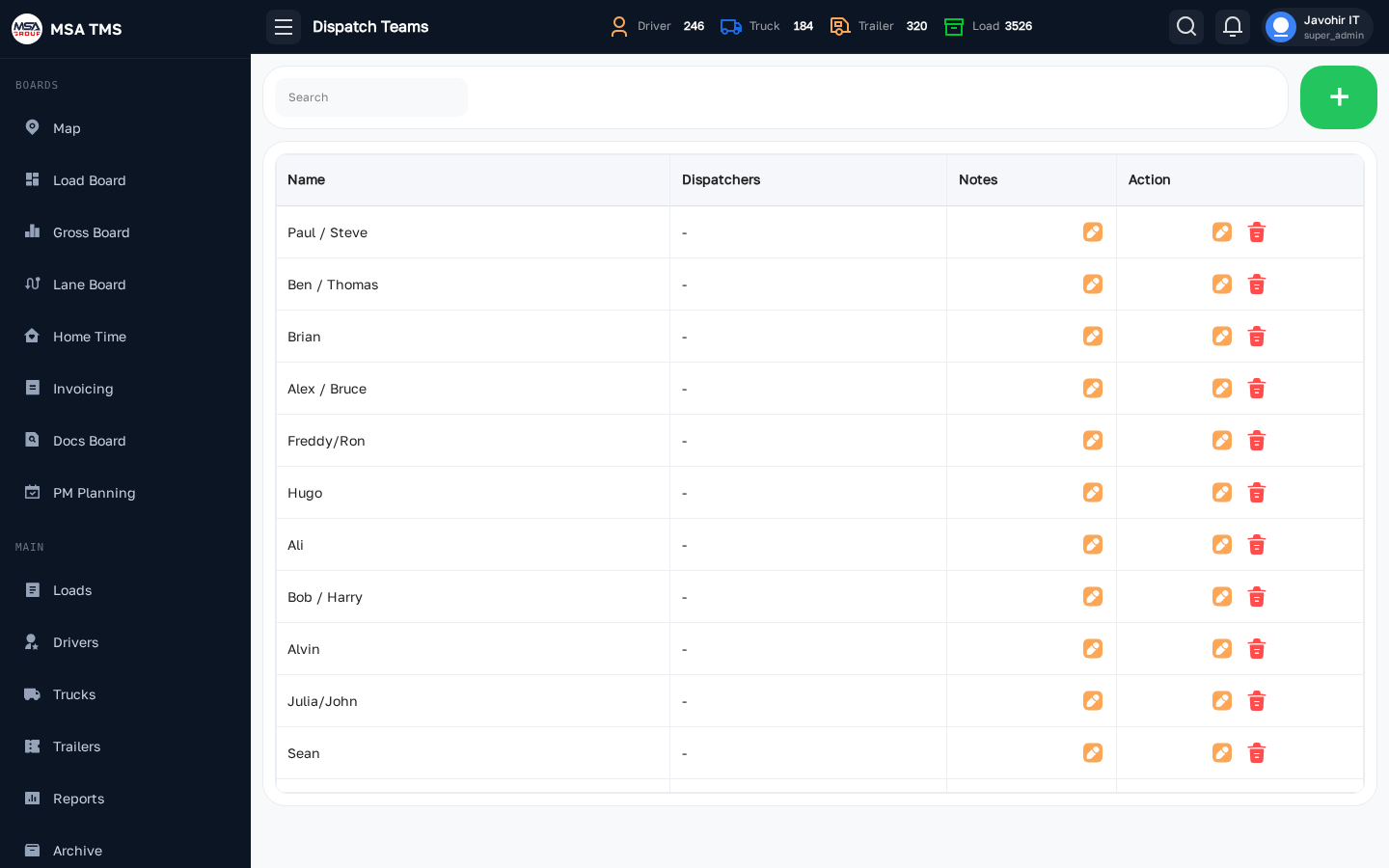
Which dispatchers look after which drivers, for one week. Every week has its own roster, so holiday cover and desk changes are a matter of record rather than memory.
Pick a week from the chips at the top — each shows its date range. Every row is one team, with columns for First Dispatcher, Second Dispatcher (a dash on a Solo desk), Solo Drivers, Team Drivers, and the Type badge — Solo or Team.
This roster is what groups the Load Board and the Gross Board into teams.
How to set up a week's dispatch teams?
Every week starts empty. Most weeks look much like the last one, so the quickest route is to import last week's teams and adjust; build from scratch when the desk is genuinely new.
1Choose the week
Dispatch → Dispatch Teams, then click the week chip. Each chip shows its date range. Without a week selected you'll be told to Select a week first.
2Import last week's teams
Click Import. The drawer Import Team — into Week N opens with one field, From week. Choose the week to copy from and that week's teams appear as cards, each showing its dispatchers, a Solo or Team badge, and the drivers it covers.
Pick a card and click Import. It arrives as a new row in your week with its dispatchers and drivers, and you'll see Imported. Repeat for each team you need.
3Or build a team from scratch
Click the green +. In the Add Team — Week N drawer:
- Choose the Type: Solo gives one Dispatcher field, Team gives First Dispatcher and Second Dispatcher. Neither picker will let you choose the same person twice.
- Add drivers underneath. The Solo tab adds one driver at a time; the Team tab adds an entire Driver Team in one go.
- Pick the driver, then click the green + beside the field. Each one is listed below with a trash icon to remove it.
Click Save. The new row appears in the table.
4Moving a driver between teams
There's no single "move" button. Do it in two steps, in this order:
- Open the team the driver is on now with the pencil, remove them with the trash icon, and Save.
- Open the team they're joining, add them, and Save.
This only affects the week you're editing. Past weeks keep their history, and loads already dispatched keep the team they were dispatched under.
Driver Teams New
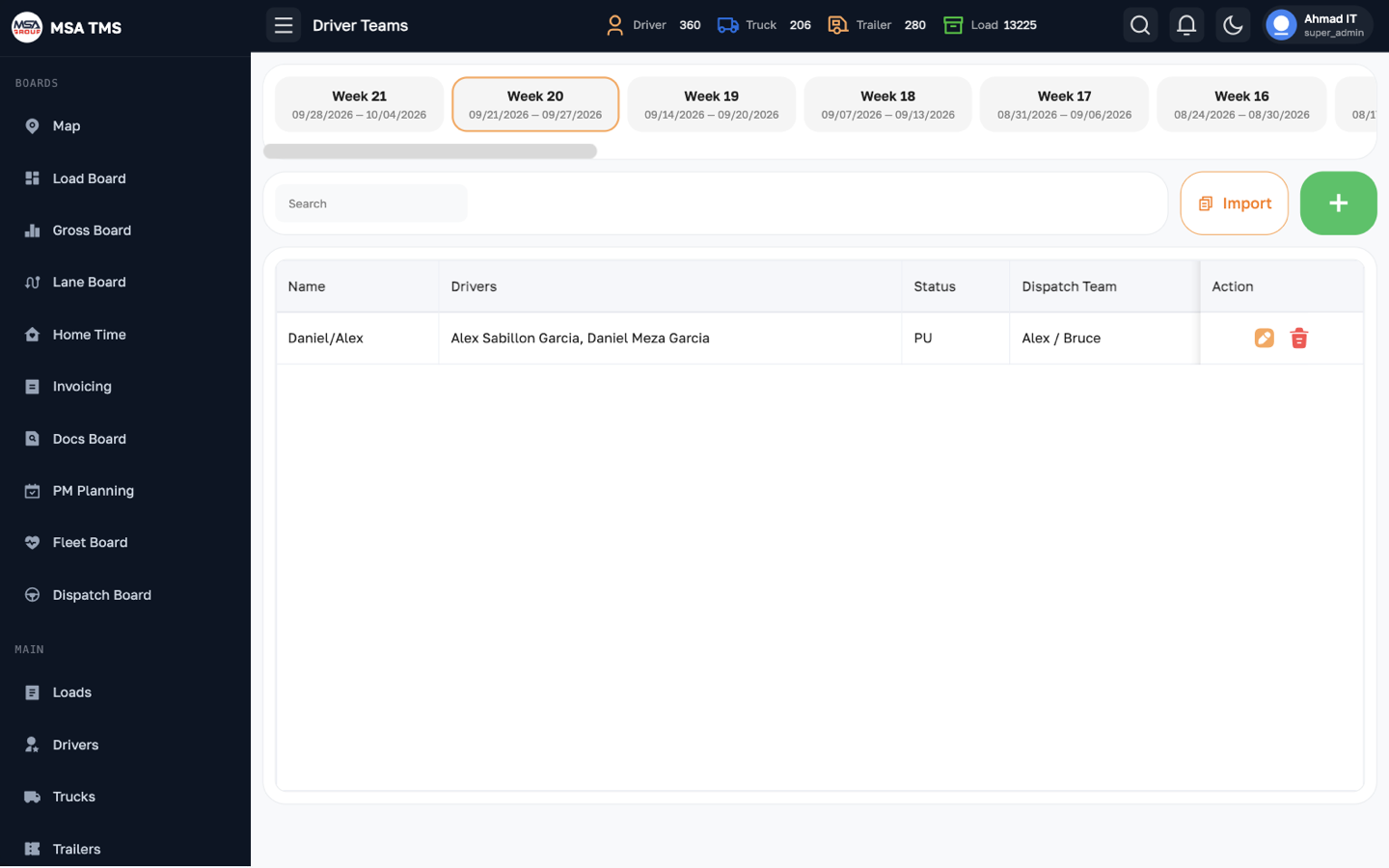
Two drivers running one truck together. A team is set up for a carrier week, so a pairing that changes next week is simply a different row — and last week's record stays accurate.
The list shows each team's name, its dispatch team, its drivers, its status and notes.
What belongs to the team, not the driver
While a driver is on a team, these are set on the team and passed down to both members — on their own pages the fields are read-only:
- The truck.
- The status. The team has one status of its own.
- The dispatch team.
Active Driver records who is behind the wheel. It is separate from the team's status.
The team's page
Cards for the team's status, active driver and truck, and tabs for Loads, Trucks, Expenses, Deductions, Dispatcher, Notes, Statuses and Log — all combined across both members.
How to pair two drivers for a week?
1Choose the week
Dispatch → Driver Teams, then click the week chip. Teams belong to the week you're looking at.
2Carry a team over, or create one
If the pair already ran together, click Import, choose From week, pick the team and click Import. It copies the name, members, active driver, dispatch team, status and notes.
Otherwise click the green + and fill in:
- Name — required, and what everyone will see on the boards.
- Dispatch Team — who dispatches them.
- Drivers — the members for this week.
- Active Driver — who is currently driving.
- Notes — optional.
Click Submit.
3Give the team its truck
Open the team and use Assign Truck. Assign it here, not on either driver — assigning the team's truck releases whatever truck the team had before, and both members show it as theirs.
4Run loads as a team
When creating or assigning a load, switch to the Team tab and pick the team instead of a driver. The team shows as one row on the Load Board with one status and one location.
Lanes
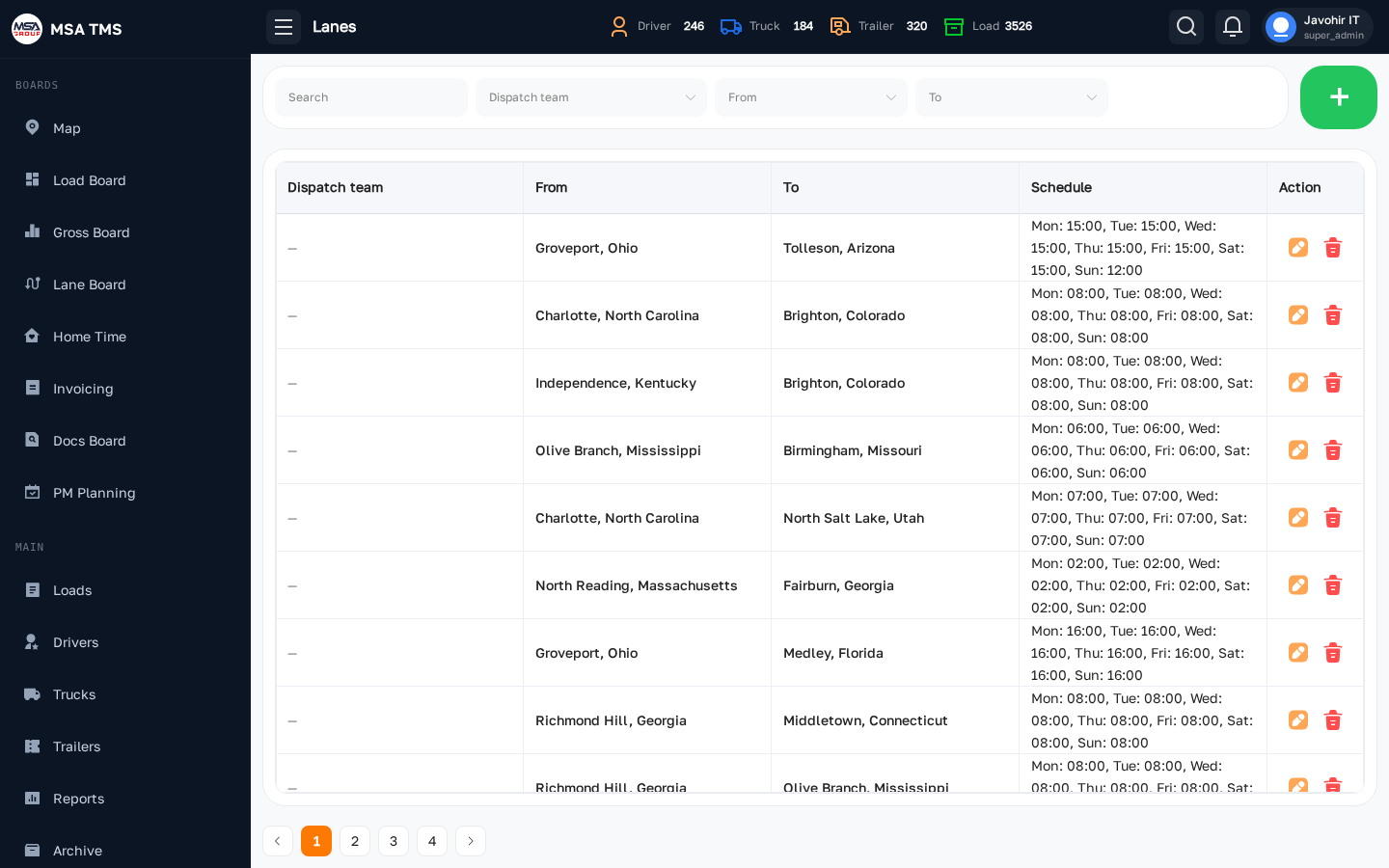
Routes you run regularly, as origin → destination with a weekly schedule. Lanes feed the Lane Board, where you assign a driver to each day, and they can be attached to a load so the route fills itself in.
Columns: Dispatch team, From, To, and Schedule. Filter by search, team, and the origin or destination state.
How to add a lane?
1Open the form
Dispatch → Lanes, then the green +. The Add Lane drawer opens.
2Choose the dispatch team
The team that runs this lane. It's how the Lane Board groups lanes.
3Set From and To
Type the city into the search box and pick it from the list, or use Pick on map. Each end has an optional Description for the facility name or a note like "gate 4, appointment required".
4Set the weekly schedule
Switch on each day the lane runs and give it a time. This is what draws the lane's cells on the Lane Board — a day left off shows as — and can't be assigned.
5Save
Click Save. The lane appears in the list and on the Lane Board straight away, and can be picked when creating a Lane load.
Providers
The companies you work with — brokers, truck owners, and the firms you lease trucks and trailers from.
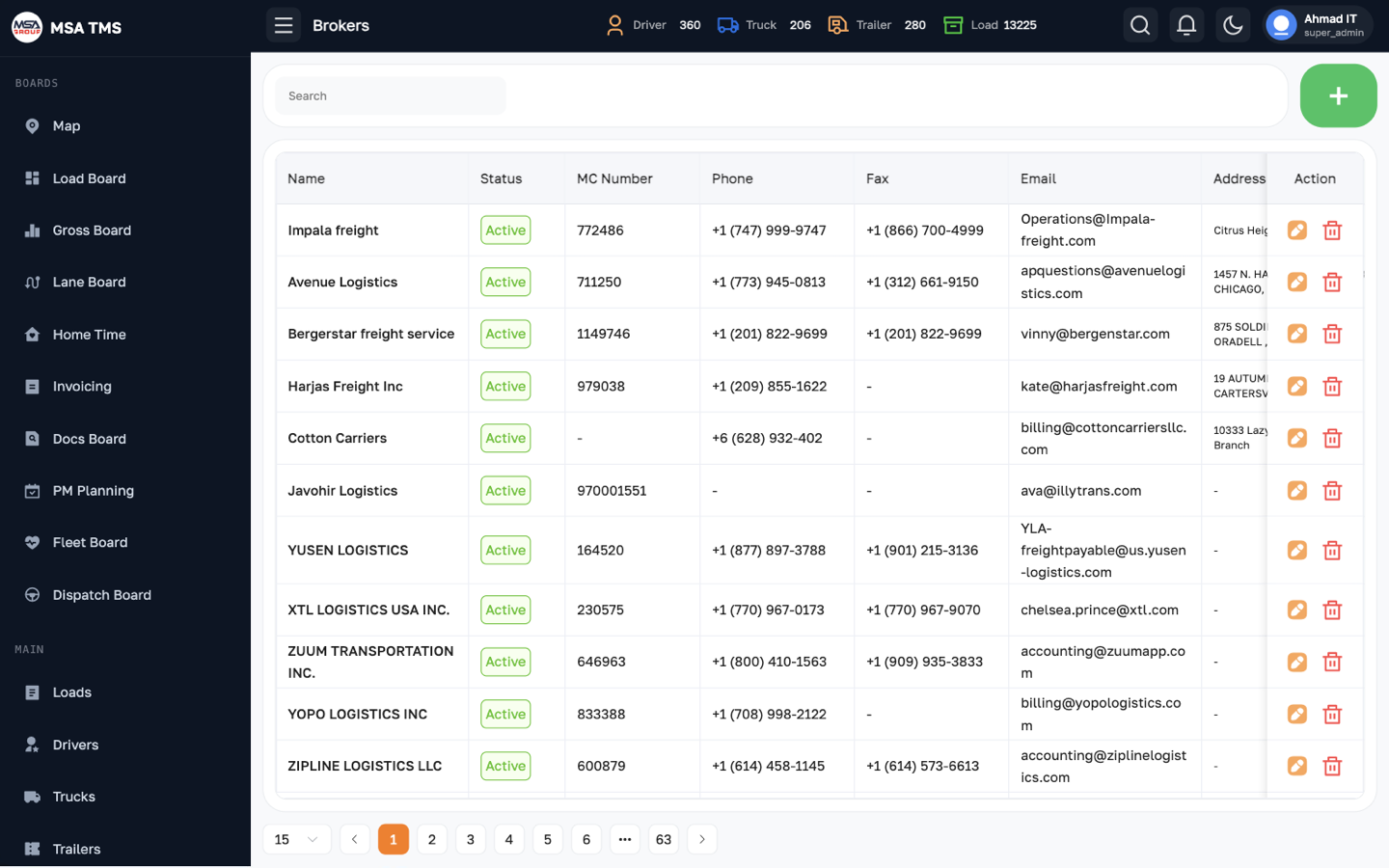
Brokers
The brokers you haul for. Columns: Name, Status, MC Number, Phone, Fax, Email, Address. The Banned switch marks a broker you no longer work with.
Adding a broker
- Click the green +. The Add Broker drawer opens.
- Enter the Name and the MC Number.
- Add the Phone Number, Fax Number, Email and Address.
- Click Save.
Click a broker to open Broker Info: contact details and notes, and every load you've run for them, split into tabs — Active, Invoicing, Invoiced, ShortPaid, Paid, and Cancelled.
Truck Owners
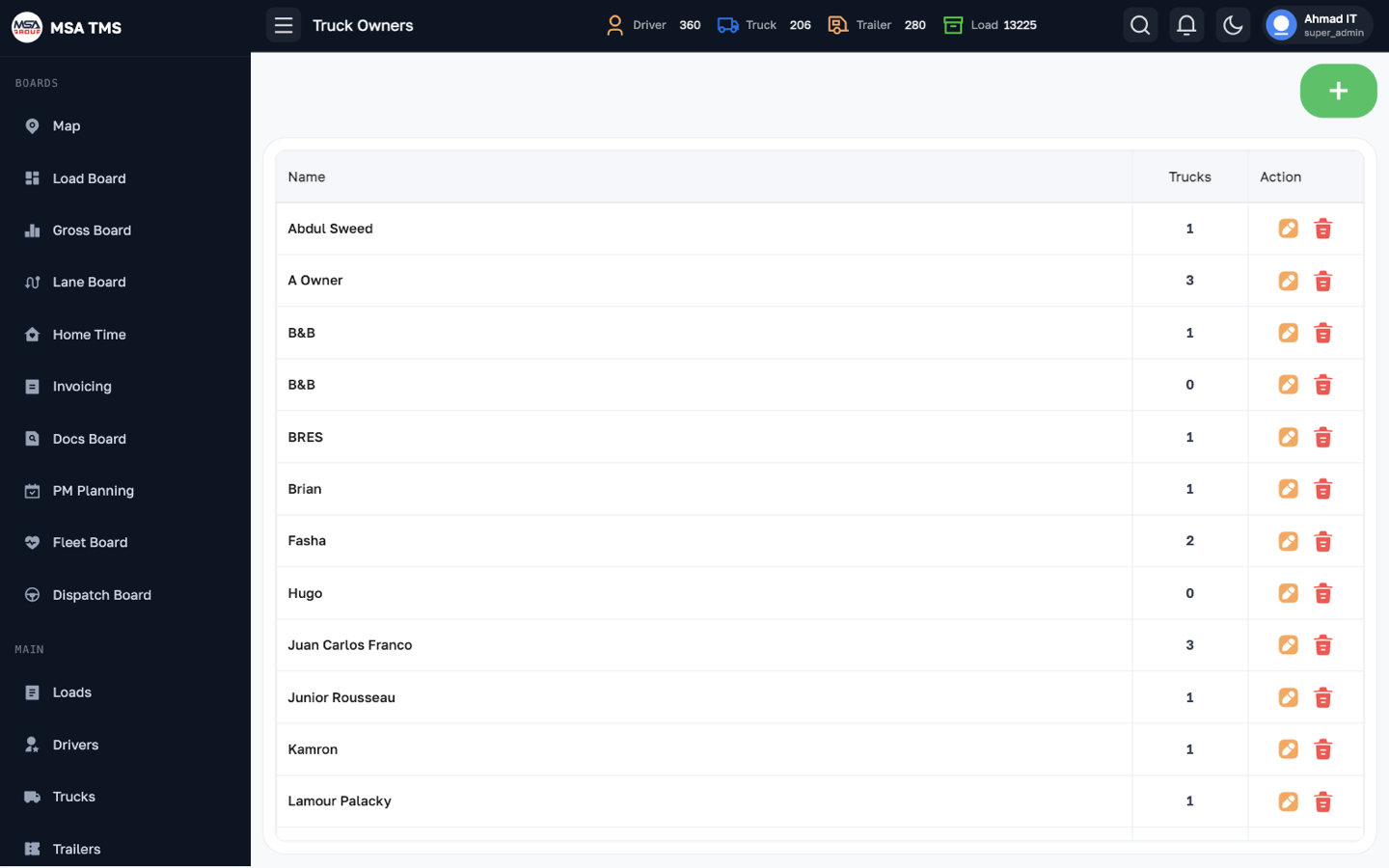
Owners of Owner Operator trucks. The list shows each owner and how many trucks they have. Open an owner to see:
- Trucks — their trucks, current driver, and status.
- Debt — outstanding debt, kept per truck. Click a truck chip to filter; Add debt records a new entry.
- Statements — saved Truck Owner Statements.
The Separated balance setting decides whether the owner's balance is kept per truck or as one combined total.
Trailer Leasing Companies
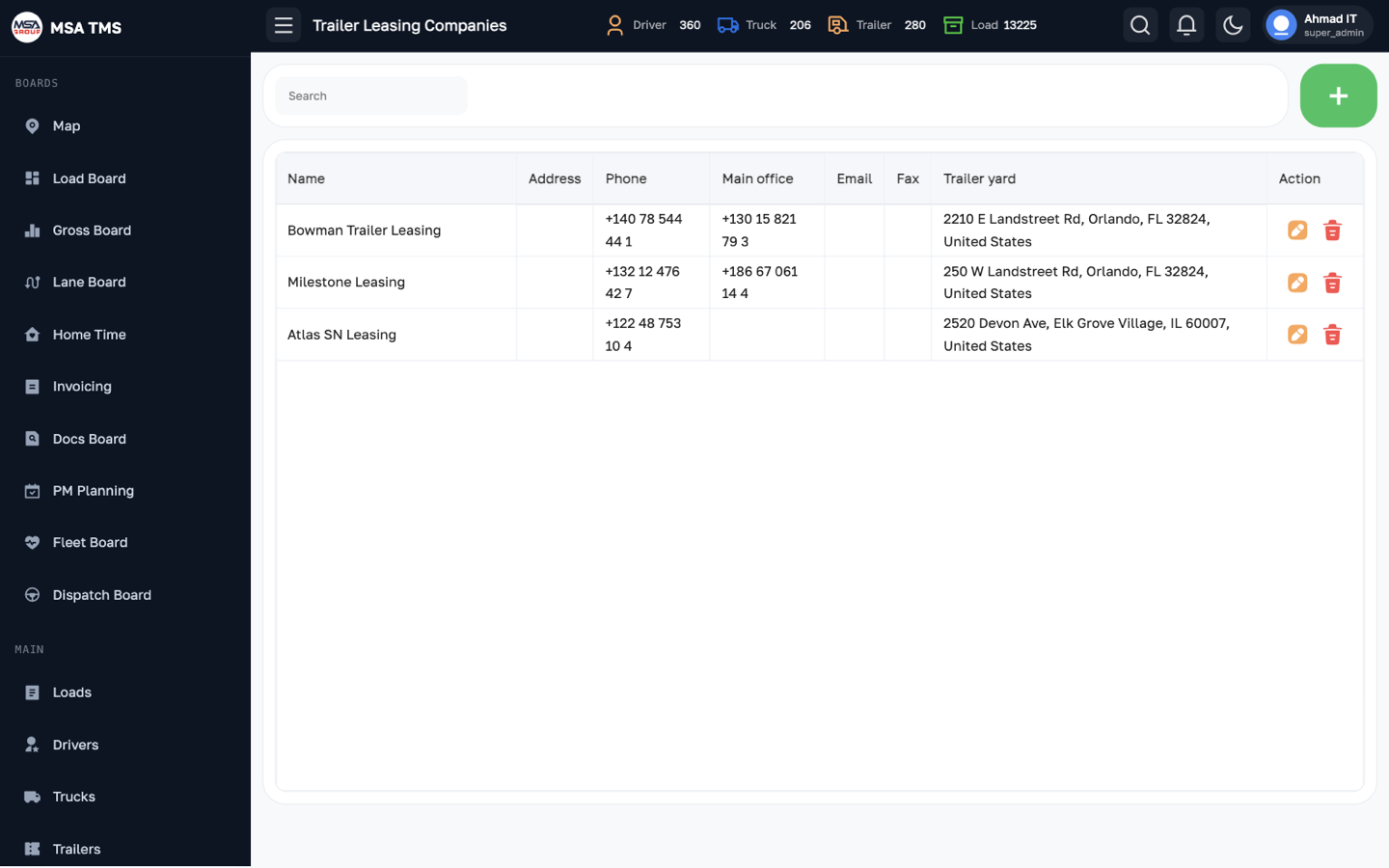
The companies you lease trailers from. Columns: Name, Phone, Email, Fax, Main office, Address, Trailer yard.
Open a company to see its Details (company, contact, locations) and Documents — W9, NOA, COI, and Trailer interchange.
Truck Leasing Companies
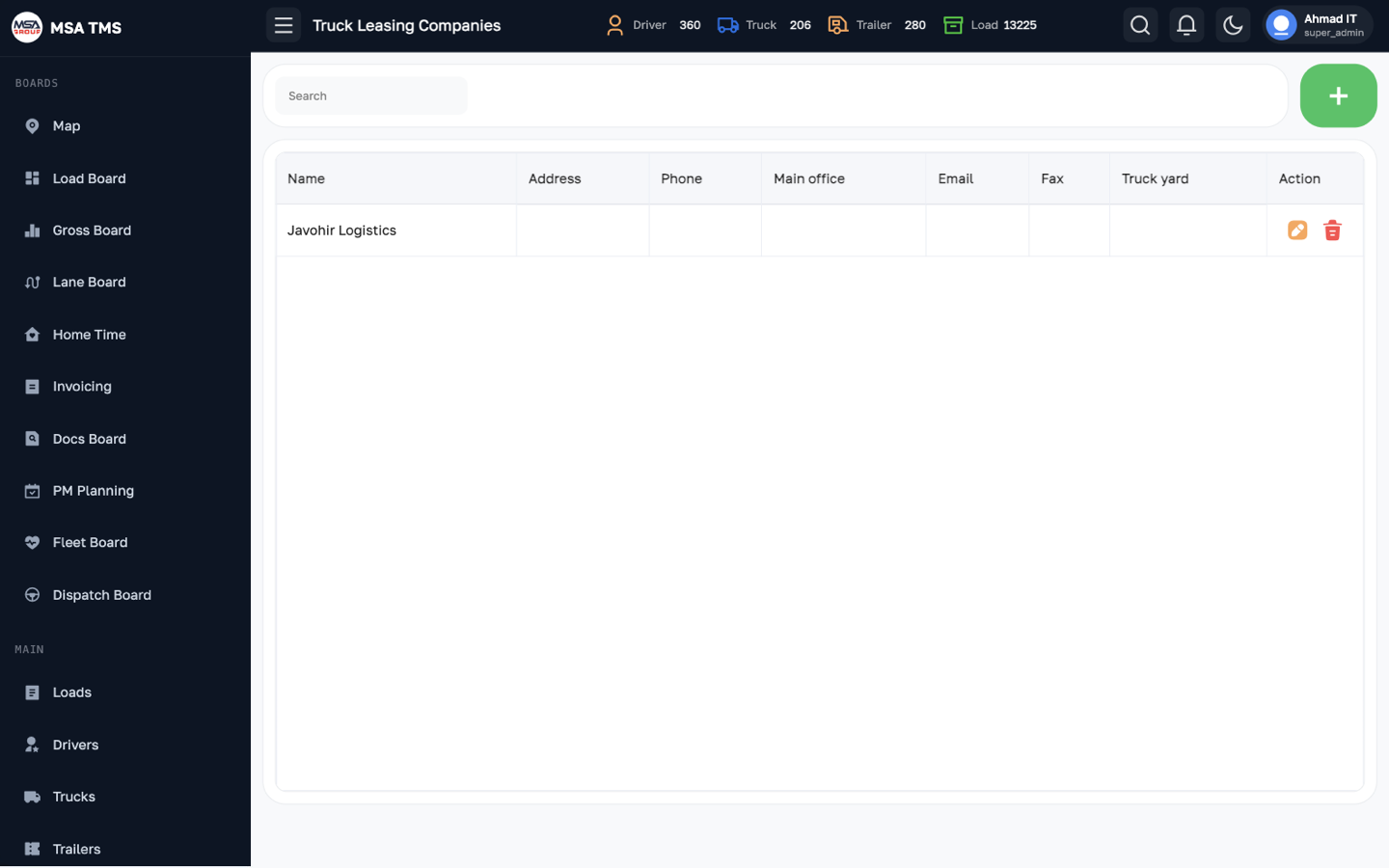
The same as Trailer Leasing Companies, for the companies you lease trucks from (with a Truck yard instead of a trailer yard). A leased truck points to its leasing company from its Fleet tab.
Fleet
Keeping the equipment running: preventive maintenance, repairs, photo control, devices and shops.
PM (Preventive Maintenance)
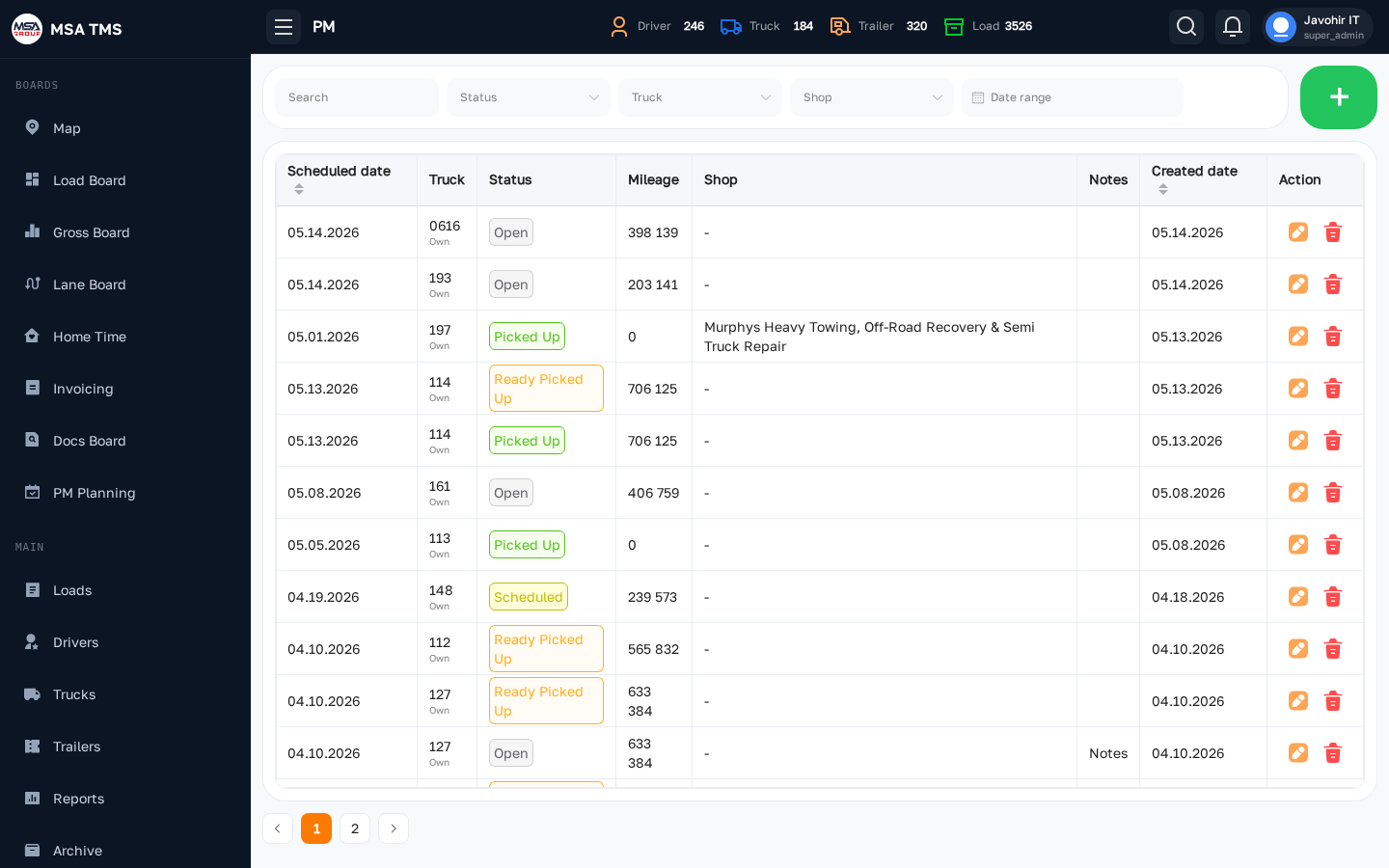
The log of completed PMs. Filter by search, truck, shop, and date range. Columns: Date, Truck, Mileage, Shop, and Notes.
Adding a PM
- Click the green +. The Add PM Planning drawer opens.
- Set the Date and pick the Truck.
- Check Current milage (miles) — it is filled in from the truck's live odometer.
- Pick the Shop and add Notes.
- Click Save.
- Closing a PM request adds a record here automatically.
- Click a row for PM Info; click the truck to open the truck.
- Each new PM moves the truck's Next PM on PM Planning.
Repair
Every repair on a truck or trailer — switch with the Truck / Trailer tabs. Filter by search, shop, status (Open, Scheduled, Picked Up, Cancelled), and date range.
Columns: Date, unit, Status, Price, Driver, Issue, Shop, Location, Payment method, Sales Tax, Fleet, Notes, Completed.
Adding a repair
- Click the green +. The Add Repair drawer opens.
- Pick the Truck or the Trailer — whichever was repaired.
- Set the Status, describe the Issue, and set the Date (and Completed Date once it is done).
- Choose the Repair shop, and enter the Price, Payment Method and Sales Tax.
- Attach the shop's invoice, add Notes, and click Save.
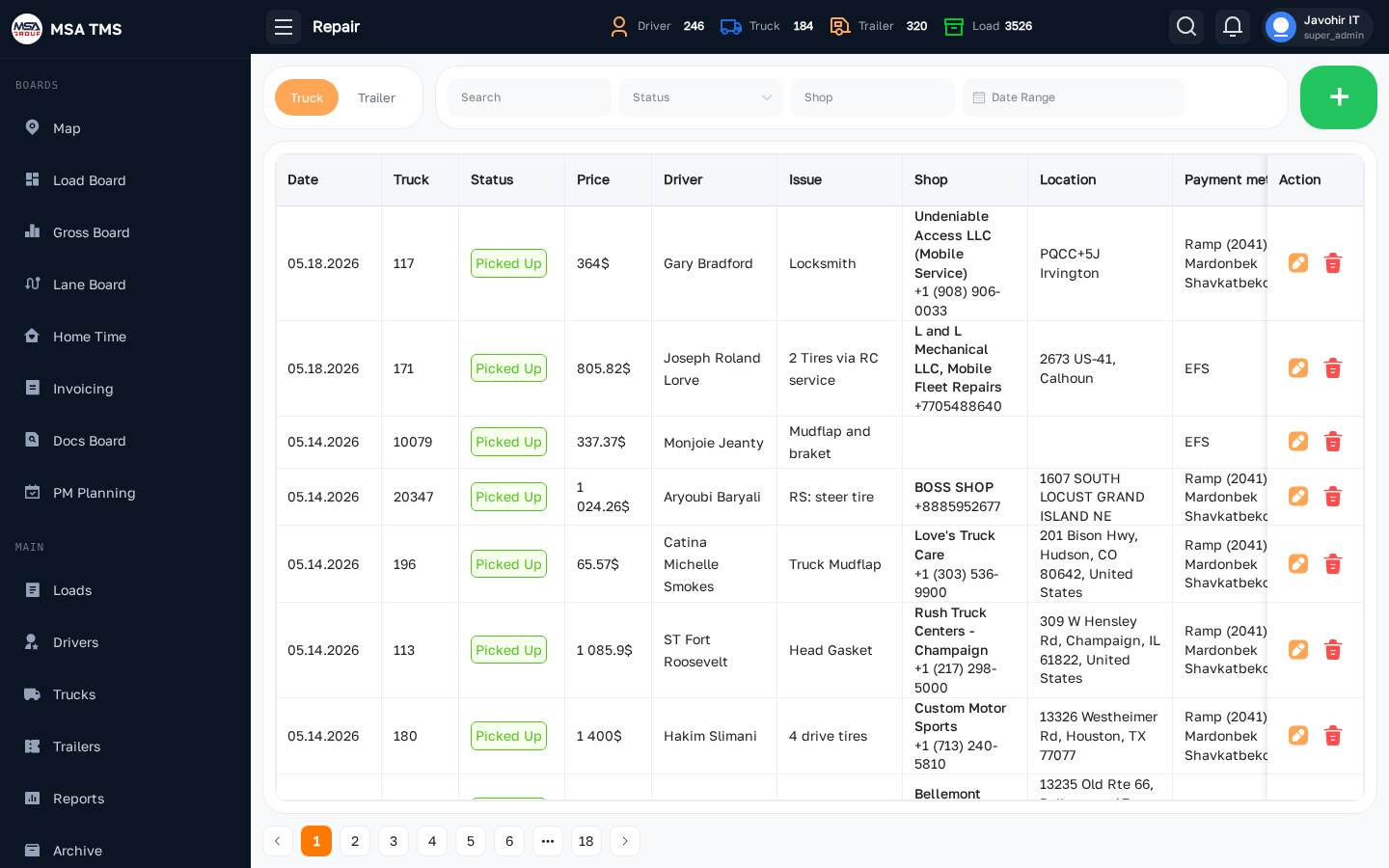
Photo Control
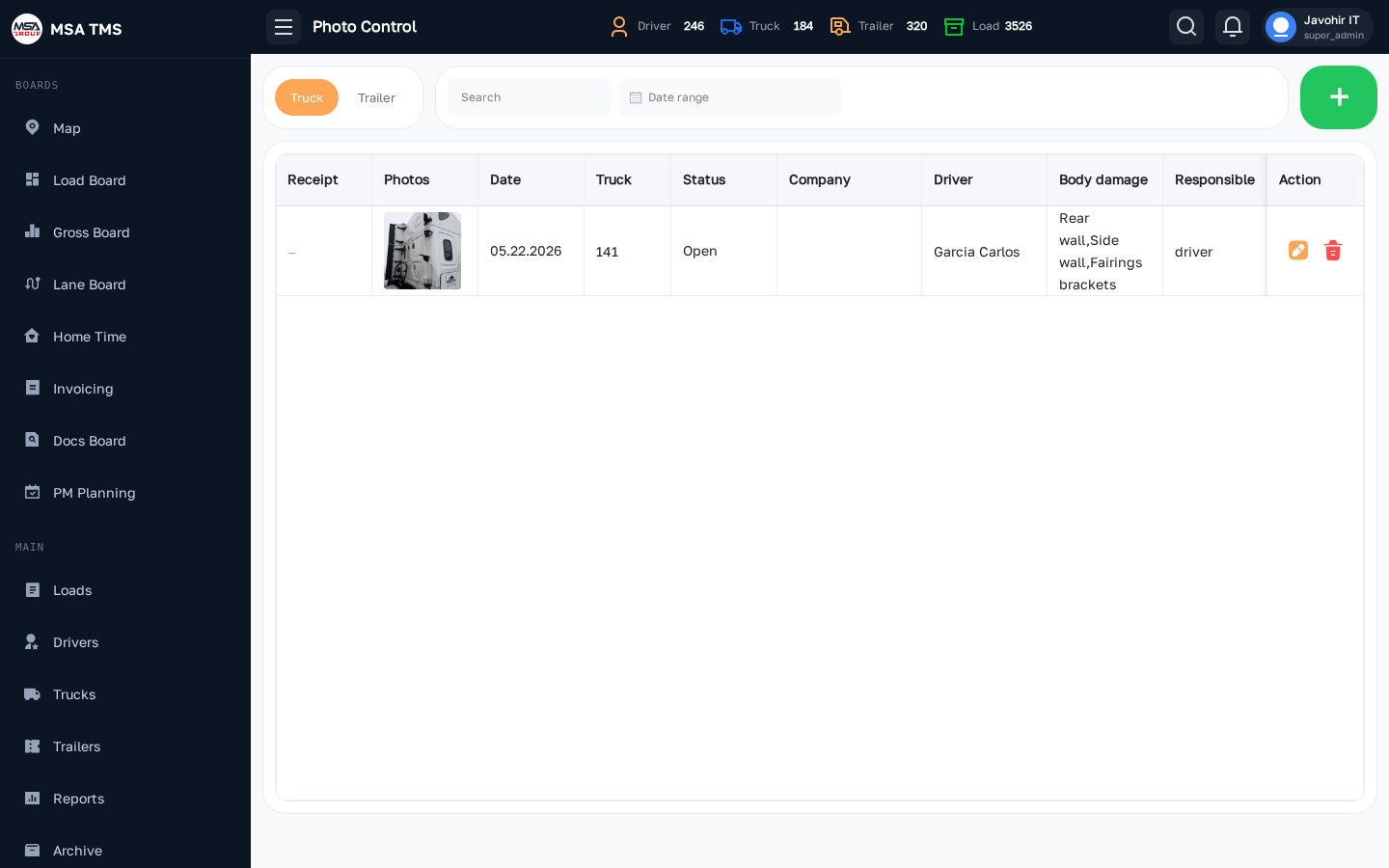
Photo and video checks of trucks and trailers (Truck / Trailer tabs). Each record has the photos and videos, date, unit, company, driver, Body damage, who is Responsible, the Estimated price of any damage, and notes.
Records can be added here, or sent straight from Telegram through
TMSBot's /photocontrol command.
Adding a record
- Choose the Truck or Trailer tab, then click the green +.
- Pick the unit and the Driver, and set the Date.
- Upload the photos and videos.
- If there is damage, describe it under Body Damage, name who is Responsible, and enter the Estimated Price.
- Add Notes and click Save.
Inventory
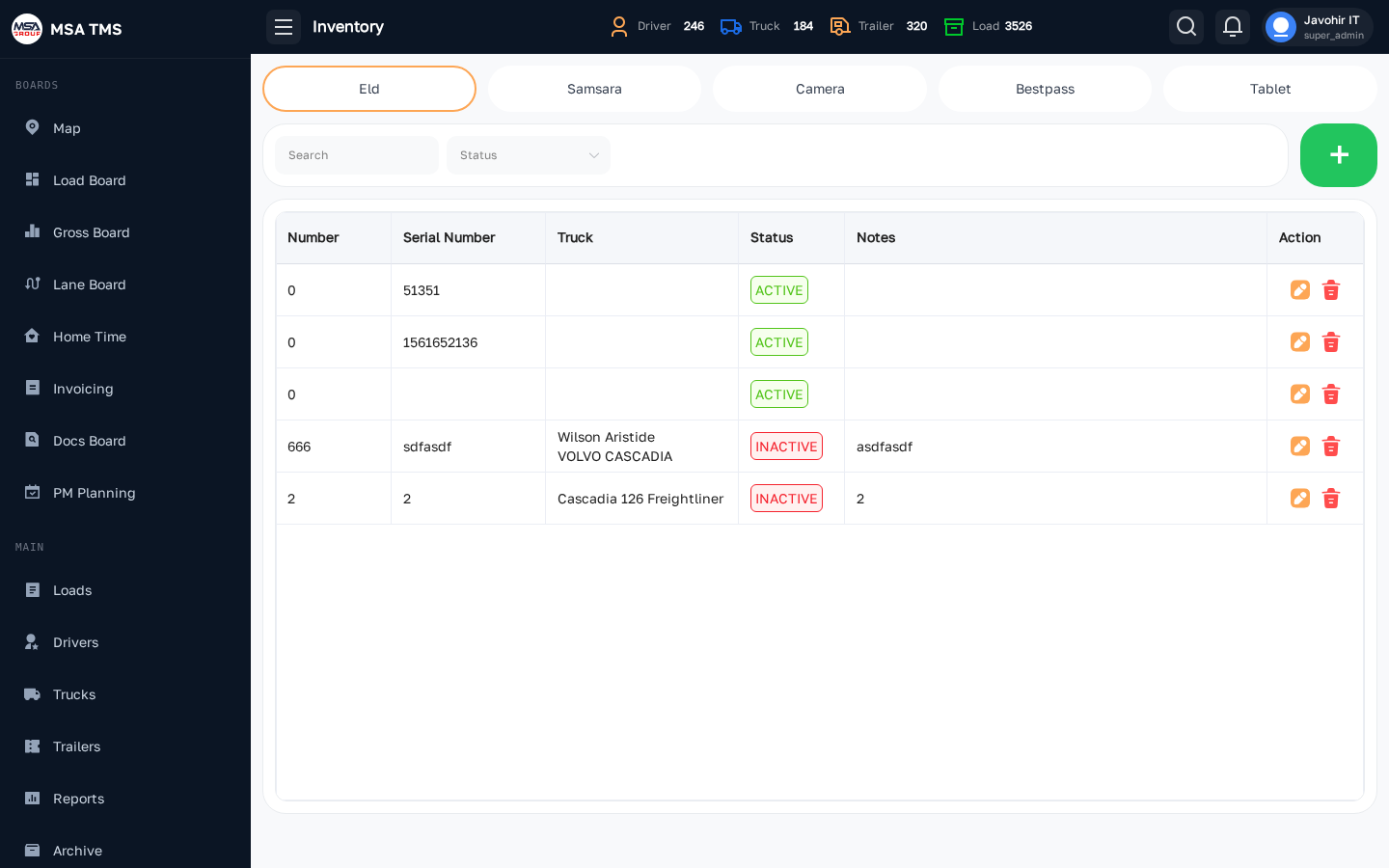
The devices installed in your trucks, one tab per kind: Eld, Samsara, Camera, Bestpass, and Tablet. Each item has a number, serial (or device) number, the truck it's in, a status, and notes.
Adding a device
- Open the tab for the kind of device, then click the green +.
- Enter the Serial Number and the Unit ID.
- Pick the Truck it is installed in and set the Status.
- Add Notes and save.
Shops
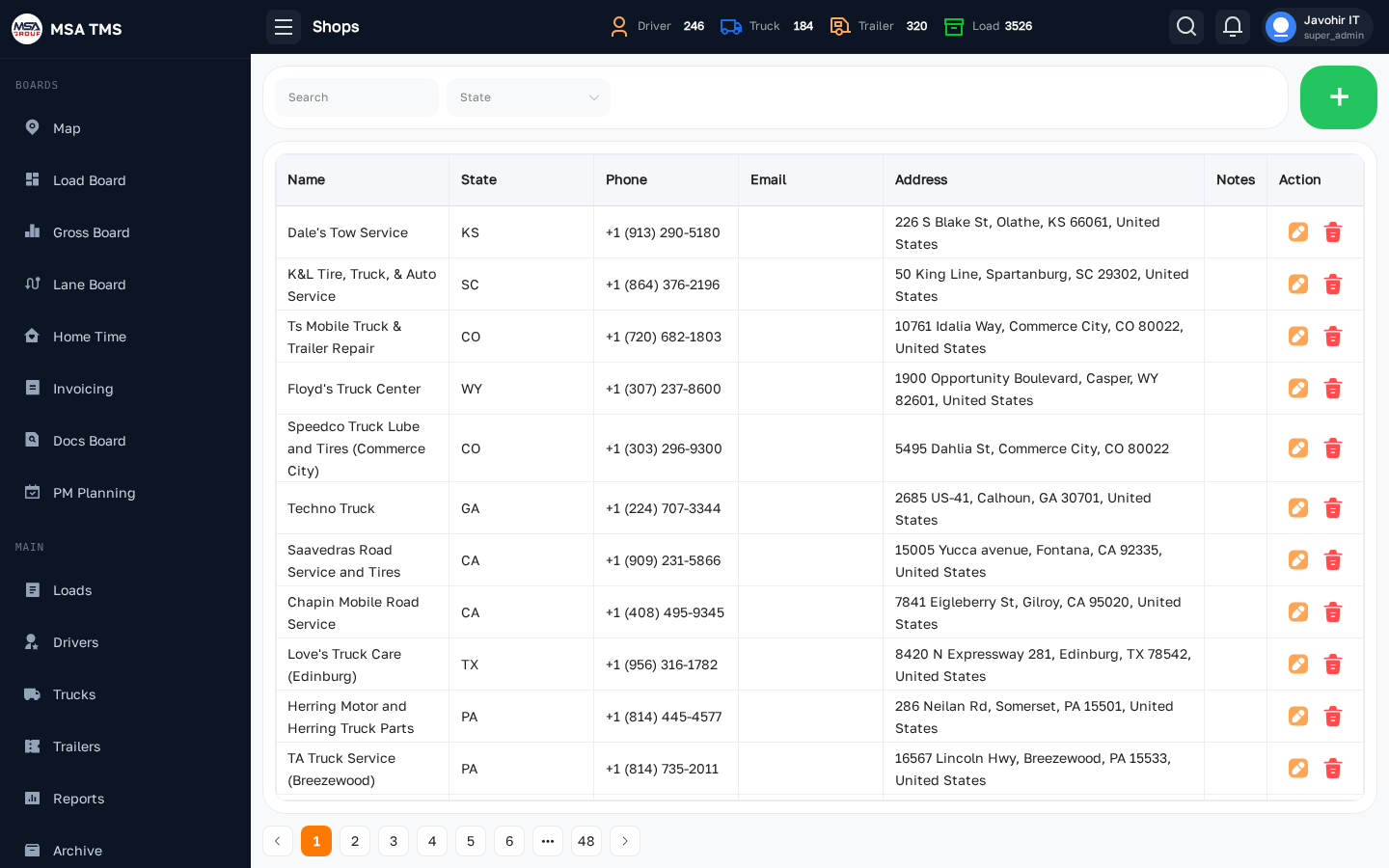
The repair shops you use. Columns: Name, State, Phone, Email, Address, Notes. Shops appear on the Map and in Repair, PM, and PM request forms.
Adding a shop
- Click the green +.
- Enter the Name, Phone Number and Email.
- Pick the State and type the Address. The address is placed on the map — click the map to adjust the pin.
- Add Notes and click Save.
Open a shop to see its PM and Repair history.
Accounting
What the fleet costs — tolls, fuel and every other expense booked against a truck, trailer or driver.
Toll
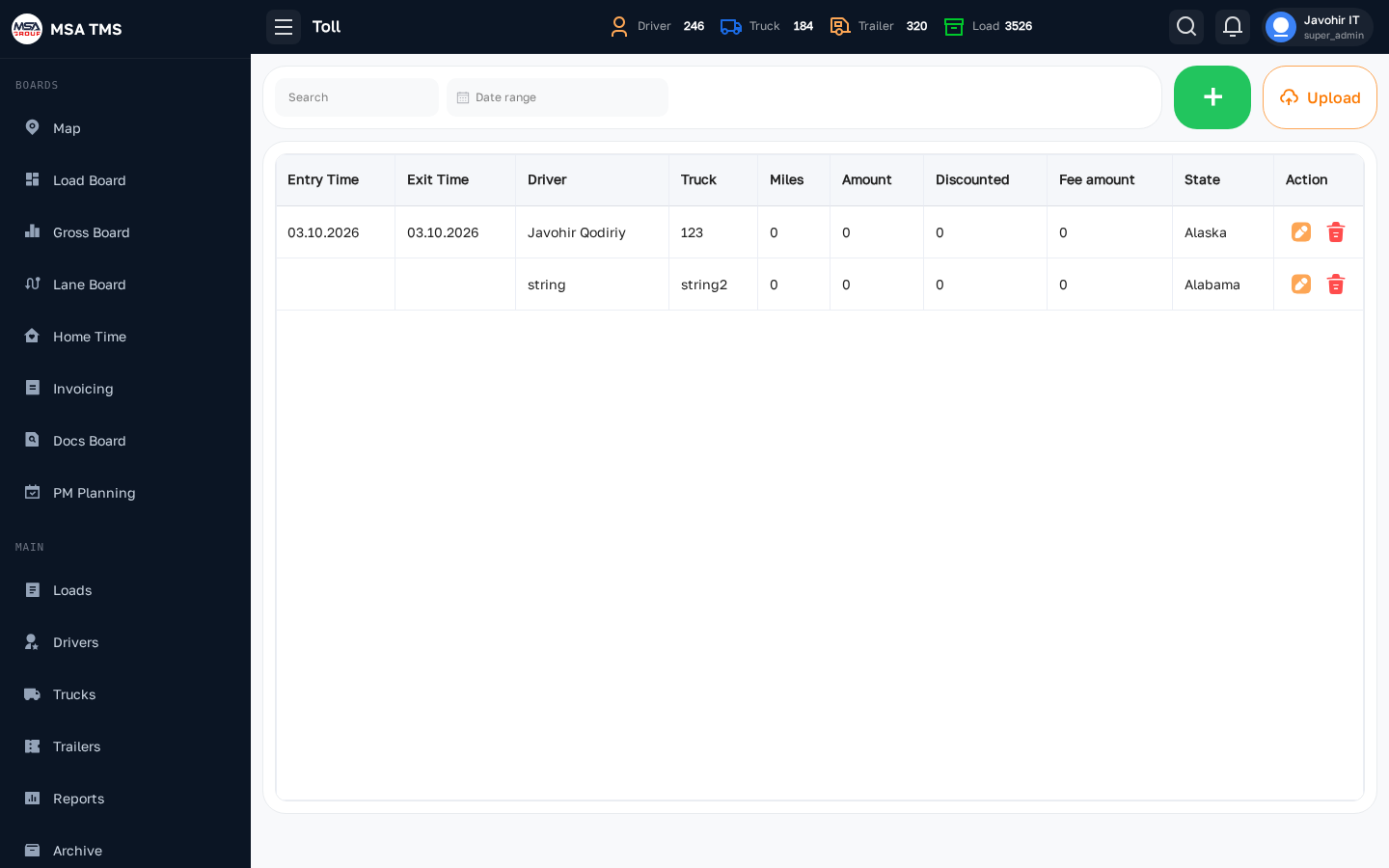
Toll transactions per truck. Columns: Truck, Driver, State, Entry Time, Exit Time, Amount, Discounted, Fee amount, Miles.
Importing a Bestpass file
- Click Upload. Toll import opens.
- Drop in the Bestpass PDF or Excel file.
- Review the rows it read — Truck, Driver, Entry, Exit, State, Amount, Fee. Untick Inc on anything you don't want.
- Save. Import complete confirms it, and Back to Toll list returns you to the table.
Single toll expenses can also be added by hand with the green +.
Fuel
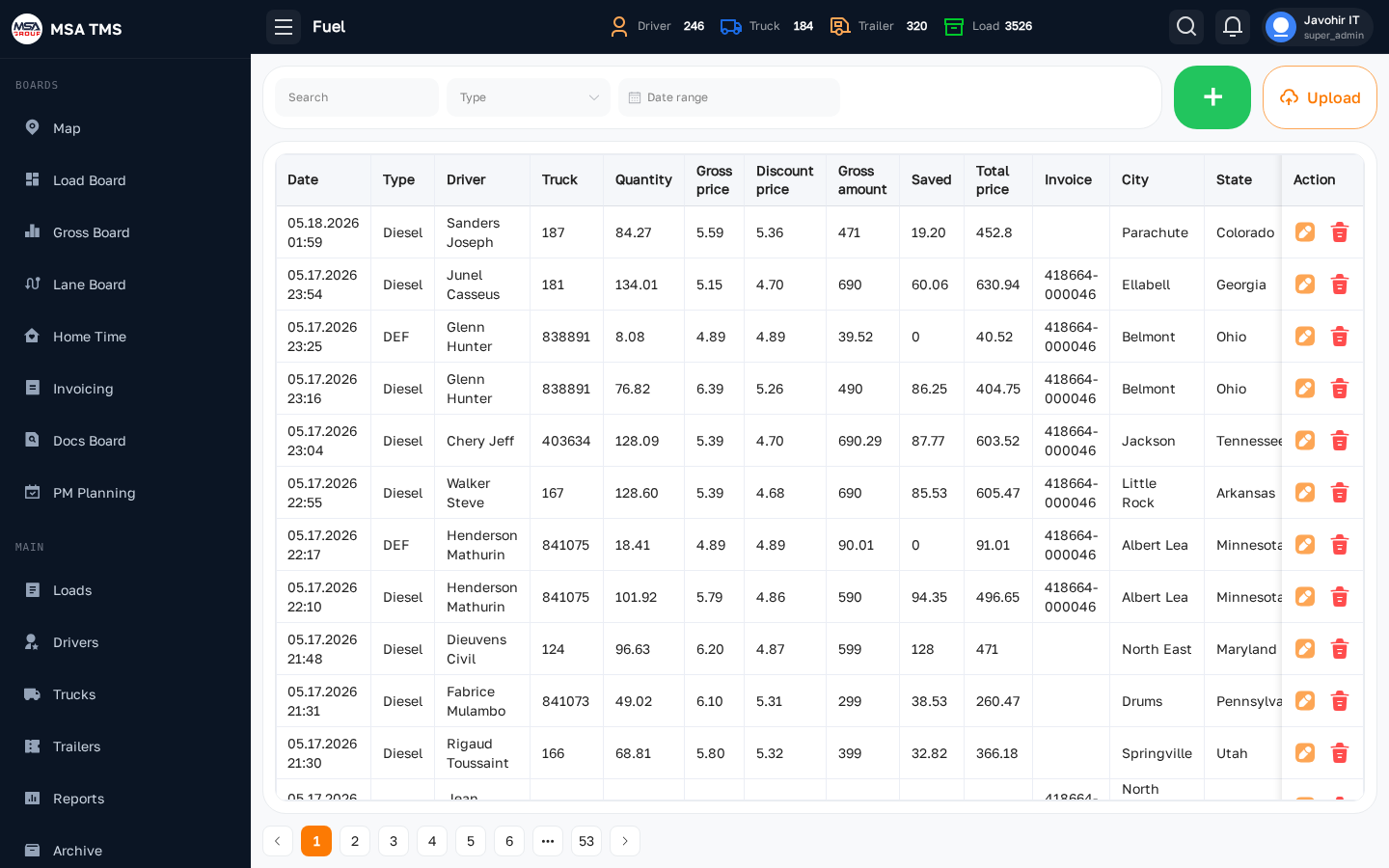
Fuel purchases per truck and driver. Columns: Date, Truck, Driver, Code/Card, Invoice, City, State, Quantity, Gross price, Discount price, Gross amount, Saved, Total price, Type, notes.
Importing a Relay file
- Click Upload. Fuel import opens.
- Drop in the Relay transaction PDF or CSV.
- Review the rows it read, and untick anything you don't want.
- Save.
Suspicious fuel drops are reported in the Fuel Theft report.
Expenses
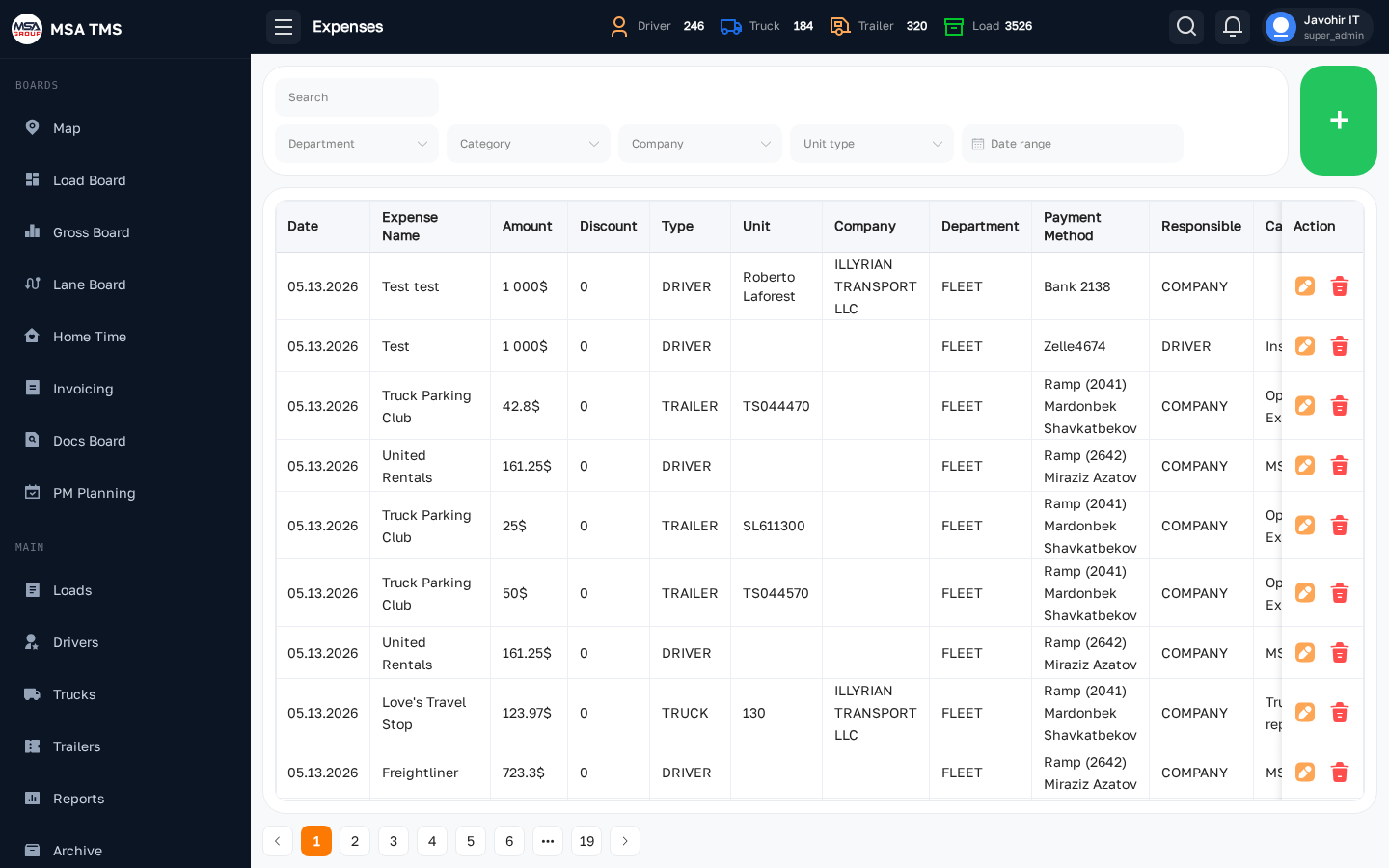
Every other cost tied to a unit — a truck, trailer, or driver. Filter by unit type, company, category, department, and date range. Columns: Date, Unit, Type, Expense Name, Category, Amount, Discount, Department, Responsible, Company, Company Payment, Payment Method, File.
Adding an expense
- Click the green +. The Add Expense drawer opens.
- Choose the Unit type — truck, trailer or driver — and then the unit itself.
- Enter the Expenses Name, the Amount and any Discount.
- Set the Category, Department, Payment Method, Responsible and the Date.
- Attach the receipt and click Save.
- An expense can have sub-expenses (Open sub-expenses).
- A truck's expenses show on its Expenses tab and in the Truck Owner Statement as Unit Expenses.
- Categories and payment methods are managed in Settings.
Safety
Accident and cargo claims, from the first report through to settlement.
Claims
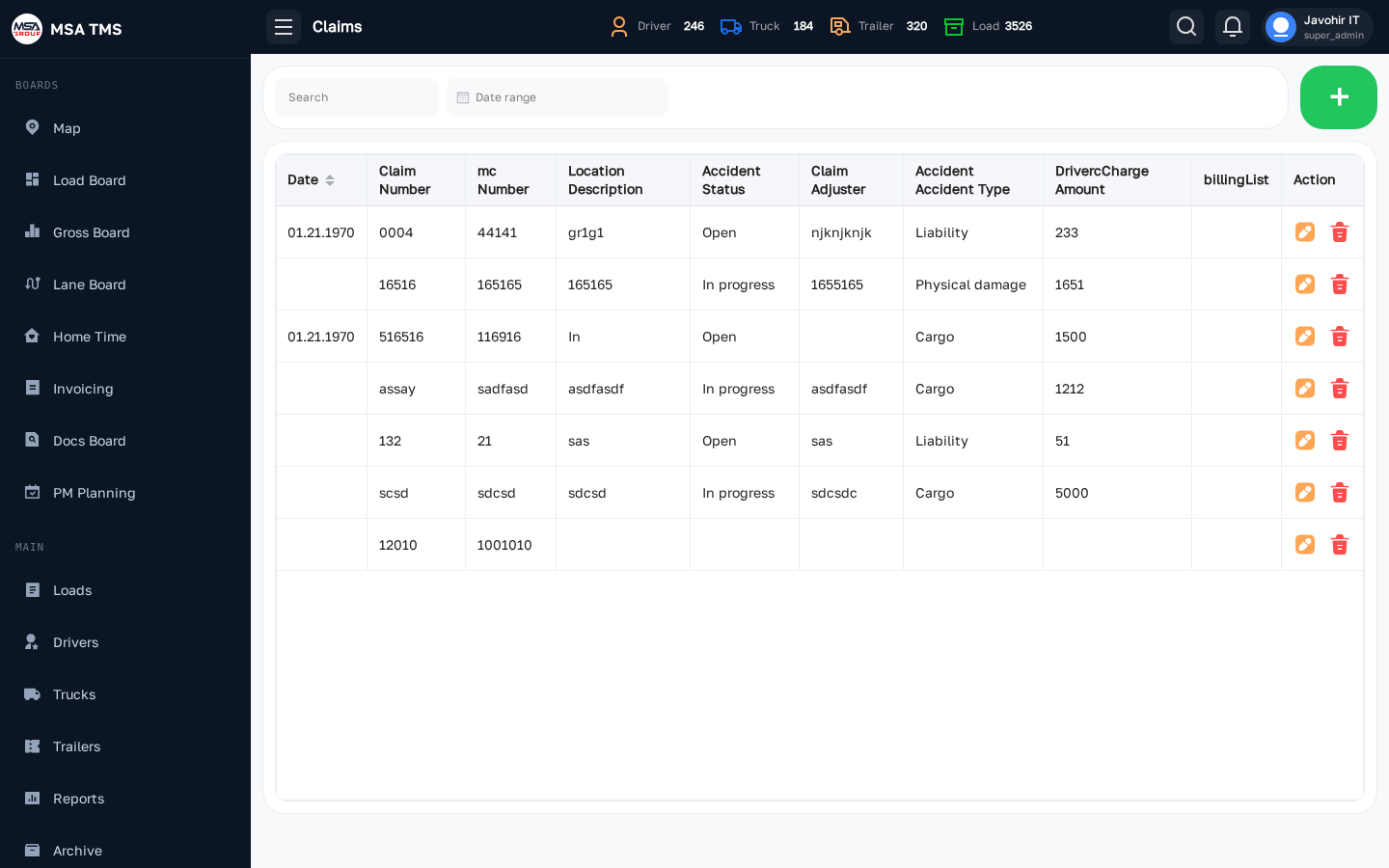
The accident and cargo-claim register. Columns: Date, Claim Number, Accident Type, Accident Status, Claim Adjuster, Driver Charge Amount, Location Description, MC Number.
- Types: Cargo, Liability, Occupational, Physical damage, Subrogation, Trailer interchange.
- Statuses: Open → In progress → Pending → Closed.
Filing a claim
- Click the green +. The Add Claim drawer opens.
- Pick the truck or trailer involved.
- Enter the Claim Number, the Mc Number and the Location description.
- Set the Accident Type and Accident Status, and name the Claim Adjuster.
- Enter the Driver Charge Amount if the driver is charged, then click Save.
Settings
Users and roles, deleted records, automatic rules, outside connections, and the values the rest of the app picks from.
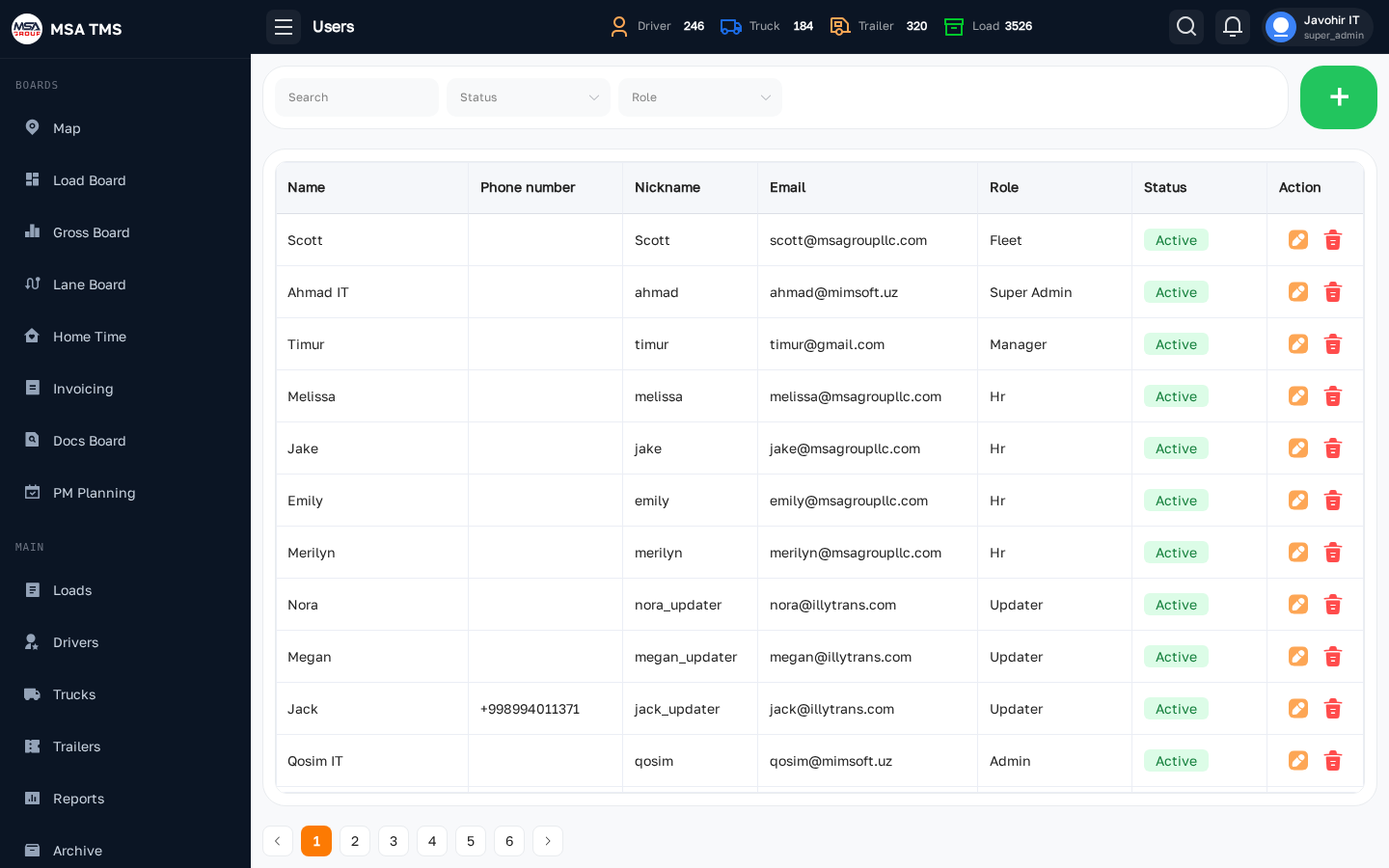
Users
Everyone who can log in. Filter by search, role, and status. Columns: Name, Phone number, Nickname, Email, Role, Status.
Adding a user
- Click the green +. The Add User drawer opens.
- Enter the Name, Nickname and Phone Number.
- Enter the work Email — this is what they sign in with — and set a Password.
- Choose the Role. It decides every page and button they get, so pick the one that matches the job.
- Save, then give them the password. They can change it themselves from Profile.
Open a user to change their role or password, see their active Sessions (device, OS, last activity — and sign them out everywhere), and read their Log.
Archive
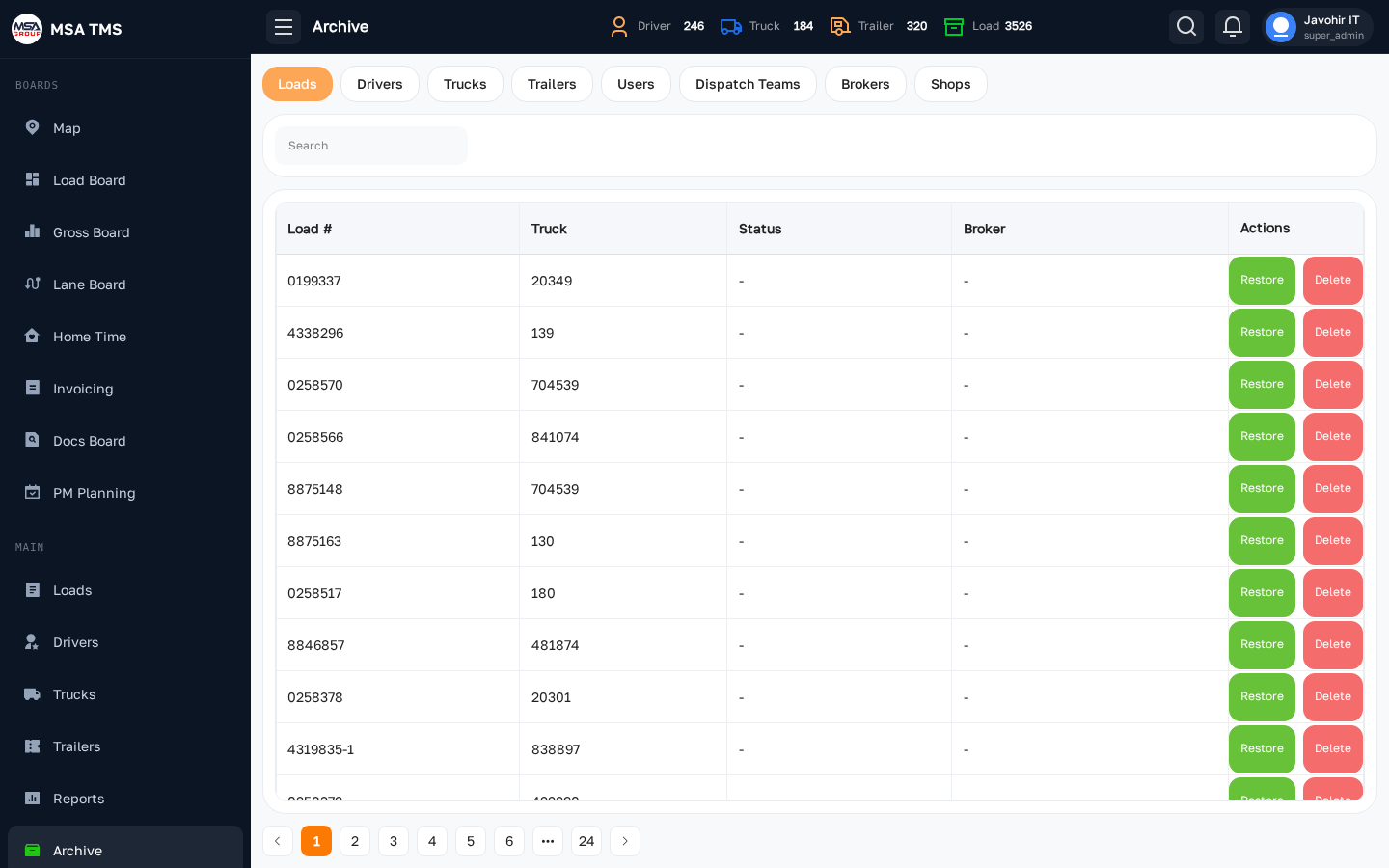
Where deleted records go. Tabs: Loads, Drivers, Trucks, Trailers, Users, Brokers, Shops — each shows when and by whom the record was deleted. Search filters every tab.
- Click a row to open the record's full page in read-only mode.
- Restore brings a record back.
- Permanent Delete removes it for good — this cannot be undone.
Automation New
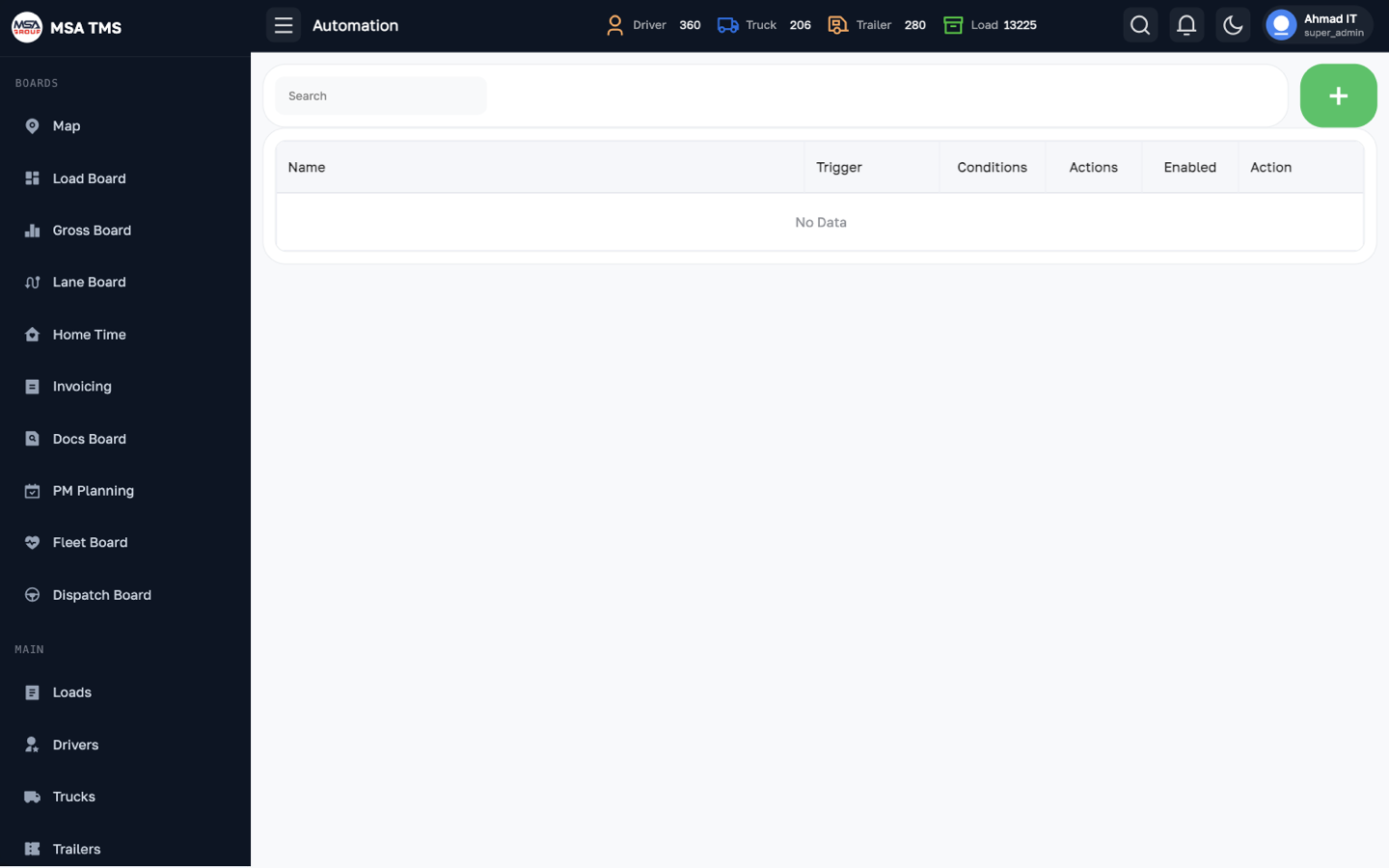
Rules that act on their own. Each rule has a Trigger, Conditions, and Actions, and can be switched on or off.
- Trigger: an entity event (something changes in TMS), a schedule, or an incoming webhook.
- Conditions: all must match (AND) or any may match (OR).
- Actions: send an email notification, call a webhook, or call an internal API.
- Run history shows every time a rule ran.
Creating a rule
- Click the green +. Add automation rule opens.
- Give it a Name and a Description, and leave Enabled off until you have tested it.
- Set the Trigger: an entity event, a schedule, or a webhook.
- Add Conditions and choose whether all must match or any may.
- Add the Actions — an email, a webhook call, or an internal API call — then save and switch it on.
Integrations
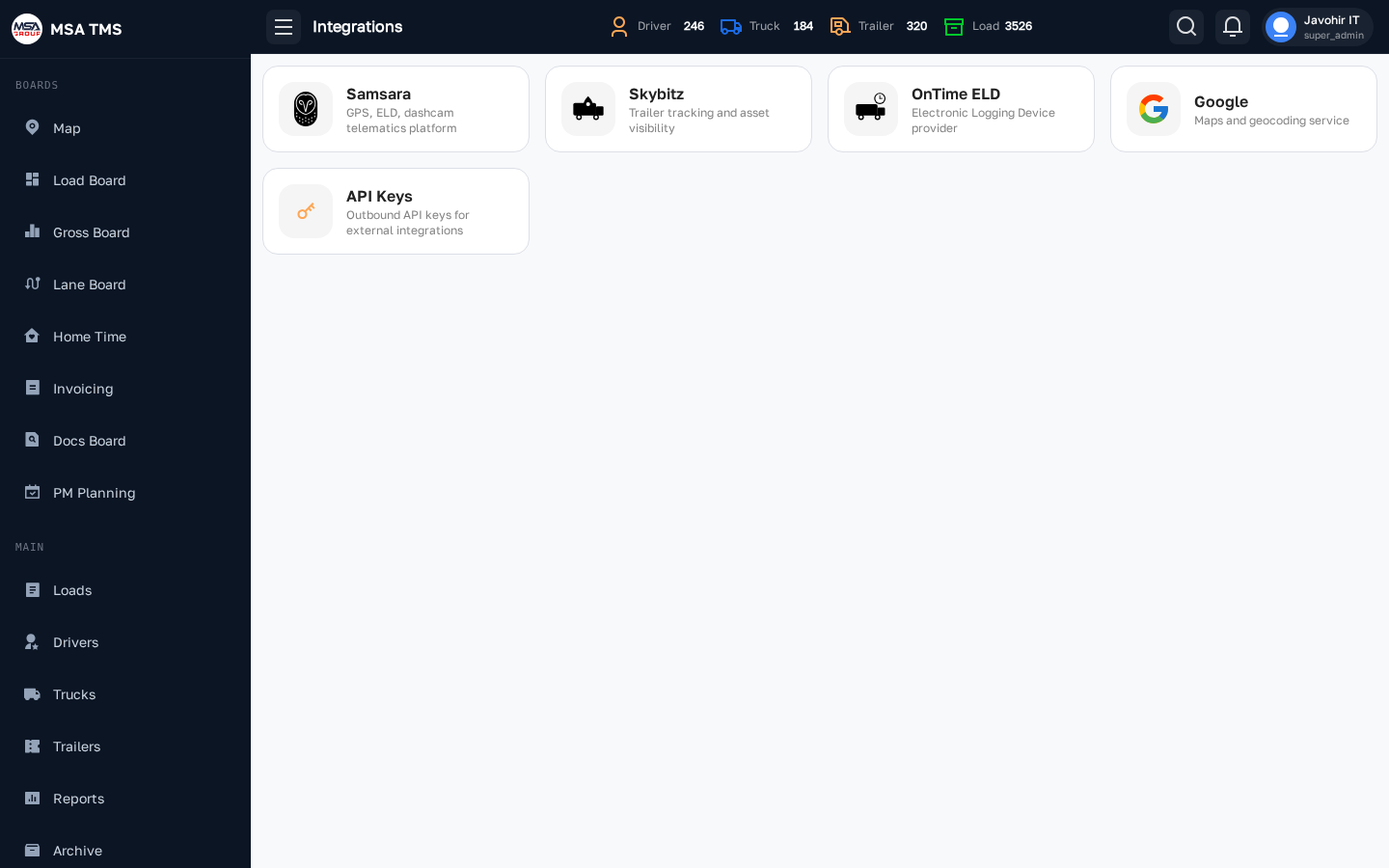
Connections to outside services. Each card opens its own page:
| Card | What it does |
|---|---|
| Samsara | Truck GPS, fuel, and odometer. Vehicle list, map, and company tokens. |
| Skybitz | Trailer trackers — location, battery, and cargo (loaded / empty). |
| OnTime ELD | ELD trucks and drivers, with a map. |
| Five ELD New | A second ELD provider, set up like OnTime ELD. Fills in truck address, state, odometer, speed, and fuel. |
| TriumphPay | Connect with your MC and DOT numbers to submit invoices. |
| Triumph (Factoring) | SFTP settings for sending invoices to factoring. |
| Email / SMTP | The address TMS sends email from; send a test email. |
| TMSBot New | The Telegram bot's token and on/off switch. |
| API Keys | Keys for other systems to call TMS. A new key is shown only once. |
Which provider a truck uses is chosen on the truck's Integration tab.
TMSBot (Telegram) New
TMSBot lets staff file Photo Control records from Telegram. Everything the bot does is done as you — with your permissions, your carrier, and your name in the log.
Signing in
- Open the bot in Telegram and send
/login. - Send your TMS email, then your password. The bot deletes your password message from the chat.
- If you belong to several carriers, pick one.
/logout signs you out; /cancel stops whatever you're doing.
Sending photo control
- Send
/photocontroland choose Truck or Trailer. - Send the unit number.
- Send the photos and videos (regular videos, video notes, and video files all work). Telegram limits each file to 20 MB.
- The bot files the record and asks for the next unit number — your Truck / Trailer choice is remembered, with a one-tap switch to the other type.
Settings
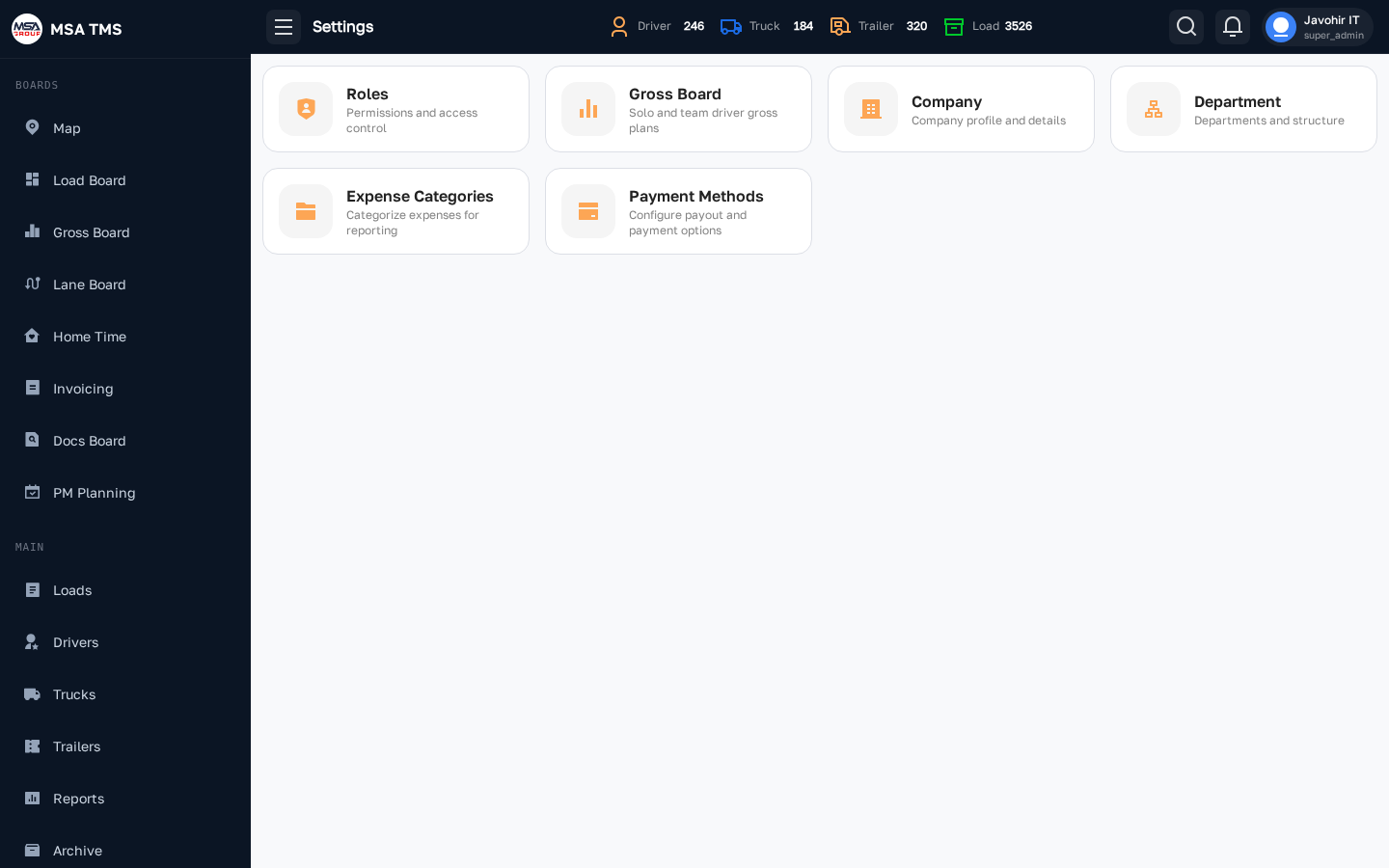
A grid of setting pages. Each card shows only if your role allows it:
- Roles — permission sets assigned to users. Roles you created can be deleted.
- Gross Board — the weekly Plan ($) for solo drivers and for Driver Teams.
- Company — your own carrier companies: MC, DOT, EIN, SCAC, contacts, yards, payment type, and documents (W9, NOA, COI, MC Authority, Trailer interchange).
- Department — internal departments used on expenses.
- Expense Categories — categories for Expenses.
- Deduction Types — see below.
- Payment Methods — used on expenses and repairs.
Deduction Types New
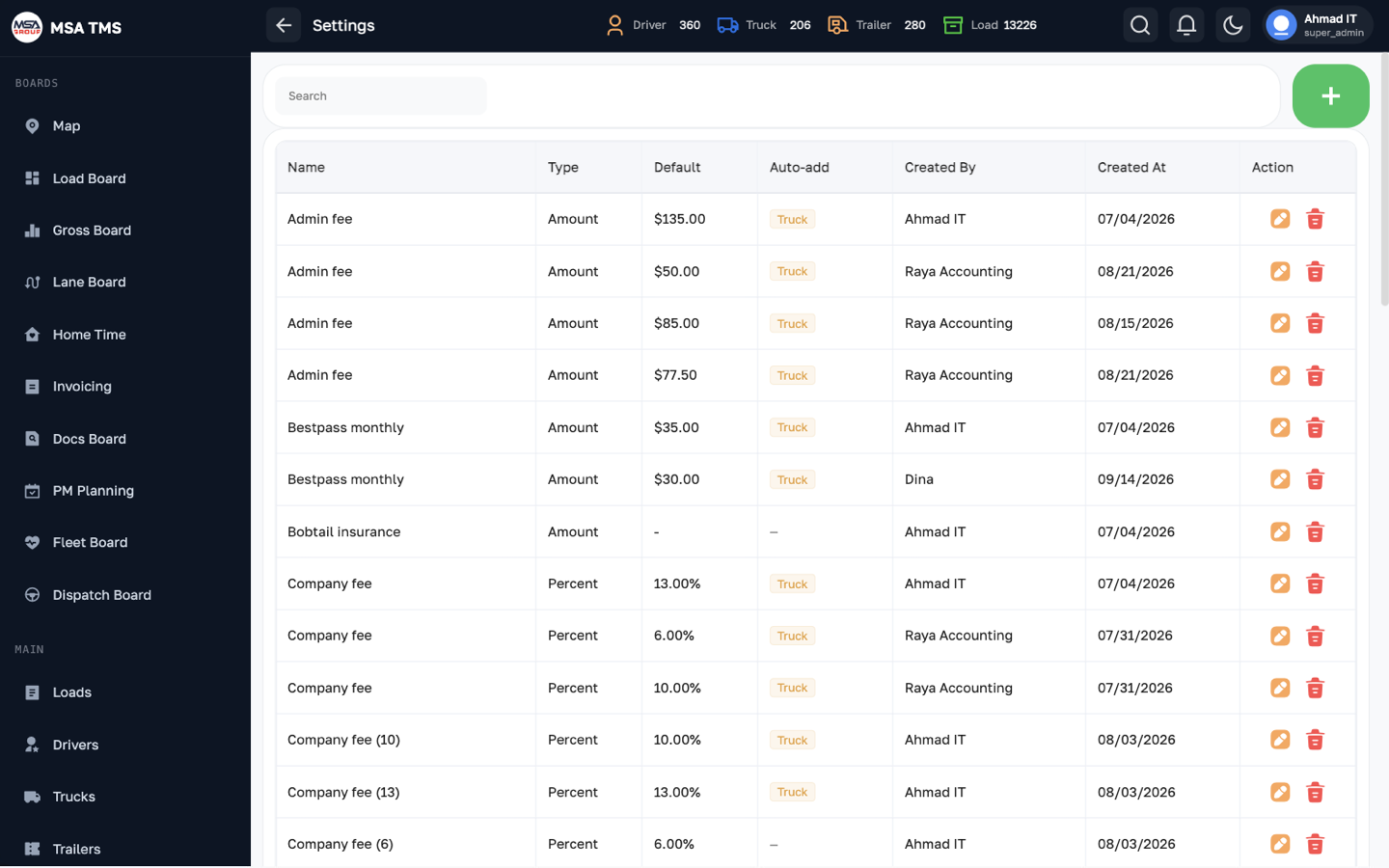
The list of deductions that can appear on statements (e.g. insurance, ELD fee, trailer rent). Each type has:
- Name.
- Type — a fixed Amount ($), or a Percent (%) of the statement's load gross.
- Default value.
- Auto-add switches — add it automatically to Truck Owner statements, driver statements, or Lease driver statements only. Each can be limited to chosen trucks or drivers; leaving the picker empty means all.
Adding a type
- Open Settings → Deduction Types and click the green +.
- Enter the Name.
- Choose the Type — Amount ($) or Percent (%) — and set the default value.
- Switch on the statements it should add itself to, and narrow it to chosen trucks or drivers if it doesn't apply to everyone. Leave a picker empty for all.
- Click Submit.
On a statement you can still add, change, or remove deductions by hand before saving.
Reference
The meanings behind the badges and rules — statuses, the carrier week, permissions, and the questions that come up most.
Load statuses
Every load carries one of these statuses. Colours are the same on the Loads list, Load Info, the Load Board, and Invoicing.
Changing a load's status
- Upload the document the next status needs first — the RC before En Route, the POD before Delivered. Without it the status won't move.
- Click the status chip on the Loads list or the Load Board, or the Status card on Load Info.
- Pick the new status. On On Hold, leave a note saying why; on Cancelled, enter the Tonu if one is owed.
| Status | Meaning | Rule |
|---|---|---|
| Upcoming | Booked and assigned, not picked up yet. The starting status of every new load. | |
| En Route | Picked up and on the way to the destination. | Needs a Rate Confirmation on the load. |
| On Hold | Paused — not moving, not cancelled. Always leave a note explaining why. | |
| Delivered | Delivered and the POD collected. The load appears on Invoicing. | Needs a POD on the load. |
| Rejected | The load was withdrawn or declined before it moved. | Counts no loaded miles. |
| Cancelled | Pulled after it was scheduled or started. A TONU (Truck Order Not Used) fee may be owed — enter it in the load's Tonu field. | Counts no loaded miles; appears on the Invoicing Canceled tab. |
| Closed | Finished and fully reconciled. |
Payment statuses
Separate from the load status, a delivered load has a payment status used on Invoicing: Ready, Invoicing, Invoiced, Paid, Short Paid, Over Paid, Disputed, Rejected, Denied, Chargeback.
Statement status
Load Info shows whether the load is on a driver statement and an owner statement: Not generated, Generated, or — for owner statements only — Duplicate, which means the load is on two or more owner statements and someone may be paid twice. Click a badge to open the statement. Once a statement exists, the load is locked.
Driver & truck statuses
Driver (and Driver Team) status
| Status | Meaning |
|---|---|
| Ready | Empty and waiting for a load. Shown on the Dispatch Board with how long. |
| PU · PU checked in | Heading to / checked in at pickup. |
| En Route | Loaded and driving to delivery. |
| Unloading | At the receiver. |
| Home | On home time. |
| Hold | Held — shown grey on the Gross Board. |
| Sleeping | On a rest break. |
| OOS | Out of service. |
| Trailer move | Moving a trailer, no load. |
| ELD · DOT | Stopped for an ELD issue / a DOT inspection. |
A Driver Team has its own status, which is also shown on its members.
Truck status
Rolling (working), Shop (including Need Inspection, Accident, Parking, Towing yard), Vacant (no driver), and Attention. Sub Unit trucks can only be Rolling, Shop, or Vacant.
Trailer status
Rolling, Shop, Parking, Dropped, Misused, Others, and Returned (given back to the leasing company — not counted as active).
Carrier week & time zone
- Eastern time. Every date and time in TMS is shown and entered in America/New_York time, whatever your computer's time zone.
- Carrier week runs Monday to Sunday. Weeks are numbered from the carrier's start date. Dispatch Teams, Driver Teams, the Gross Board, and statements all work week by week.
- Loads spanning two weeks. A load's miles and gross can be split across weeks in its Week Split. Every Monday at 00:00 Eastern, an en-route load's remaining GPS distance is moved into the new week automatically.
Permissions, in short
Permissions are set per role in Settings → Roles. For each area a role can have Read, Update, Create, and Delete rights. Turning on Update, Create, or Delete also turns on Read. Admin roles have every permission.
Special permissions worth knowing:
| Permission (as shown in the role editor) | Allows |
|---|---|
| Main Loads Edit After Statement | Editing or deleting a load that is already on a driver or owner statement. Held by Accountant, Manager and higher roles, not by dispatchers or updaters. See Locked after statement. |
| Main Loads Week Split | Editing a load's Week Split. |
| Load Payment Status | Changing a load's payment status and generating its invoice. |
| Driver History | Adding, editing, or deleting a driver's status, dispatcher, and truck history. |
| Reports → Driver Statement, PL per Truck, Fuel Theft, Load Status… | Each report card on the Reports page. |
| Fleet Board · Dispatch Board | The two new boards. Dispatcher roles need Dispatch Board added by an admin. |
| Driver Teams | The Driver Teams page (read / create / update / delete). |
If a screen or button is missing, ask an admin to update your role. The change reaches you within about five minutes.